without compat modules, without Luma baggage
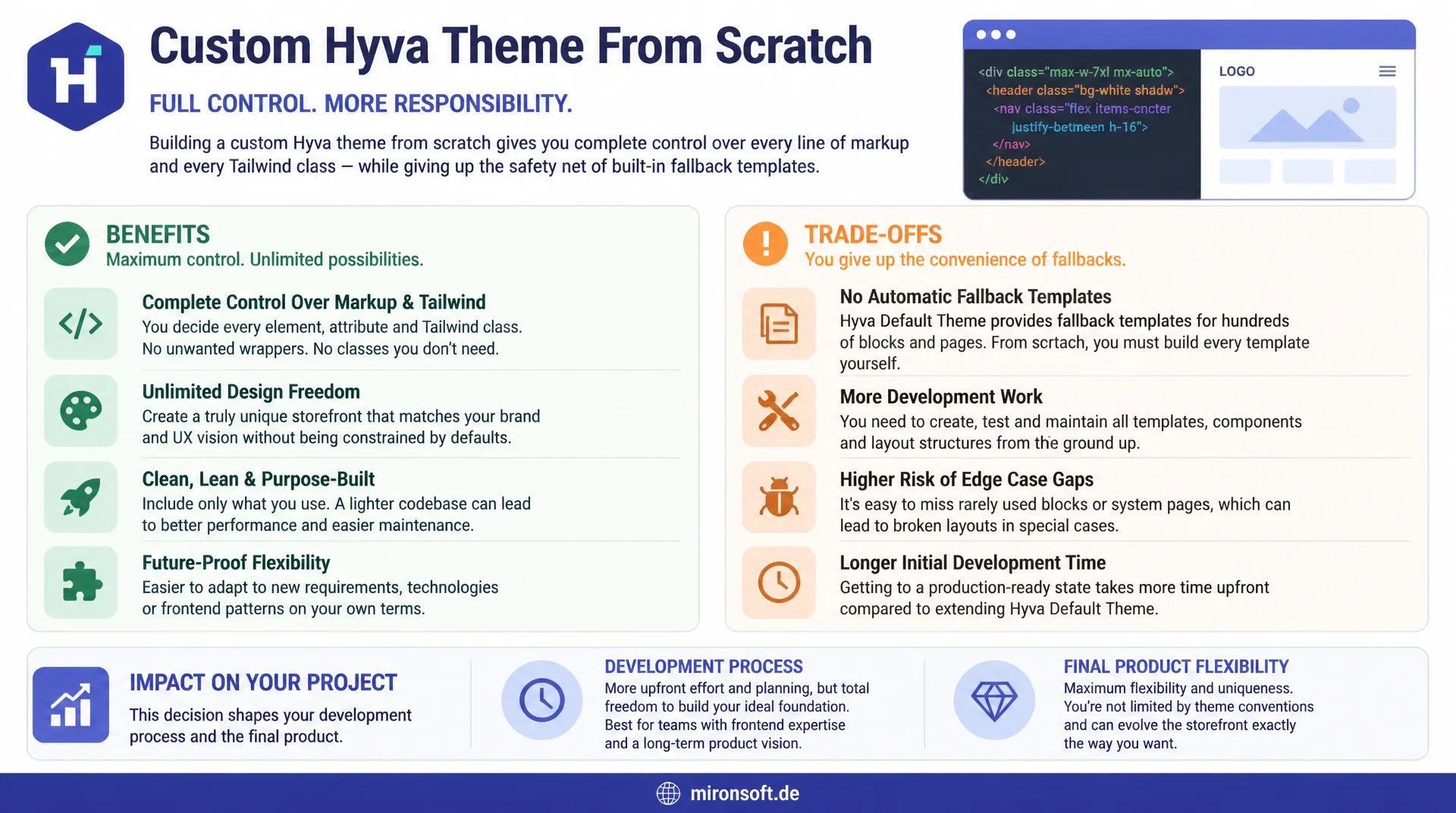
Anyone who builds a custom Hyva theme from scratch, rather than inheriting the Hyva Default Theme as parent, gains full control over every line of markup and Tailwind class, but gives up fallback templates that would otherwise kick in automatically.
Table of contents
- 1. Context: why a custom Hyva theme without compat modules makes sense
- 2. Directory structure, registration.php, and theme.xml with parent Magento/blank
- 3. composer.json: which Hyva packages are actually needed
- 4. Tailwind configuration from scratch: setting content paths correctly
- 5. Base templates from scratch: default.phtml and Alpine bootstrapping
- 6. Minimal layout XML for header, footer, and navigation
- 7. Fallback risks: what now needs to be maintained yourself
- 8. Build and deploy workflow for a brand-new theme
- 9. Comparison table: custom theme vs. Hyva Default Theme as parent
- 10. Summary
- 11. FAQ
1. Context: why a custom Hyva theme without compat modules makes sense
Anyone setting up a custom Hyva theme usually faces the same decision: use the official Hyva Default Theme (hyva-themes/magento2-default-theme-csp) as parent, or build a Hyva theme from scratch on top of Magento/blank. The Default Theme ships with compatibility modules that provide Luma fallback templates for third-party modules, so a shop keeps working even without custom adjustments. That convenience comes at a price: extra templates, extra CSS classes in the Tailwind build, and a dependency that has to be kept up to date with every Hyva core update.
A custom Hyva theme built from scratch, inheriting directly from Magento/blank, deliberately drops this baggage. The result is a smaller CSS bundle, a manageable template base, and full control over every line of markup. The flip side: fallback templates for modules that don't bring their own Hyva compatibility simply disappear. Whoever takes this route knowingly takes on more ownership of templates that a compat module would otherwise supply.
For agency projects with a clearly scoped module catalog, this is often the better choice, because performance budget and maintenance effort can be planned precisely from the start, instead of dragging unused compat templates along in the bundle.
2. Directory structure, registration.php, and theme.xml with parent Magento/blank
The first step for a custom Hyva theme built from scratch is the directory structure under app/design/frontend/Mironsoft/hyva-custom/. Unlike inheriting from the Hyva Default Theme, theme.xml here explicitly carries Magento/blank as parent, not hyva-themes/default. That's the key fork in the road: from here on, Magento resolves the template fallback chain directly to Magento/blank, without the detour through Hyva compat templates.
registration.php registers the theme in the Magento component registrar, theme.xml defines title, preview image, and parent. Both files are lean, but the correct parent reference is decisive, because the entire later fallback resolution for templates, layout XML, and static assets depends on it.
<?php
/**
 * Theme registration for the custom Hyva theme.
 * No dependency on hyva-themes/magento2-default-theme-csp.
 */
declare(strict_types=1);

use Magento\Framework\Component\ComponentRegistrar;

ComponentRegistrar::register(
    ComponentRegistrar::THEME,
    'frontend/Mironsoft/hyva-custom',
    __DIR__
);
<theme xmlns:xsi="http://www.w3.org/2001/XMLSchema-instance" xsi:noNamespaceSchemaLocation="urn:magento:framework:Config/etc/theme.xsd">
    <!-- Parent is Magento/blank, NOT hyva-themes/default -->
    <parent>Magento/blank</parent>
    <title>Mironsoft Hyva Custom</title>
    <media>
        <preview_image>media/preview.jpg</preview_image>
    </media>
</theme>
After activating and checking with bin/magento theme:list, the new theme shows up in the list. Important: without the Hyva compat modules, many third-party templates now resolve directly to their Magento/blank or Luma templates, which shows up in Magento_Theme as unstyled output without Tailwind classes, until the affected templates are rebuilt in the custom theme.
3. composer.json: which Hyva packages are actually needed
The composer.json of a custom Hyva theme without compat modules deliberately skips hyva-themes/magento2-default-theme-csp. Instead, hyva-themes/magento2-tailwind-config for the base Tailwind configuration is enough, plus optionally hyva-themes/magento2-webp-fallback for automatic WebP image delivery. Both packages are pure Tailwind or asset helpers, not compat modules with Luma fallback logic.
Magento/blank comes via the core framework, not as a separate Composer theme dependency in the classic sense, but the parent entry in theme.xml is enough for fallback resolution. Anyone who also wants Hyva's grid or slider components integrates them individually and deliberately, instead of importing a whole compat package that brings along dozens of unused templates.
{
  "name": "mironsoft/theme-frontend-hyva-custom",
  "description": "Custom lean Hyva theme without compat modules, Magento/blank as parent",
  "type": "magento2-theme",
  "license": "OSL-3.0",
  "require": {
    "php": "~8.4.0",
    "hyva-themes/magento2-tailwind-config": "^1.3",
    "hyva-themes/magento2-webp-fallback": "^1.0",
    "hyva-themes/magento2-theme-fallback": ">=1.0.10"
  },
  "autoload": {
    "files": []
  }
}
The difference becomes visible in the composer why tree: a Hyva theme built from scratch has a noticeably flatter dependency tree than a theme inheriting from the Hyva Default Theme. Fewer packages mean fewer update cycles, but also fewer automatically supplied templates.
4. Tailwind configuration from scratch: setting content paths correctly
Tailwind CSS v4 scans all .phtml files for used classes in a custom Hyva theme, but only where the content paths in the configuration actually point. Because a Hyva theme built from scratch doesn't bring along inherited Hyva Default templates, the paths must point to the theme itself, all used Magento_ core modules under app/code, and relevant vendor modules, otherwise classes are missing from the final CSS bundle and layouts break visually.
postcss.config.js wires in the Tailwind v4 PostCSS plugin. Important for a custom Hyva theme: the build process runs exclusively via bin/npm in the theme's respective Tailwind directory, never via a global Tailwind call outside the Docker container, otherwise path and version inconsistencies arise.
// tailwind.config.js: content paths for a from-scratch Hyva theme
/** @type {import('tailwindcss').Config} */
module.exports = {
  content: [
    '../../../../**/*.phtml',
    '../../../../../../app/code/**/*.phtml',
    '../../../../../../vendor/hyva-themes/magento2-tailwind-config/**/*.phtml',
    './**/*.phtml'
  ],
  theme: {
    extend: {
      colors: {
        brand: {
          DEFAULT: '#b3294f',
          dark: '#5c1a2e'
        }
      }
    }
  },
  plugins: []
};
// postcss.config.js: Tailwind v4 PostCSS pipeline
module.exports = {
  plugins: {
    '@tailwindcss/postcss': {},
    autoprefixer: {}
  }
};
5. Base templates from scratch: default.phtml and Alpine bootstrapping
Without the Hyva Default Theme as parent, default.phtml in Magento_Theme has to be built completely from scratch for a custom Hyva theme. The base skeleton contains the HTML shell, the x-data bootstrap for Alpine.js on <html> or <body>, plus the blocks for header, content, and footer, wired in via iterating $block->getChildNames().
CSP compliance is mandatory, not optional, for a Hyva theme built from scratch: every inline <script> block must be registered via $hyvaCsp->registerInlineScript(), otherwise the Content Security Policy blocks the Alpine bootstrap in the browser. Since no compat module ships CSP handling, full responsibility for CSP-compliant inline scripts sits with the custom theme code.
<!-- Magento_Theme/templates/page/default.phtml -->
<?php
/** @var \Magento\Framework\View\Element\Template $block */
/** @var \Hyva\Theme\Model\ViewModelRegistry $viewModels */
/** @var \Hyva\Theme\ViewModel\HyvaCsp $hyvaCsp */
$hyvaCsp = $viewModels->require(\Hyva\Theme\ViewModel\HyvaCsp::class);
?>
<!DOCTYPE html>
<html <?= $block->getChildHtml('html_attributes') ?> x-data="{ mobileMenuOpen: false }">
<head>
    <?= $block->getChildHtml('head.additional') ?>
</head>
<body class="antialiased bg-white text-slate-900" x-data>
<?= $block->getChildHtml('header-content') ?>
<main id="maincontent" class="mx-auto max-w-7xl px-4 sm:px-6 lg:px-8">
    <?= $block->getChildHtml() ?>
</main>
<?= $block->getChildHtml('footer-content') ?>

<script>
    // Bootstrap Alpine store used by header and footer components
    document.addEventListener('alpine:init', () => {
        Alpine.store('mironsoftTheme', { mobileMenuOpen: false });
    });
</script>
<?php $hyvaCsp->registerInlineScript(); ?>
</body>
</html>
6. Minimal layout XML for header, footer, and navigation
Header, footer, and navigation come from dedicated layout XML files in Magento_Theme/layout/default.xml in a custom Hyva theme, instead of inheriting the block structure of the Hyva Default Theme. This means: container names, block classes, and template paths are defined explicitly for the Hyva theme built from scratch, not adjusted via remove or move directives against an inherited layout.
This directness makes the layout clearer, because no inherited blocks from the Default Theme run silently in the background. The downside: every layout handle file the Default Theme would otherwise supply, say for search results, customer account pages, or checkout steps, must be explicitly rebuilt in the custom theme, as soon as the corresponding page needs to look different from plain Magento/blank rendering.
<!-- Magento_Theme/layout/default.xml -->
<page xmlns:xsi="http://www.w3.org/2001/XMLSchema-instance" xsi:noNamespaceSchemaLocation="urn:magento:framework:View/Layout/etc/page_configuration.xsd">
    <body>
        <referenceContainer name="header-content">
            <container name="header.branding" htmlTag="div" htmlClass="flex items-center gap-4 px-4 py-3">
                <block class="Magento\Theme\Block\Html\Header\Logo" name="logo" template="Magento_Theme::html/header/logo.phtml"/>
                <container name="header.navigation" htmlTag="nav" htmlClass="hidden lg:flex gap-6"/>
            </container>
        </referenceContainer>
        <referenceContainer name="footer-content">
            <container name="footer.links" htmlTag="div" htmlClass="grid grid-cols-1 sm:grid-cols-3 gap-6 py-8">
                <block class="Magento\Cms\Block\Block" name="footer.cms.links">
                    <arguments>
                        <argument name="block_id" xsi:type="string">footer-links</argument>
                    </arguments>
                </block>
            </container>
        </referenceContainer>
    </body>
</page>
7. Fallback risks: what now needs to be maintained yourself
The biggest trade-off with a custom Hyva theme without compat modules concerns the templates of Magento_Theme, Magento_Catalog, and Magento_Checkout. The Hyva compat package normally ships Tailwind-adapted versions of these templates, which are simply missing without a parent reference to the Hyva Default Theme. Product listings, facet filters, mini-cart, and checkout steps then render in raw Magento/blank markup, until they're rebuilt in the custom theme.
Anyone planning a Hyva theme from scratch should build an inventory of the third-party modules in use beforehand and check which of them bring their own Hyva templates and which would depend on a compat module. For modules without native Hyva support, the only option is rebuilding the template yourself, independent of Magento_Catalog or Magento_Checkout, which noticeably increases upfront time investment but secures clean, predictable rendering in the long run, free of foreign fallback chains.
In practice this mostly affects product detail pages with configurator widgets, checkout steps with payment module templates, and customer account areas extended by third-party modules. Each of these templates deserves a deliberate decision: maintain it yourself, or swap the module for a Hyva-native alternative.
8. Build and deploy workflow for a brand-new theme
The first deploy of a custom Hyva theme follows a fixed order: first bin/npm install in the theme's Tailwind directory, then the Tailwind build, then clearing var/view_preprocessed and pub/static/frontend, followed by bin/magento setup:static-content:deploy de_DE -t Mironsoft/hyva-custom -f, and finally bin/magento cache:flush. If this order is swapped, outdated or even no CSS classes end up in the deployed static content directory.
A typical pitfall with a brand-new Hyva theme built from scratch: var/view_preprocessed and pub/static/frontend aren't cleared before the first deploy, so Magento serves old, cached template compiles. Another common cause of a broken layout is an incorrectly set content path in the Tailwind configuration, which simply doesn't scan new templates, plus a missing fallback theme entry in the backend under Content > Design > Configuration.
bin/npm --prefix app/design/frontend/Mironsoft/hyva-custom/web/tailwind installbin/npm --prefix app/design/frontend/Mironsoft/hyva-custom/web/tailwind run buildrm -rf var/view_preprocessed/* pub/static/frontend/*bin/magento setup:static-content:deploy de_DE -t Mironsoft/hyva-custom -fbin/magento cache:flush
9. Comparison table: custom theme from scratch vs. Hyva Default Theme as parent
The choice between a custom Hyva theme built from scratch and the Hyva Default Theme as parent depends on project size, team size, and long-term maintenance strategy. Both paths are valid, but come with different trade-offs regarding initial effort and update safety.
| Aspect | Custom theme from scratch (Magento/blank) | Hyva Default Theme as parent |
|---|---|---|
| Initial effort | High: every template is built from scratch | Low: many templates already exist |
| Ongoing maintenance | Predictable: only your own code | Compat module updates need tracking too |
| Control over markup | Complete, no inherited blocks | Limited by the Default structure |
| Update safety on Magento core updates | Fallback templates must be updated yourself | Compat module handles the adjustments |
| CSS bundle size | Smaller, only classes actually used | Larger due to unused compat classes |
For small to mid-sized projects with a manageable module catalog, a custom Hyva theme often wins on performance and control. For very large shops with many third-party modules, the Hyva Default Theme as parent can significantly reduce the initial effort, because more fallback templates already exist there.
10. Summary
A custom Hyva theme built from scratch with Magento/blank as parent delivers full control over markup, a leaner CSS bundle, and independence from compat module updates. registration.php and theme.xml are set up quickly, composer.json stays lean without hyva-themes/magento2-default-theme-csp, and Tailwind only scans the templates actually in use.
The price for that is ownership: templates for Magento_Theme, Magento_Catalog, and Magento_Checkout that a compat module would otherwise supply have to be built and maintained yourself. Anyone who consciously accepts this trade-off and keeps the build and deploy workflow clean ends up with a Hyva theme from scratch that is maintainable, performant, and free of Luma legacy weight.
Custom Hyva theme from scratch, the essentials at a glance
Structure & parent
theme.xml with parent Magento/blank, not hyva-themes/default. That decides the entire fallback chain.
composer.json
Only hyva-themes/magento2-tailwind-config and optionally webp-fallback, no Default Theme compat package.
Tailwind & templates
Set content paths to the custom theme and modules in use. Build default.phtml and Alpine bootstrap yourself, register CSP-compliant.
Fallback ownership
Rebuild and maintain Magento_Catalog and Magento_Checkout templates without native Hyva support yourself.
11. FAQ: Building a custom Hyva theme from scratch
1What does building a custom Hyva theme from scratch actually mean?
2Why not inherit from the Hyva Default Theme?
3Which Composer packages are really needed?
4What does the minimal theme.xml look like?
5What happens to modules without Hyva support?
6How is Alpine.js integrated CSP-compliantly?
7Which Tailwind content paths are mandatory?
8How does the first deploy go?
9Does a custom theme make sense for small shops?
10Can compat modules be added later?
Mironsoft
Hyva theme architecture and Magento 2 frontend development
Ready for a custom Hyva theme without baggage?
From the directory structure to the first deploy: we build your custom Hyva theme from scratch, with Magento/blank as parent and without unnecessary compat modules.
Structure setup
registration.php, theme.xml, and composer.json set up correctly
Tailwind & Alpine
CSP-compliant templates and clean content path configuration
Deploy support
Build and deploy workflow without the typical first-time pitfalls