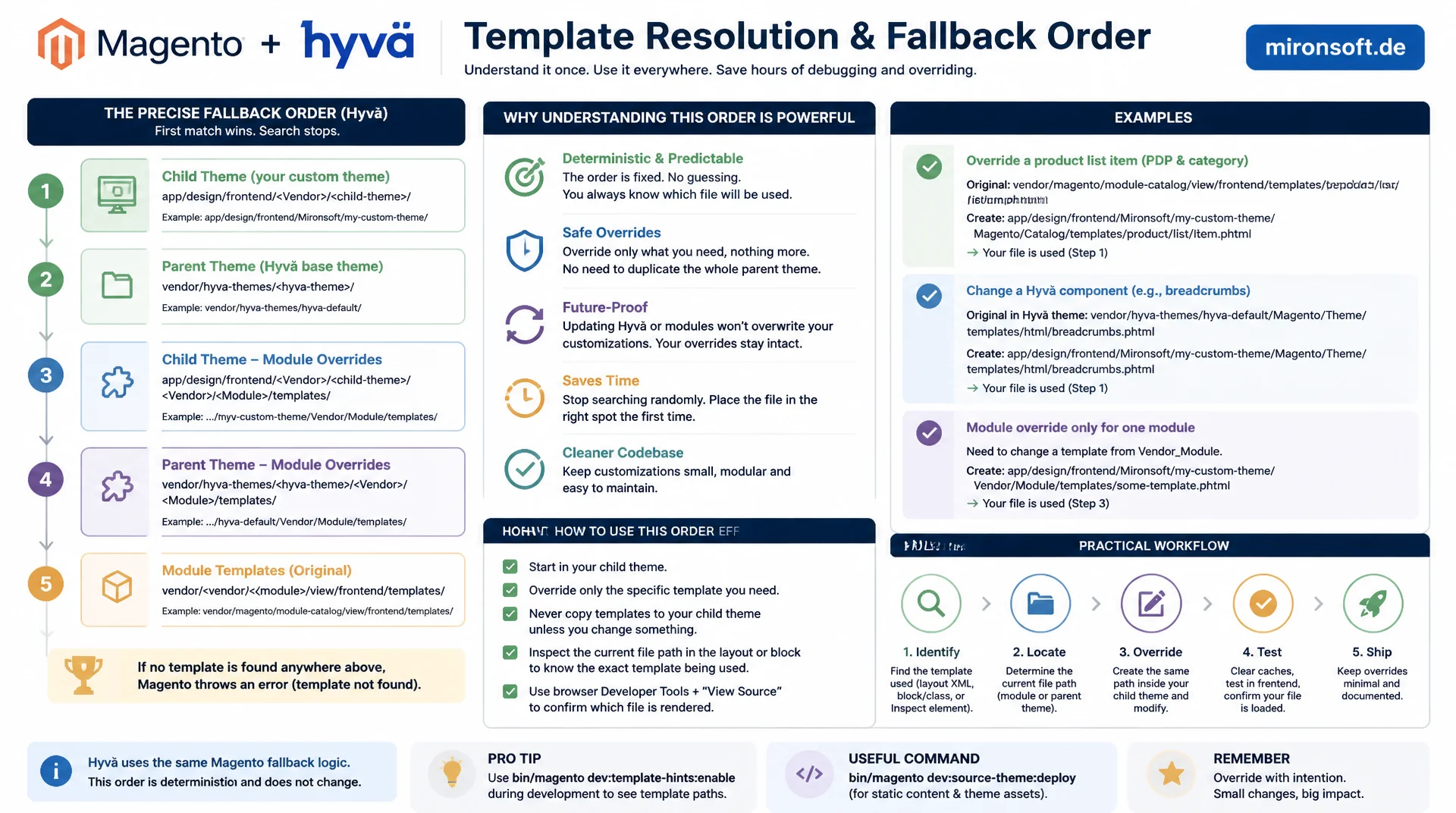
from the module through the parent theme to your own theme
Anyone who does not know the exact order in which Magento and Hyva resolve a template between module, parent theme and custom theme wastes time on overrides that seem to have no effect. The Hyva fallback mechanism follows a fixed, deterministic order that can be used deliberately once you understand it, without duplicating the parent theme or blocking future updates.
Table of Contents
- 1. The basics: how the fallback mechanism works in Magento
- 2. The exact resolution order in Hyva
- 3. theme.xml and the parent theme chain
- 4. Practical example: Magento_Catalog step by step
- 5. A targeted template override without duplication
- 6. Debugging: Template Path Hints and developer mode
- 7. Theme inheritance vs. module sequencing
- 8. Pitfall: stale cache and static content artifacts
- 9. Best practices: theme override vs. compatibility module
- 10. Summary
- 11. FAQ
1. The basics: how the fallback mechanism works in Magento
The Hyva fallback mechanism builds on a concept that has existed in Magento from the very beginning: a module defines a default template, the active theme can override that template deliberately, and a parent theme can act as an intermediate layer before Magento falls back to the module's original template. This principle is called a fallback because the system moves from the most specific to the most general source on every template lookup, until it finds a matching file. No module template has to be changed for this, no core code has to be touched, and the module author stays completely independent of whichever theme is later built on top of it.
Technically, the class Magento\Framework\View\Design\Fallback\Resolver\Simple together with the Fallback\RulePool handles this task, driven by a chain of resolution rules. For templates, the theme rule applies: Magento first searches the active theme, then its entire parent theme chain, and only as a last resort the module itself. The Hyva fallback mechanism adopts this generic Magento principle unchanged, but adds a specific parent theme structure that is based on the Hyva default theme as a Composer package rather than on Magento/blank or Luma.
2. The exact resolution order in Hyva
In a typical Hyva project, the Hyva fallback mechanism passes through exactly three levels in a fixed order. First the active theme under app/design/frontend/Vendor/theme, in this project's case app/design/frontend/Mironsoft/default. Second, the parent theme declared in theme.xml, usually the Hyva default theme from the Composer package hyva-themes/magento2-default-theme-csp, which physically lives in the vendor/ directory but is additionally made visible under app/design/frontend/Hyva/default by Magento's component installer. Third, if neither the custom theme nor the parent theme has a matching template, the module itself under view/frontend/templates or view/base/templates.
These three levels are queried strictly one after another, and the search ends at the first match. A template that lives in the custom theme always wins against the same file in the parent theme or module, regardless of how old or new that particular file is. The Hyva fallback mechanism has no version check, no timestamp logic, and no prioritization by file size, only the fixed rank order of theme before parent theme before module. This simplicity is deliberate: it makes the behavior predictable, even without looking at the framework code.
3. theme.xml and the parent theme chain
The theme.xml file is the central switch a theme uses to define its position in the fallback chain. The <parent> tag points to the theme code of a parent theme, usually Hyva/default. Without this tag, a theme is the root element of its own chain and has no further fallback at the theme level, so the fallback goes straight to the module. That is exactly the case for the official Hyva default theme: its own theme.xml contains no <parent> entry, because it deliberately does not inherit from Magento/blank or Luma, in order to avoid legacy assets like jQuery and Knockout.js entirely.
<?xml version="1.0"?>
<!-- app/design/frontend/Mironsoft/default/theme.xml -->
<!-- Custom project theme, inherits from the Hyva default theme -->
<theme xmlns:xsi="http://www.w3.org/2001/XMLSchema-instance"
       xsi:noNamespaceSchemaLocation="urn:magento:framework:Config/etc/theme.xsd">
    <title>Mironsoft Default</title>
    <parent>Hyva/default</parent>
    <media>
        <preview_image>media/preview.jpg</preview_image>
    </media>
</theme>
When you create your own project theme, its theme.xml declares the Hyva default theme as the parent, as shown in the example above. The Hyva fallback mechanism uses this declaration to automatically continue searching in the parent theme when a template is not found in the custom theme, without a single line of PHP code being necessary for it. If the <parent> tag is accidentally missing, the chain breaks, and Magento falls back straight to the module. The parent theme is then completely ignored, even if a matching override exists there, which in practice leads to confusing, seemingly random rendering differences.
4. Practical example: Magento_Catalog step by step
The Hyva fallback mechanism becomes most concrete with a real example. For the product detail page, the Magento_Catalog module loads the template product/view.phtml. On every page request, Magento first checks whether a file exists under app/design/frontend/Mironsoft/default/Magento_Catalog/templates/product/view.phtml. If not, it next looks in the parent theme under app/design/frontend/Hyva/default/Magento_Catalog/templates/product/view.phtml, physically installed via the Composer package hyva-themes/magento2-default-theme-csp. If no file exists there either, the module itself finally delivers the result via vendor/magento/module-catalog/view/frontend/templates/product/view.phtml.
# Template resolution for Magento_Catalog/templates/product/view.phtml
# The Hyva fallback mechanism checks these paths in exactly this order:

1) Active theme (highest priority)
app/design/frontend/Mironsoft/default/Magento_Catalog/templates/product/view.phtml

2) Parent theme (Hyva default theme, declared as <parent>Hyva/default</parent>)
app/design/frontend/Hyva/default/Magento_Catalog/templates/product/view.phtml
   (physically installed via Composer under
    vendor/hyva-themes/magento2-default-theme-csp/, then exposed
    to app/design/frontend/Hyva/default by Magento's component installer)

3) Module itself (fallback of last resort)
vendor/magento/module-catalog/view/frontend/templates/product/view.phtml
   (or view/base/templates/... if no frontend-specific template exists)

# The first matching file wins. Magento stops looking as soon as
# it finds a template at one of these three levels.
What matters is this: as soon as one level delivers a result, the search stops immediately. An override in the custom theme completely shadows the identical file in the parent theme, regardless of whether the Hyva team has since shipped a bugfix there. Anyone who does not understand the Hyva fallback mechanism at this point often overwrites a template permanently by accident, and later wonders why a parent theme update shows no visible effect, even though the Composer update log reports a new version.
5. A targeted template override without duplication
A common beginner mistake when working with the Hyva fallback mechanism is copying an entire module or parent theme folder into the custom theme, even though only a single line needs to change. This unnecessarily bloats the custom theme, creates huge, hard-to-read diffs in code review, and means bugfixes from the Hyva parent theme never arrive automatically again, because the copy blocks the fallback for the entire folder, not just for the one desired file.
The clean approach: only exactly the one file is created under an identical relative path in the custom theme. What matters is that the path starting from the module namespace, for example Magento_Catalog/templates/product/view.phtml, matches the path in the parent theme or module exactly. If the path is not exactly right, the Hyva fallback mechanism does not kick in, and Magento keeps loading the original file, while the new copy sits unused in the theme.
# Targeted override of a single file within the Hyva fallback mechanism
# Goal: only override product/view.phtml from the Hyva parent theme

# 1. Identify the exact relative path in the parent theme
find vendor/hyva-themes/magento2-default-theme-csp -name "view.phtml" -path "*Magento_Catalog*"

# 2. Create only the required target folder (never copy the whole directory!)
mkdir -p src/app/design/frontend/Mironsoft/default/Magento_Catalog/templates/product

# 3. Copy only the single file, path afterwards IDENTICAL to the parent theme
cp vendor/hyva-themes/magento2-default-theme-csp/Magento_Catalog/templates/product/view.phtml \
   src/app/design/frontend/Mironsoft/default/Magento_Catalog/templates/product/view.phtml

# 4. Adjust the copied file only, the rest of the fallback chain stays untouched
| Task | Wrong: copy the whole folder | Right: override only the one file | Benefit |
|---|---|---|---|
| Creating an override | cp -r Magento_Catalog/ … |
cp …/product/view.phtml |
Only the exact changed path gets copied |
| Parent theme update | Copy stays outdated, bugfixes missed | Only the one file needs review | |
| Code review | Huge diff with unchanged lines | Diff shows only the actual change | |
| Path convention | Own path deviates, fallback breaks | Exactly identical relative path | |
| Maintenance effort | Large block to maintain permanently | Minimally invasive, easy to revert |
6. Debugging: Template Path Hints and developer mode
To see live which level the Hyva fallback mechanism actually selected, Magento offers the Template Path Hints setting under Stores > Configuration > Advanced > Developer > Debug. Enabling this option via bin/magento config:set dev/debug/template_hints_storefront 1 wraps every rendered template in the frontend with a colored border and shows the full, actually loaded file path. This makes it possible to see immediately, without a single look at var/log, whether an override in the custom theme is taking effect or whether the parent theme or module is still being loaded.
Before debugging, developer mode should be active, checkable via bin/magento deploy:mode:show and settable via bin/magento deploy:mode:set developer, since in production mode no live compilation takes place and template changes only become visible after a fresh static content deploy. Template Path Hints generally also work in default and production mode, but only in developer mode does the Hyva fallback mechanism show every change immediately, without a manual deploy step being needed between each test. After enabling it, running bin/magento cache:flush is also recommended so the changed configuration takes effect right away.
7. Theme inheritance vs. module sequencing
Two completely different concepts are regularly confused in practice, even though both have something to do with order: theme inheritance via theme.xml <parent> and module sequencing via module.xml <sequence>. The Hyva fallback mechanism in the narrow sense concerns only the first chain, meaning theme, parent theme and module. Module sequencing, on the other hand, determines the order in which modules are loaded and their configuration, such as etc/di.xml, events.xml and layout XML, is merged, but has nothing to do with template file resolution in the strict sense.
<?xml version="1.0"?>
<!-- app/code/Mironsoft/CatalogCompat/etc/module.xml -->
<!-- Module sequencing controls load order and XML merging,
     NOT template file resolution (that is theme.xml's job) -->
<config xmlns:xsi="http://www.w3.org/2001/XMLSchema-instance"
        xsi:noNamespaceSchemaLocation="urn:magento:framework:Module/etc/module.xsd">
    <module name="Mironsoft_CatalogCompat" setup_version="1.0.0">
        <sequence>
            <module name="Magento_Catalog"/>
            <module name="Hyva_Theme"/>
        </sequence>
    </module>
</config>
A declaration like the one in the example above ensures that the custom module is loaded after Magento_Catalog and after Hyva_Theme, important for example for plugin configuration or layout handles that build on existing handles like catalog_product_view.xml. The Hyva fallback mechanism for templates operates completely independently of this, purely through the theme hierarchy defined in theme.xml. Anyone who tries to solve a template problem by adjusting module.xml is changing the wrong place, because template resolution is exclusively a matter of the theme chain, not the module load order.
8. Pitfall: stale cache and static content artifacts
The most common reason a template override seemingly has no effect has nothing to do with the Hyva fallback mechanism itself, but with outdated compiled artifacts. Magento precompiles templates at runtime and stores the result under var/view_preprocessed. In addition, setup:static-content:deploy generates static assets under pub/static/frontend, which are served independently of the source files in production mode. A new override in app/design/frontend/Mironsoft/default does not automatically change these already compiled artifacts.
The reliable solution is always the same order: first completely delete var/view_preprocessed and pub/static/frontend, then redeploy the static content, and finally flush the cache. Anyone who does not follow this order and, for example, only flushes the cache without removing the preprocessed views, keeps seeing the old version, even though the Hyva fallback mechanism correctly points to the new override, because the compiled intermediate layer preserves the old state.
#!/usr/bin/env bash
# Deploy sequence after a template override in the Hyva fallback chain
set -euo pipefail

# 1. Rebuild Tailwind CSS
bin/npm --prefix app/design/frontend/Mironsoft/default/web/tailwind run build

# 2. Remove stale preprocessed views and static assets (always first!)
cd src && rm -rf var/view_preprocessed/* pub/static/frontend/*

# 3. Redeploy static content for the affected theme
bin/magento setup:static-content:deploy de_DE -t Mironsoft/default -f

# 4. Flush the cache so the new override is actually served
bin/magento cache:flush
9. Best practices: theme override vs. compatibility module
A theme-level override via the Hyva fallback mechanism is suitable for one-off, project-specific adjustments to a single template, such as an additional markup element or a changed Tailwind class. It is quick to implement, but stays tied to the respective theme and must be maintained redundantly across a theme switch or across multiple project themes, because every theme needs its own copy of the overridden file.
As soon as an adjustment is needed in multiple projects or multiple themes at once, or as soon as additional PHP logic rather than pure markup changes is required, a small custom compatibility module with its own default template is worthwhile instead, since it takes effect independently of the theme via the regular module fallback level. This decision is not a matter of taste: it determines whether an adjustment stays permanently tied to a single theme or becomes reusable across projects, without duplicating the Hyva fallback mechanism for every new theme.
10. Summary
The Hyva fallback mechanism resolves templates in a fixed, three-level order: first the active theme, then the parent theme declared in theme.xml, and finally the module itself. The first level that delivers a matching file wins, and the search stops immediately. theme.xml with the <parent> tag defines this chain, while module.xml with <sequence> governs a completely different concept, namely the load order of modules, not template resolution.
Targeted overrides should always copy only the one affected file under an identical relative path, never entire folders. Template Path Hints and developer mode make it visible live which level of the Hyva fallback mechanism was actually loaded. And when an override seemingly has no effect, the cause is almost always outdated artifacts under var/view_preprocessed or pub/static/frontend, which must be consistently deleted before every test.
Hyva fallback mechanism, the essentials at a glance
Resolution order
Active theme, then the parent theme from theme.xml, then the module itself. The first match wins, the search stops immediately.
theme.xml vs. module.xml
<parent> controls template fallback across themes, <sequence> controls only module load order.
Targeted override
Copy only the one file with an exactly identical relative path, never duplicate entire folders.
Debugging & cache
Enable Template Path Hints in developer mode. Delete var/view_preprocessed and pub/static/frontend before every test.
11. FAQ: Understanding the Hyva Fallback Mechanism
1What is the Hyva fallback mechanism?
2In what order are templates resolved?
3What happens without a parent in theme.xml?
4How do I override just one file?
5Why doesn't my override take effect right away?
6How do I enable Template Path Hints?
7theme.xml parent vs. module.xml sequence?
8Theme override or custom module?
9Where does the Hyva parent theme live?
10Role of view/base versus view/frontend?
Mironsoft
Hyva theme development and Magento 2 frontend architecture
Template overrides that use the Hyva fallback mechanism correctly?
We analyze existing theme overrides, bring them onto exact, minimally invasive paths, and set up debugging with Template Path Hints plus a clean deploy pipeline for your Hyva project.
Override audit
Check existing theme overrides for duplication and stale paths
Compatibility modules
Move cross-project adjustments cleanly into their own modules
Deploy pipeline
Automate cache and static content steps so overrides take effect reliably