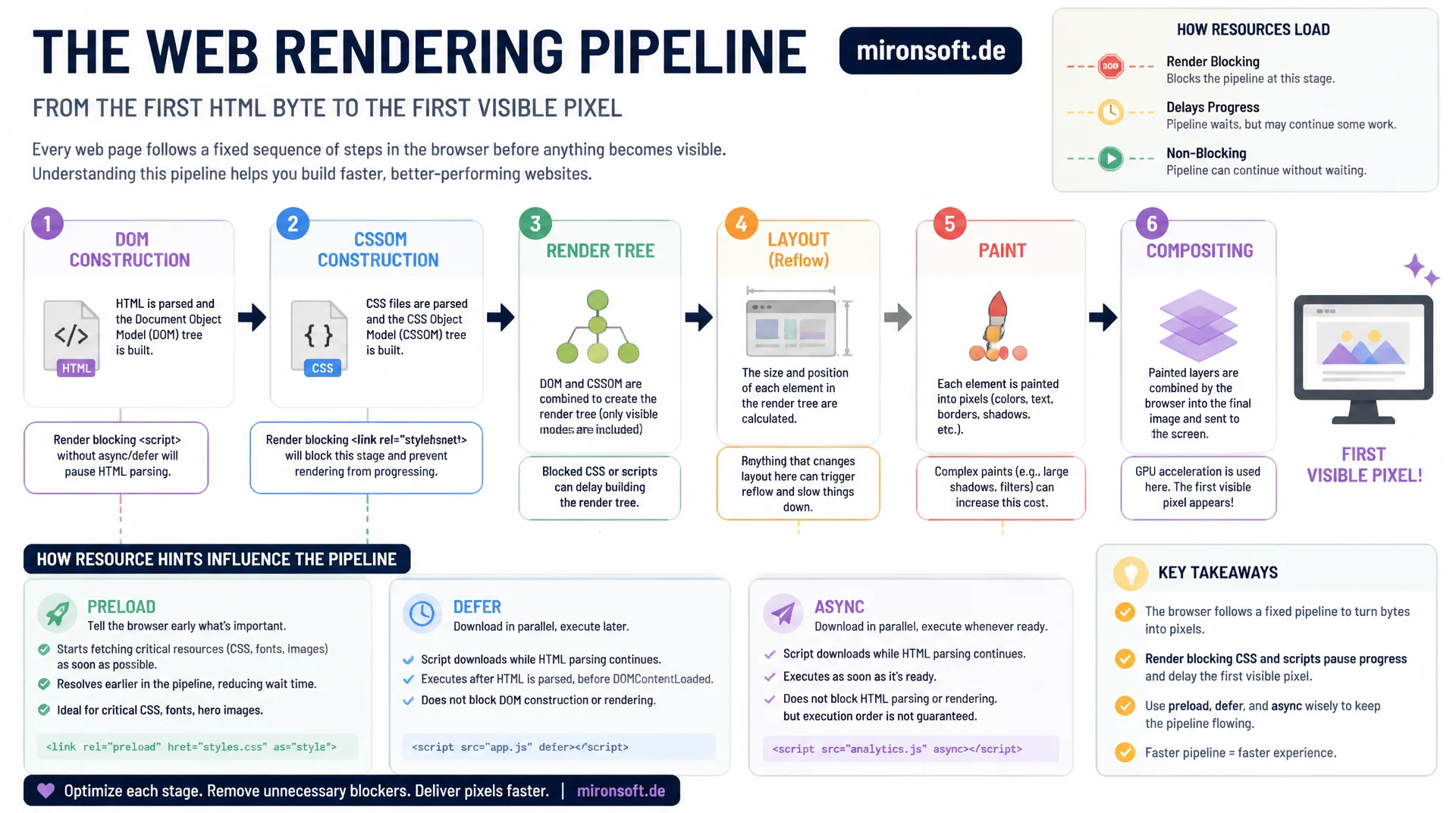
From HTML to Pixels
Every web page moves through a fixed pipeline from the first HTML byte to the first visible pixel: DOM construction, CSSOM construction, render tree, layout, paint and compositing. Understanding these six stages mechanically shows exactly why render blocking scripts and stylesheets delay the first visible content, and where preload, defer and async hints actually change browser behavior in the pipeline.
Table of Contents
- 1. Why the rendering pipeline determines perceived load time
- 2. DOM construction: from byte stream to tree
- 3. CSSOM construction and why CSS is render blocking
- 4. The render tree: DOM and CSSOM merge
- 5. Layout: calculating geometry and reflow
- 6. Paint: drawing pixels into layers
- 7. Compositing: assembling layers on the GPU
- 8. Eliminating render-blocking resources: async, defer, preload
- 9. Optimization checklist: measuring and fixing every stage
- 10. Summary
- 11. FAQ
1. Why the rendering pipeline determines perceived load time
The Critical Rendering Path describes the fixed sequence of steps a browser goes through between receiving the first HTML bytes and painting the first visible pixel on screen: DOM construction, CSSOM construction, merging into the render tree, layout calculation, paint, and finally compositing. Each of these six stages has its own cost, its own triggers, and its own optimization levers, and none of them can be skipped, even if content is already cached or the server response time is close to zero.
The difference between a fast server response and a page that actually feels fast almost always lies in this pipeline. A store can hit a Time to First Byte of 40 milliseconds and still take 2 seconds to show the first pixel, because render-blocking stylesheets delay CSSOM construction or a synchronous script in the middle of the body halts the HTML parser. Fixing the right stage in the pipeline often saves more perceived time than any purely server-side optimization.
2. DOM construction: from byte stream to tree
The browser doesn't receive HTML as a finished tree, it receives a byte stream that first gets converted into characters based on the encoding declared in the response header or a meta tag. A tokenizer breaks this character stream into tokens such as start tag, end tag, or text according to the HTML5 specification, and the parser then turns those tokens into nodes and attaches them to the DOM tree. This process runs incrementally and in a streaming fashion: the browser doesn't wait for the entire document, it builds the tree node by node as new bytes arrive.
A <script> tag without async or defer in the middle of the HTML interrupts this construction completely, because the parser has to pause and hand control to the JavaScript engine, after all, the script could insert further HTML via document.write() that changes the tree built so far. This is exactly why Chrome runs a preload scanner: a second, speculative parser that looks further down the document in parallel for resources like images, stylesheets, or additional scripts and kicks off their download while the main parser is still blocked.
3. CSSOM construction and why CSS is render blocking
In parallel with the DOM, the browser builds the CSSOM for every CSS rule set: a tree of computed style rules that captures the full cascade, including specificity, order, and inheritance. Unlike the DOM, the browser cannot render the CSSOM incrementally, because a later rule can override an earlier one, only once the entire stylesheet has been parsed is it clear which style actually applies to an element. That's why CSS is render blocking by default: the browser deliberately avoids showing unstyled content, waiting instead until the CSSOM and DOM can be combined into the render tree.
Not every stylesheet blocks equally hard, though. A <link> tag with media="print" or a non-matching media query still gets downloaded, but at a lower priority and without blocking the initial render, because the browser knows the rules don't apply under current conditions. This behavior can be used deliberately: critical above-the-fold CSS ships inline in the <head>, while the rest loads asynchronously through a preload pattern with a delayed rel swap, without delaying the first paint.
<!-- Critical CSS inline, non-critical CSS loaded without blocking render -->
<head>
  <style>
    /* Critical above-the-fold rules only, inlined to avoid a network round trip */
    .hero { min-height: 480px; background: #0f172a; }
    .hero h1 { font-size: 2.5rem; color: #ffffff; }
  </style>

  <!-- Preload the stylesheet with low priority, then swap rel on load -->
  <link rel="preload" href="/css/app.css" as="style" onload="this.onload=null;this.rel='stylesheet'">
  <noscript><link rel="stylesheet" href="/css/app.css"></noscript>
</head>
4. The render tree: DOM and CSSOM merge
Once the DOM and CSSOM are available, the browser combines both into the render tree: it walks the DOM tree starting from the root element and attaches the matching computed style from the CSSOM to every node that should actually render visually. Elements with display: none as well as non-visual nodes like <head>, <script>, or <meta> are excluded entirely, they exist in the DOM but not in the render tree. Elements with visibility: hidden, on the other hand, remain part of the render tree, because they still occupy space in the layout even though they aren't painted.
The size of the render tree correlates directly with DOM complexity: a category page with several thousand DOM nodes from nested swatch options or filter facets produces a correspondingly large render tree whose construction and later recalculation cost measurable time. Alpine.js directives like x-show toggle elements at runtime via inline style="display:none", which triggers a style recalculation for the affected subtree every single time, x-cloak, on the other hand, only prevents the brief initial flash before Alpine initializes and has nothing to do with ongoing render tree maintenance.
5. Layout: calculating geometry and reflow
The layout step, also called reflow, calculates the exact position and size in the box model for every node in the render tree, relative to the viewport. The browser starts at the root element and propagates widths, heights, margins, and paddings down through the tree; with modern layout modes like flexbox or CSS grid this can take multiple passes, because an element's size can depend on its sibling elements. The result is a complete geometry map of the page that the subsequent stages use to draw from.
Layout is the most expensive pipeline stage when it's forced repeatedly and synchronously, known as layout thrashing. If JavaScript reads a geometry-dependent property like offsetHeight or getBoundingClientRect() right after having changed a style, the browser is forced into an immediate recalculation instead of waiting for the next frame. In loops that alternate reads and writes, this adds up quickly to hundreds of milliseconds. CSS properties like contain: layout and content-visibility: auto deliberately narrow the recalculation scope by signaling to the browser that a subtree can be laid out independently of the rest.
/* Isolate layout and paint recalculation to individual product cards */
.product-grid-item {
  contain: layout style;
}

/* Skip layout and paint work entirely for off-screen sections */
.below-fold-section {
  content-visibility: auto;
  contain-intrinsic-size: 0 800px;
}

/* Reserve geometry up front so images never trigger a reflow on load */
.product-image {
  aspect-ratio: 4 / 3;
  width: 100%;
  height: auto;
}
6. Paint: drawing pixels into layers
During paint, the browser converts the geometry computed during layout into actual pixels: text gets rasterized, background colors filled in, borders, shadows, and images drawn. This doesn't happen as a single step for the whole page, instead it generates separate drawing commands, so-called paint records, per stacking context and layer, which are then actually turned into pixels on a separate compositor or raster thread. This partially decouples pure repainting from the main thread, as long as the affected properties don't force a layout recalculation.
Properties like background-color, color, or box-shadow don't trigger layout, but they do trigger a repaint, which can be noticeably expensive for large elements like a full-width header. Chrome DevTools shows in real time which areas get repainted via Paint Flashing in the Rendering tab. The moment of the first visible pixel gets captured through the PerformancePaintTiming API as first-paint and first-contentful-paint, with First Contentful Paint specifically marking the moment the first DOM content, such as text or an image, actually becomes visible.
// Output of performance.getEntriesByType('paint') in Chrome DevTools
[
  {
    "name": "first-paint",
    "entryType": "paint",
    "startTime": 812.4,
    "duration": 0
  },
  {
    "name": "first-contentful-paint",
    "entryType": "paint",
    "startTime": 1046.9,
    "duration": 0
  }
]
7. Compositing: assembling layers on the GPU
Compositing is the final stage of the pipeline: the browser splits the page into multiple layers, usually triggered by properties like transform, opacity, will-change, position: fixed, or elements like <video> and <canvas>. Each layer gets rasterized independently and is then assembled into a finished frame by the compositor thread, often directly on the GPU. The key advantage: if only a layer's transform or opacity property changes, neither layout nor paint has to run again, the compositor simply shifts or blends the already-rasterized bitmap, this is the mechanism that makes 60fps animations possible even while the main thread is busy.
Too many layers aren't a free pass, though: each layer occupies its own GPU memory, and carelessly applying will-change to many elements causes layer explosion, which itself increases memory usage and compositing time. Chrome DevTools shows how many layers currently exist and why they were created via the Layers tab. The practical takeaway for animations: animate transform and opacity instead of changing top, left, width, or height, since the latter force layout and paint to run again on every single frame.
8. Eliminating render-blocking resources: async, defer, preload
A classic <script> tag without an attribute blocks the HTML parser synchronously: download and execution happen immediately, right at that point in the document. The async attribute downloads the script in parallel with parsing but executes it as soon as the download finishes, which also briefly interrupts the parser, just without the browser having had to wait for the download beforehand. The defer attribute also downloads in parallel but delays execution until parsing has finished, and additionally guarantees document order across multiple defer scripts, by far the safest default for scripts that require the full DOM.
type="module" scripts already behave like defer by default, without needing the attribute set explicitly. For resources that are definitely needed but wouldn't be discovered early enough by the browser, <link rel="preload"> signals a high download priority without being render blocking itself. In Magento and Hyva projects, render-blocking third-party scripts like tracking pixels or chat widgets can be deliberately removed from the <head> via layout XML or re-registered with defer, instead of leaving them synchronous in the critical path.
// Synchronous script: blocks the HTML parser at this exact point in the document
// <script src="/js/legacy-tracking.js"></script>

// Async: downloads in parallel, executes as soon as ready (order not guaranteed)
const asyncScript = document.createElement('script');
asyncScript.src = '/js/analytics.js';
asyncScript.async = true;
document.head.appendChild(asyncScript);

// Defer: downloads in parallel, executes after parsing, preserves document order
const deferScript = document.createElement('script');
deferScript.src = '/js/checkout-validation.js';
deferScript.defer = true;
document.head.appendChild(deferScript);
<!-- Layout XML: remove a render-blocking third-party script from the head -->
<page xmlns:xsi="http://www.w3.org/2001/XMLSchema-instance"
      xsi:noNamespaceSchemaLocation="urn:magento:framework:View/Layout/etc/page_configuration.xsd">
    <head>
        <!-- Remove synchronous script that blocks the HTML parser -->
        <remove src="ThirdParty_Chat::js/chat-widget.js"/>

        <!-- Preload the LCP-critical font referenced by the CSSOM -->
        <link src="fonts/inter-var.woff2" src_type="url" attributes="rel=preload as=font type=font/woff2 crossorigin=anonymous"/>
    </head>
</page>
9. Optimization checklist: measuring and fixing every stage
The Chrome DevTools Performance panel makes every pipeline stage individually visible in a trace: a recorded page load shows separate bars for Parse HTML, Recalculate Style, Layout, Paint, and Composite Layers, each with an exact duration and the call stack that triggered it. To optimize a specific stage, filter the Bottom-Up tab for that entry type and immediately see which function or CSS selector pattern is causing the cost, far more precise than guessing.
In practice this yields a fixed checklist: keep DOM depth and node count small, since they increase style and layout cost linearly; ship critical CSS inline and load the rest asynchronously; consistently load third-party scripts with defer or async; batch DOM reads and writes in JavaScript instead of interleaving them (read-write batching); and only apply will-change to elements that are actually animated instead of spreading it preemptively across the whole page. Each of these measures targets a different point across the six pipeline stages and can be verified individually in the Performance panel.
The table below summarizes which resource types actually block rendering and which optimization applies to each.
| Resource type | Blocks rendering? | Typical mistake | Recommended optimization |
|---|---|---|---|
| Synchronous <script> in <head> | Yes | Script without async/defer before critical CSS | Add async or defer |
| <script defer> | No | Script still placed at the end of the body | Register in head with defer instead |
| <link rel="stylesheet"> (matching media query) | Yes | Entire CSS in one file with no split | Inline critical CSS, preload the rest |
| <link media="print"> / non-matching query | No | Unnecessarily treated as render blocking | Use deliberately for conditional styles |
| <link rel="preload" as="font"> | No | Font only discovered through CSSOM parsing | Preload critical fonts explicitly |
In practice, the six pipeline stages rarely act in isolation: an oversized DOM slows down both style recalculation and layout, while render-blocking CSS additionally delays the start of paint and compositing. Consistently using async/defer, splitting CSS into critical and non-critical, and keeping an eye on DOM size shortens the whole path from HTML to pixels noticeably, rather than optimizing just a single stage.
Mironsoft
Rendering performance and Hyva engineering for Magento stores
Ready to optimize your store's rendering pipeline?
We analyze DOM size, render-blocking resources, and layout cost of your Magento store in the Chrome DevTools Performance panel and implement targeted optimizations, from critical CSS to layout XML adjustments.
Rendering performance audit
DevTools trace analysis, bottleneck identification per pipeline stage
Critical CSS setup
Inline critical CSS, preload strategy for the rest
JS loading strategy
async/defer audit and layout XML adjustments for Magento
10. Summary
The Critical Rendering Path solves a core problem for any performance engineering effort: it shows exactly which steps sit between the first HTML byte and the first visible pixel, and where time can actually be saved. DOM and CSSOM construction run in parallel, but CSS remains render blocking by default because the cascade only resolves once parsing finishes completely. Layout is the most expensive stage when forced repeatedly and synchronously, while paint and especially compositing via transform and opacity offer the cheapest levers for smooth animations.
The biggest practical lever remains consistently controlling render-blocking resources: async and defer for scripts, critical CSS inlining combined with preload for stylesheets, and a deliberately small, flat DOM structure that keeps style recalculation and layout cheap over time. Verifying these levers stage by stage in the Chrome DevTools Performance panel means optimizing based on actual cost per pipeline stage, not on guesswork.
Critical Rendering Path - The Essentials at a Glance
DOM & CSSOM
Run in parallel, but CSS stays render blocking because the cascade only resolves once parsing is complete.
Layout is expensive
Avoid layout thrashing from interleaved geometry reads/writes, use contain and content-visibility.
Paint vs. compositing
Animate transform and opacity, they skip layout and paint entirely.
Eliminate render blocking
async/defer for scripts, critical CSS plus preload for stylesheets.