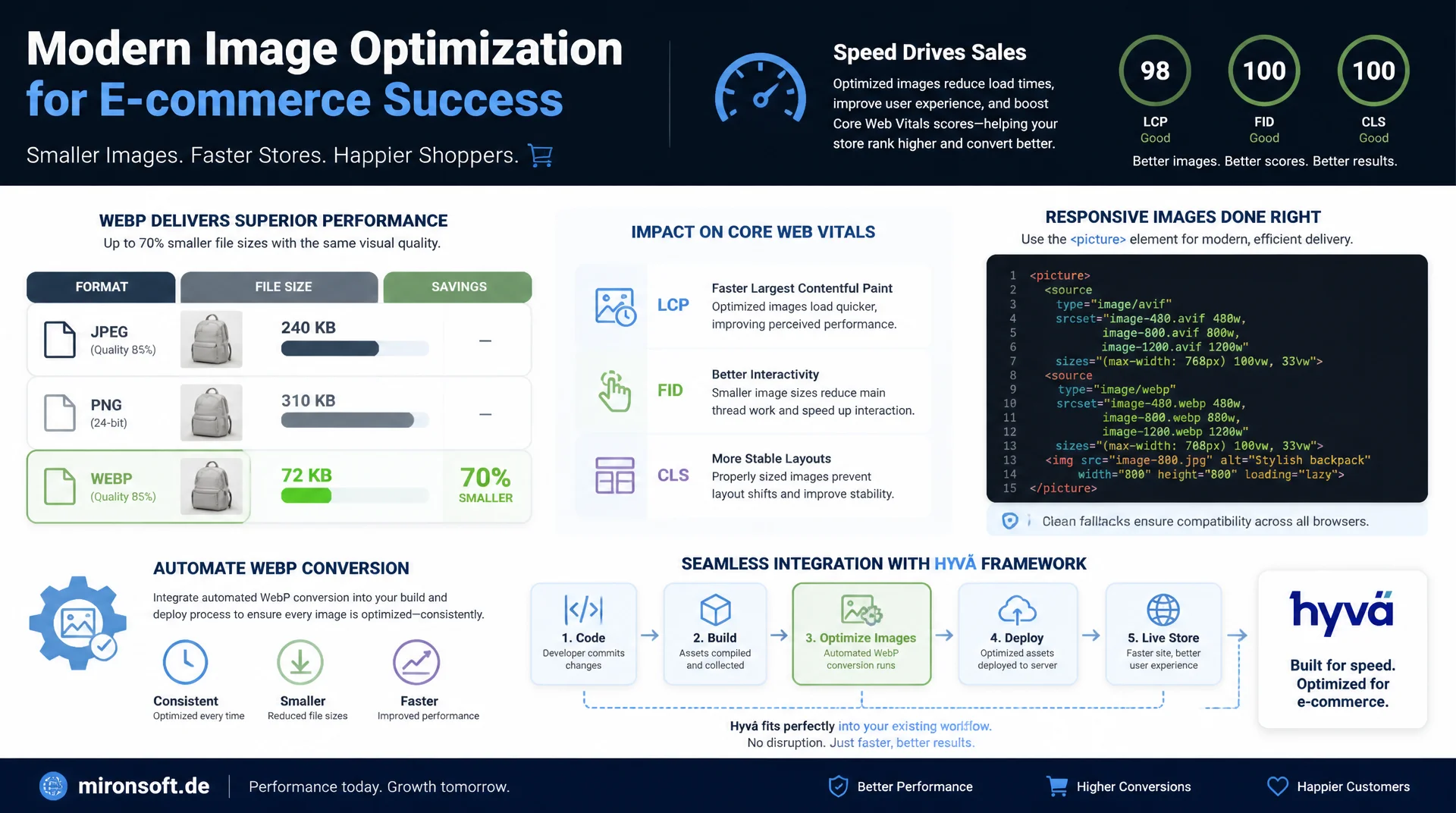
from the picture element to an automated deploy pipeline
Anyone who still ships product images and CMS assets only as JPEG or PNG is giving away load time and Core Web Vitals points on every page view. An automated WebP conversion in the build and deploy process generates a much smaller WebP variant for every image, serves it through the picture element with a clean fallback, and integrates fully into an existing Hyvä deploy sequence without ever putting the storefront at risk if a conversion fails.
Table of Contents
- 1. Why WebP conversion brings performance gains to a Hyvä store
- 2. Magento's native image resizing and its limits
- 3. The picture element with source type=image/webp and fallback
- 4. A build step with sharp or cwebp for batch conversion
- 5. Integrating WebP conversion into the deploy sequence
- 6. Lazy loading and Core Web Vitals working together with WebP
- 7. Content negotiation via the nginx Accept header as an alternative
- 8. Rollback strategy when WebP conversion fails
- 9. WebP conversion compared: before and after
- 10. Summary
- 11. FAQ
1. Why WebP conversion brings performance gains to a Hyvä store
WebP is an image format developed by Google that supports lossy compression, lossless compression, and alpha transparency, which means it can replace both JPEG and PNG. At comparable visual quality, measured for example via SSIM, file size after a WebP conversion is typically 25 to 35 percent below the JPEG or PNG original. A 1200x1200 pixel product image weighing 180 KB as JPEG usually ends up at 110 to 130 KB after conversion, without customers noticing any difference in the product image.
On a Hyvä store with 24 to 48 product images per category page, this effect quickly adds up to several megabytes of saved transfer per page view. Mobile visitors on weak networks benefit immediately from smaller payloads. Since WebP image formats feed directly into Google's Core Web Vitals scoring, automating WebP conversion is one of the optimizations with the best ratio of effort to measurable performance gain.
2. Magento's native image resizing and its limits
During catalog import and when saving CMS content, Magento automatically generates several image sizes (thumbnail, small image, base image, swatch) and stores them under pub/media/catalog/product/cache/<hash>/. This native resizing takes care of scaling and cropping, but not the output format: an uploaded JPEG stays a JPEG, a PNG stays a PNG, no matter how many size variants get created.
For a WebP conversion, the native Magento pipeline is therefore not enough. Even the media gallery import via bin/magento catalog:images:resize only produces variants in the original format. Anyone who wants WebP image formats in a Hyvä theme has to add this step as its own pipeline stage, either right after import or as part of the deployment, so that every existing image variant gets an additional WebP file with an identical base name.
3. The picture element with source type=image/webp and fallback
So that browsers without WebP support, as well as crawlers and bots, still get a working image, WebP conversion is never shipped to the frontend without a fallback. The picture element with a source tag for image/webp and a classic img fallback is the established pattern here: the browser automatically picks the first matching source without any JavaScript involved.
In a Hyvä template, this pattern replaces the plain img tag for product images in listing and detail views. It is important that width, height, and the loading attribute are still set on the img tag, since source elements themselves do not report layout dimensions to the browser, and CLS could otherwise increase unnecessarily.
{{-- product/list/item/image.phtml - picture element with WebP source and fallback --}}
<picture>
    <source
        srcset="{{ $block->getWebpImageUrl($image) }}"
        type="image/webp">
    <img
        src="{{ $image->getUrl() }}"
        srcset="{{ $image->getUrl() }} 1x, {{ $image->getUrl2x() }} 2x"
        width="{{ $image->getWidth() }}"
        height="{{ $image->getHeight() }}"
        loading="lazy"
        decoding="async"
        alt="{{ $block->escapeHtmlAttr($image->getLabel()) }}"
        class="object-cover w-full h-full">
</picture>
4. A build step with sharp or cwebp for batch conversion
Two tools are well suited for the actual WebP conversion: the CLI tool cwebp from the libwebp distribution, available directly in the deploy container via apt-get install webp, or the Node library sharp, which can hook into an existing Node build script. cwebp is ideal for simple bash batch runs, sharp shines when a Node toolchain for Tailwind or Alpine assets is already running anyway.
Both variants should use quality 80 to 82 as a starting value, because above that the file size benefit is barely measurable, and below it, artifacts become visible in product photos with fine textures. A batch run over pub/media/catalog/product recursively iterates over all JPEG and PNG files and places a .webp file with an identical name next to each one, without modifying or deleting the original.
#!/usr/bin/env bash
# webp-convert.sh - batch WebP conversion for catalog and CMS images
set -euo pipefail

readonly MEDIA_DIR="pub/media/catalog/product"
readonly QUALITY=82
readonly LOG_FILE="var/log/webp-convert.log"

convert_image() {
  local src="$1"
  local dest="${src%.*}.webp"

  # Skip if a fresh WebP variant already exists
  if [[ -f "$dest" && "$dest" -nt "$src" ]]; then
    return 0
  fi

  if cwebp -quiet -q "$QUALITY" "$src" -o "$dest" 2>>"$LOG_FILE"; then
    echo "[OK] $src -> $dest"
  else
    echo "[SKIP] conversion failed, keeping original: $src" | tee -a "$LOG_FILE"
    rm -f "$dest"
  fi
}

find "$MEDIA_DIR" -type f \( -iname "*.jpg" -o -iname "*.jpeg" -o -iname "*.png" \) -print0 |
  while IFS= read -r -d '' file; do
    convert_image "$file"
  done

echo "WebP conversion finished for $MEDIA_DIR"
Anyone who prefers the Node variant wraps WebP conversion as its own npm script next to the Tailwind build. The sharp library uses libvips internally and is significantly faster than sequential cwebp calls for large image volumes, because it processes multiple images in parallel through a worker pool.
{
  "name": "hyva-image-pipeline",
  "private": true,
  "scripts": {
    "images:webp": "node scripts/convert-webp.js pub/media/catalog/product"
  },
  "dependencies": {
    "sharp": "^0.33.0"
  }
}
5. Integrating WebP conversion into the deploy sequence
To keep WebP conversion from becoming a forgotten manual step, it belongs firmly in the existing deploy sequence of the Mark Shust Docker setup. The right point is after setup:static-content:deploy, because only then are the final theme assets and image sizes present in pub/static and pub/media, and before cache:flush, so the full page cache is only repopulated after conversion has fully completed.
In practice, one additional call to the conversion script as its own step in the deploy runbook or CI pipeline is enough. Since cwebp skips WebP files that already exist and are up to date, a repeated deploy run stays fast, because only newly added or changed images actually get converted.
#!/usr/bin/env bash
# deploy.sh - deploy sequence extended with WebP conversion step
set -euo pipefail

echo "1/5: rebuilding Tailwind CSS"
bin/npm --prefix app/design/frontend/Mironsoft/default/web/tailwind run build

echo "2/5: clearing static file caches"
cd src && rm -rf var/view_preprocessed/* pub/static/frontend/* && cd -

echo "3/5: deploying static content"
bin/magento setup:static-content:deploy de_DE en_US -t Mironsoft/default -f

echo "4/5: converting catalog and CMS images to WebP"
bin/cli bash bin/webp-convert.sh

echo "5/5: flushing cache"
bin/magento cache:flush

echo "Deploy finished, WebP conversion completed before cache flush"
6. Lazy loading and Core Web Vitals working together with WebP
WebP conversion and lazy loading solve different problems, but complement each other in their effect on Core Web Vitals. Smaller WebP files reduce pure transfer time, while loading="lazy" prevents images outside the visible viewport from being requested at all. For the Largest Contentful Paint element, usually the first product image or hero image, loading should deliberately be omitted or set to eager, so the browser prioritizes loading it immediately.
For Cumulative Layout Shift, explicit width and height attributes on the img tag are decisive, regardless of image format. Since the picture element inherits its dimensions from the embedded img tag, the page layout stays stable even if the WebP variant shows slightly different compression artifacts than the original. The combination of WebP image formats, correct dimension attributes, and targeted lazy loading typically improves both LCP and CLS at the same time.
7. Content negotiation via the nginx Accept header as an alternative
Instead of explicitly declaring WebP image formats in the markup via the picture element, nginx can also deliver WebP transparently through content negotiation. Modern browsers send image/webp in the Accept header when they support the format. A map block checks this header and serves the matching WebP file instead of the requested JPEG or PNG when one exists, without any template changes needed.
The advantage of this method lies in decoupling from the frontend code, the disadvantage is added nginx configuration complexity and more error-prone caching behavior, since Vary: Accept must be set so that CDN and browser cache keep separate responses per Accept header. For most Hyvä projects, the picture element remains the more robust choice, while the nginx variant works well as extra coverage for legacy templates that cannot be touched.
# nginx.conf.d/webp.conf - content negotiation via Accept header
map $http_accept $webp_suffix {
    default   "";
    "~*webp"  ".webp";
}

server {
    # ... existing Magento server block ...

    location ~* ^/media/catalog/product/(.+)\.(jpe?g|png)$ {
        add_header Vary Accept;
        try_files /media/catalog/product/$1.$2$webp_suffix $uri =404;
    }
}
8. Rollback strategy when WebP conversion fails
A WebP conversion must never block the storefront. If cwebp or sharp fails for a single image, for example due to a corrupted file or an exotic color profile, the deploy script must neither abort nor leave an empty or half-finished WebP file behind. The conversion script from section 4 therefore explicitly deletes the target file on error and logs the incident, rather than letting set -e crash the whole script.
On the frontend, the fallback mechanism of the picture element kicks in automatically: if no WebP file exists, the browser simply serves the img fallback, with no 404 error during rendering, as long as the WebP URL is checked for existence on the server side and otherwise not even emitted as a source. This double safeguard, clean error handling in the build step plus conditional markup in the template, makes WebP conversion risk-free for live operation.
9. WebP conversion compared: before and after
The effect of an automated WebP conversion is best shown using concrete measurements from a typical category and product page setup.
| Criterion | JPEG/PNG without conversion | Automated WebP conversion |
|---|---|---|
| Product image file size | ~180 KB (1200x1200 JPEG) | ~115 KB (WebP, quality 82) |
| Category page LCP | ~3.1 seconds | ~2.0 seconds |
| Browser support | Universal, but unnecessarily large | Over 97% direct, rest via fallback |
| Maintenance effort | None, but a slower storefront | One automated deploy step |
These figures come from repeated PageSpeed Insights measurements on a mid-sized Magento catalog with around 3,000 products. The maintenance effort for WebP conversion drops after the initial integration to simply running an already existing deploy step, without editors or developers having to intervene manually.
10. Summary
An automated WebP conversion in the Hyvä build process solves a concrete performance problem: catalog and CMS images ship 25 to 35 percent smaller with no manual effort, without visibly degrading visual quality. The picture element with a WebP source and a classic fallback ensures that older browsers and crawlers still receive a working image. A build step using cwebp or sharp, integrated firmly into the deploy sequence between static content deploy and cache flush, makes the conversion reproducible and automatic.
Error handling is decisive for production use: a WebP conversion must never block the storefront when a single image cannot be converted. Combined with lazy loading and correct image dimensions, the switch has a direct and measurable effect on LCP and CLS. nginx-based content negotiation is a sensible addition for legacy templates, but in a Hyvä context it does not replace explicit markup.
Automating WebP conversion in the Hyvä theme: the essentials at a glance
File size
WebP image formats at quality 80 to 82 typically save 25 to 35 percent compared to JPEG or PNG at comparable visual quality.
Markup
picture element with source type="image/webp" and an img fallback is the most robust pattern for Hyvä templates.
Build & deploy
cwebp or sharp as its own deploy step between setup:static-content:deploy and cache:flush.
Safety
Failed conversions must never block the storefront, the img fallback kicks in automatically.
11. FAQ: Automating WebP Conversion in the Hyvä Theme
1What exactly is WebP conversion?
2Does Magento generate WebP image formats automatically?
3How do I include WebP in a Hyvä template?
4cwebp or sharp for batch conversion?
5Where does WebP belong in the deploy sequence?
6What happens on a failed conversion?
7Which quality level for conversion?
8Does WebP actually improve Core Web Vitals?
9Is nginx content negotiation an alternative?
10Do I have to reconvert all images on every deploy?
Mironsoft
Hyva themes, image optimization, and performance tuning for Magento 2
Want WebP conversion built firmly into your deploy pipeline?
We integrate automated WebP conversion into your Hyvä deploy sequence, including picture element markup, rollback safeguards, and Core Web Vitals measurement for your Magento store.
Build integration
A cwebp- or sharp-based conversion step in your deploy sequence
Template adjustments
picture element with fallback across all relevant Hyvä templates
Performance measurement
Core Web Vitals evaluation before and after rollout