Implementing sorting, the grid/list switcher, and pagination properly
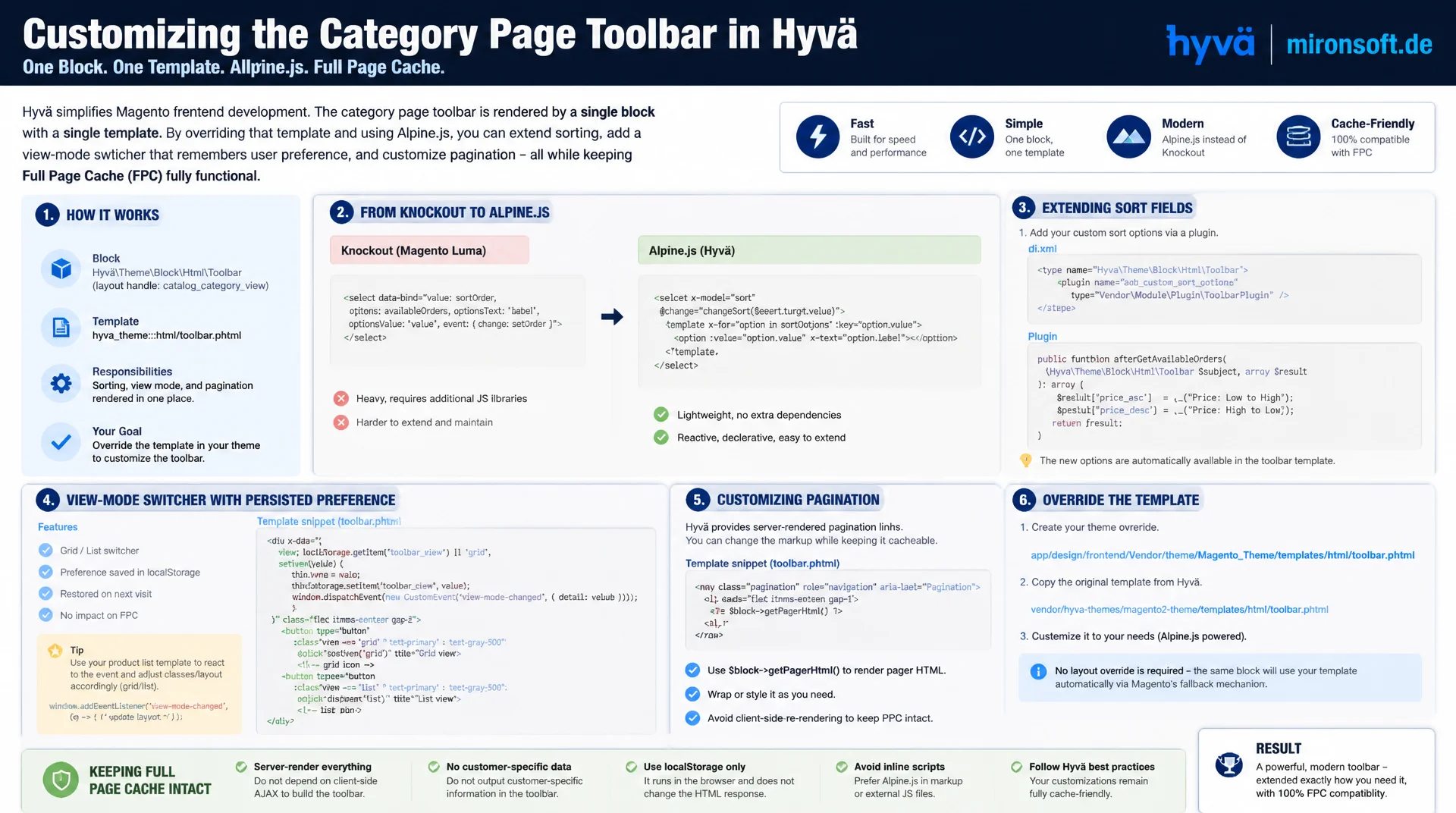
Anyone customizing the category page toolbar in the Hyvä theme works with a single block, a single template, and Alpine.js instead of Knockout bindings and UI Components grids. This guide shows how to extend sort fields, build a view-mode switcher with persistence, and adjust pagination on the Hyvä category page without breaking full page cache.
Table of Contents
- 1. How the Category Page Is Built in the Hyvä Theme
- 2. Layout Architecture: category.xml, product_list_toolbar.xml, and the Container Hierarchy
- 3. Customizing Sorting: Sort Fields, EAV Attributes, and a ViewModel
- 4. An Alpine.js Sort Dropdown Instead of a Native Select
- 5. Grid/List Switcher with Persistence
- 6. Customizing Pagination: Items per Page and a Custom Pager Design
- 7. Mobile Toolbar: Sticky Header and Bottom Sheet
- 8. GraphQL/Headless Aspects of the Category Page Toolbar
- 9. Performance and Full Page Cache Compatibility
- 10. Summary
- 11. FAQ
1. How the Category Page Is Built in the Hyvä Theme
The Hyvä category page renders its toolbar through the same block as Luma: Magento\Catalog\Block\Product\ProductList\Toolbar. The decisive difference is not in the PHP layer but in the template. Instead of Magento_Catalog::product/list/toolbar.phtml with Knockout bindings, separate knockout templates such as sorter.html, limiter.html, and toolbar-amount.html, plus a UI Components grid loaded asynchronously via RequireJS, Hyvä ships a single, fully server-rendered phtml template. There is no client-side rendering of the toolbar, no data-bind attributes, and no asynchronous loading of sort or limiter widgets.
The toolbar block provides the familiar getters: getCurrentOrder(), getCurrentDirection(), getAvailableOrders(), getCurrentMode(), getModes(), getLimit(), and getAvailableLimit(). In the hyva-themes/magento2-default-theme-csp theme, the template override lives at Magento_Catalog/templates/product/list/toolbar.phtml and uses these getters directly in Tailwind markup, complemented by Alpine.js directives for the interactive parts. That drastically reduces the number of files involved: one phtml, one optional ViewModel, one Alpine component script, done.
One important boundary: the category page toolbar deals exclusively with sorting, view mode, and page navigation. The sidebar with facets such as color, size, or a price slider is a completely separate block (Magento_LayeredNavigation) with its own rendering path, and it is deliberately not covered here. Mixing the two areas together quickly leads to confusion about responsibilities in the layout.
2. Layout Architecture: category.xml, product_list_toolbar.xml, and the Container Hierarchy
The layout definition for the Hyvä category page starts at catalog_category_view.xml. There, the category.products block (class Magento\Catalog\Block\Product\ListProduct) references the child block product_list_toolbar through the toolbar_block_name argument. In the default layout chain, this block is included twice in the output: once above and once below the product list. Both instances share state and template but differ in rendering context, which matters for custom category page toolbar work whenever the top and bottom instances should show different elements.
To override the toolbar in your own theme, you add a referenceBlock name="product_list_toolbar" in app/design/frontend/Mironsoft/default/Magento_Catalog/layout/catalog_category_view.xml and set a custom template or an additional ViewModel argument there. The container hierarchy follows category.view.container → category.products → product_list_toolbar, with category.products itself also including the actual product list as a sibling block. This structure stays unchanged in the Hyvä theme; only the templates underneath it get replaced.
A common mistake during overrides: developers create an entirely new product_list_toolbar.phtml without respecting the getters provided by the block, breaking the synchronization between the two toolbar instances above and below the list. It is cleaner to extend the ViewModel argument in the layout XML and add only extra markup blocks in the template, instead of rewriting the whole logic from scratch.
| Task | Naive Luma-Style Approach | Recommended Hyvä Pattern | Benefit |
|---|---|---|---|
| Sort dropdown | Knockout select with data-bind | Alpine x-data custom dropdown | No Knockout overhead, full keyboard support |
| View-mode persistence | Server-side session variable | Alpine + localStorage/cookie | No extra request, FPC neutral |
| Pagination | UI Components pager with RequireJS | Server-rendered phtml with query parameters | Directly indexable, no JS grid needed |
| Mobile toolbar | Fixed overlay without transition | Alpine x-show/x-transition bottom sheet | Smooth animation, small bundle size |
| FPC compatibility | Server-side sort session | URL parameters + client-side view mode | Every sort URL stays cacheable |
3. Customizing Sorting: Sort Fields, EAV Attributes, and a ViewModel
The default sort fields on the Hyvä category page are position, price, name, and, when configured, newness via created_at. Which fields are actually offered is controlled by the EAV attribute flag used_for_sort_by. A new sort field, say an average rating or a custom feature attribute, is set through a data patch class (Magento\Framework\Setup\Patch\DataPatchInterface) that loads the attribute and sets used_for_sort_by to 1, instead of relying on a legacy install script.
For rendering the available sort options, a dedicated ViewModel is preferable to a block class. A SortOptionsViewModel implementing ArgumentInterface encapsulates the logic for which sort fields appear, in what order, and with what label, and can be wired to the Toolbar block, the attribute repository, and the store manager through constructor property promotion. The template then only calls $sortOptionsViewModel->getAvailableOrders() instead of duplicating business logic in the phtml.
One detail frequently overlooked in category page toolbar implementations: the sort direction (asc/desc) has a different sensible default per field. Price usually starts ascending, newness descending. The ViewModel should return this default direction per field rather than branching on conditions inside the template.
<?php

declare(strict_types=1);

namespace Mironsoft\CategoryToolbar\ViewModel;

use Magento\Catalog\Model\Product\ProductList\Toolbar;
use Magento\Eav\Api\AttributeRepositoryInterface;
use Magento\Framework\View\Element\Block\ArgumentInterface;

/**
 * Provides sort options for the Hyva category page toolbar.
 */
final class SortOptionsViewModel implements ArgumentInterface
{
    /**
     * @param Toolbar $toolbar Catalog toolbar model providing current sort state.
     * @param AttributeRepositoryInterface $attributeRepository Repository used to resolve EAV attribute labels.
     */
    public function __construct(
        private readonly Toolbar $toolbar,
        private readonly AttributeRepositoryInterface $attributeRepository,
    ) {
    }

    /**
     * Returns available sort fields with label and default direction.
     *
     * @return array<string, array{label: string, dir: string}>
     */
    public function getAvailableOrders(): array
    {
        $orders = [];
        foreach ($this->toolbar->getAvailableOrders() as $code => $label) {
            $orders[$code] = [
                'label' => (string) $label,
                'dir' => $this->getDefaultDirection($code),
            ];
        }

        return $orders;
    }

    /**
     * Returns the currently active sort field code.
     *
     * @return string
     */
    public function getCurrentOrder(): string
    {
        return (string) $this->toolbar->getCurrentOrder();
    }

    /**
     * Resolves a sensible default direction per sort field.
     *
     * @param string $code Sort field code, e.g. "price" or "created_at".
     * @return string Either "asc" or "desc".
     */
    private function getDefaultDirection(string $code): string
    {
        return match ($code) {
            'created_at' => 'desc',
            default => 'asc',
        };
    }
}
4. An Alpine.js Sort Dropdown Instead of a Native Select
A native <select> is accessible and works fine, but it is hard to style consistently with Tailwind without risking browser inconsistencies. For the Hyvä category page, the common pattern is therefore an Alpine-based dropdown: an x-data component holds the open state, the currently selected sort field, and the direction, while a <button> with listbox semantics (role="listbox") and a <ul> with role="option" entries handles the actual rendering.
Keyboard operability is not optional here, it is a requirement. Arrow keys move between options, Enter confirms, and Escape closes the dropdown and returns focus to the triggering button. Alpine expresses this with @keydown.arrow-down.prevent, @keydown.arrow-up.prevent, @keydown.enter, and @keydown.escape, combined with x-ref for programmatic focus changes. It is important to never use literal mustache syntax and to always rely on x-text for dynamic text content instead.
When an option is clicked, Alpine does not fetch anything, it sets window.location to the sort URL the server has already prepared, with the matching product_list_order and product_list_dir parameters. This is intentional: a full page navigation with a new query string stays identifiable by the full page cache, while a purely client-side update of the product list would require additional GraphQL or REST calls.
/**
 * Alpine.js component for the Hyva category page toolbar sort dropdown.
 * Handles keyboard navigation and full-page navigation on selection.
 */
function categorySortDropdown(currentOrder, currentDir) {
  return {
    open: false,
    currentOrder,
    currentDir,
    highlightedIndex: 0,

    /**
     * Toggles the dropdown and resets keyboard highlight.
     */
    toggle() {
      this.open = !this.open;
      if (this.open) {
        this.highlightedIndex = 0;
        this.$nextTick(() => this.$refs.list.focus());
      }
    },

    /**
     * Moves the keyboard highlight within the option list.
     * @param {number} delta -1 for up, 1 for down.
     * @param {number} total Total number of options.
     */
    move(delta, total) {
      this.highlightedIndex = (this.highlightedIndex + delta + total) % total;
    },

    /**
     * Applies the chosen sort field and triggers a full page navigation.
     * @param {string} code Sort field code, e.g. "price".
     * @param {string} dir Sort direction, "asc" or "desc".
     * @param {string} url Pre-built target URL from the server.
     */
    select(code, dir, url) {
      this.currentOrder = code;
      this.currentDir = dir;
      this.open = false;
      window.location.assign(url);
    },

    /**
     * Closes the dropdown and returns focus to the trigger button.
     */
    close() {
      this.open = false;
      this.$refs.trigger.focus();
    },
  };
}
5. Grid/List Switcher with Persistence
The view-mode toggle on the Hyvä category page switches between a grid layout with multiple columns and a list layout with a single column and more detailed product text. Unlike sorting, which requires a new server response with a different product order, the view mode is purely presentational: the same product data is simply arranged differently. That is exactly why this feature belongs consistently on the client side.
The usual pattern combines an Alpine component with localStorage for persistence across page loads, optionally paired with a ViewModel that reads the initially rendered mode server-side from a cookie, to avoid a flash of wrong layout on first render. The phtml renders both layout variants with conditional Tailwind classes, such as grid grid-cols-2 sm:grid-cols-3 lg:grid-cols-4 for the grid view and flex flex-col divide-y for the list view, while Alpine switches between the two via :class without requiring a new request to the server.
For production-ready category page toolbar implementations, it is also worth adding a server-side cookie via Magento\Framework\Stdlib\CookieManagerInterface, read on the first request to determine the default CSS class in the initially delivered HTML. That way the page layout stays consistent with the last chosen view even with JavaScript disabled, while Alpine in the browser only handles the switch without a reload.
/**
 * Alpine.js component for the Hyva category page grid/list view-mode toggle.
 * Persists the choice in localStorage and syncs an outgoing cookie.
 */
function categoryViewMode(initialMode) {
  return {
    mode: initialMode,

    /**
     * Initializes the component and restores a previously saved mode.
     */
    init() {
      const saved = window.localStorage.getItem('category_view_mode');
      if (saved === 'grid' || saved === 'list') {
        this.mode = saved;
      }
    },

    /**
     * Switches the view mode and persists it for future visits.
     * @param {string} mode Either "grid" or "list".
     */
    setMode(mode) {
      this.mode = mode;
      window.localStorage.setItem('category_view_mode', mode);
      document.cookie = 'category_view_mode=' + mode + '; path=/; max-age=31536000; samesite=lax';
    },

    /**
     * Returns whether a given mode is currently active.
     * @param {string} mode Mode identifier to compare.
     * @returns {boolean}
     */
    isActive(mode) {
      return this.mode === mode;
    },
  };
}
6. Customizing Pagination: Items per Page and a Custom Pager Design
Pagination on the Hyvä category page consists of two independent controls: the items-per-page selector (limiter), which draws its available values from getAvailableLimit() based on Stores > Configuration > Catalog > Storefront, and the actual pager with page numbers plus previous and next links. Both are rendered in the default Hyvä template as plain links carrying the full query string, not as a JavaScript-loaded grid.
A custom pager design typically replaces the default presentation with a more compact variant showing at most five visible page numbers plus ellipsis placeholders when the total number of pages is larger. The logic for which page numbers to show belongs in a ViewModel or a dedicated pager class, not in the template itself, so it stays testable and does not need to be rewritten with every design change.
Because the toolbar is included twice in the default layout structure, above and below the product list, it makes sense to show the full toolbar with sorting, view mode, and limiter at the top, and only the pager at the bottom, to avoid redundancy on long category pages. This distinction can be controlled through a block argument in the layout XML that tells the template which sections to render.
7. Mobile Toolbar: Sticky Header and Bottom Sheet
On small screens, a full toolbar with sorting, view mode, and limiter quickly crowds out the visible product area. The established pattern for the mobile Hyvä category page reduces the visible toolbar to a compact button strip with a sort and filter trigger, while the actual sort options are moved into a bottom sheet that slides up via Alpine x-show and x-transition.
To keep the toolbar reachable while scrolling through long product lists, the button strip is fixed with sticky top-0 z-10, a subtle backdrop-blur, and a background color. A sufficient z-index matters here, one that sits above the product grid but below modal overlays, along with a shadow-sm once the page has scrolled, to visually separate the toolbar from the content.
The bottom sheet itself uses x-transition:enter with a transform animation from translate-y-full to translate-y-0, combined with a semi-transparent backdrop that closes the sheet on click. Focus is programmatically set to the first sort option when the sheet opens, and @keydown.escape.window closes it regardless of where focus currently sits, which matters for usability on touch devices with an attached keyboard.
8. GraphQL/Headless Aspects of the Category Page Toolbar
For custom frontends or PWA extensions that do not build on the server-rendered Hyvä template, the products GraphQL query mirrors the same toolbar logic that the Hyvä category page uses server-side. The sort input type allows exactly the fields that have used_for_sort_by set server-side, so the frontend and backend share the same source of truth for available sort fields.
The pageSize and currentPage parameters take on the role of the limiter and pager. A headless frontend should mirror these values in its own URL, for instance as query parameters, so deep links and browser navigation (back/forward) work consistently, just as with the server-rendered category page toolbar. The view-mode switcher has no equivalent in GraphQL, since it is purely frontend rendering with no server relevance.
# GraphQL query mirroring the Hyva category page toolbar: sort, pagination, page size
query CategoryProductsToolbar(
  $categoryId: String!
  $currentPage: Int = 1
  $pageSize: Int = 24
  $sort: ProductAttributeSortInput
) {
  products(
    filter: { category_id: { eq: $categoryId } }
    currentPage: $currentPage
    pageSize: $pageSize
    sort: $sort
  ) {
    total_count
    page_info {
      current_page
      page_size
      total_pages
    }
    items {
      sku
      name
      price_range {
        minimum_price {
          final_price {
            value
            currency
          }
        }
      }
    }
    sort_fields {
      default
      options {
        value
        label
      }
    }
  }
}
9. Performance and Full Page Cache Compatibility
Full page cache compatibility on the Hyvä category page depends heavily on which toolbar states are managed server-side and which are managed client-side. Sorting and pagination produce different query strings (product_list_order, product_list_dir, p, product_list_limit), and each of these URLs is treated by the full page cache as its own cache entry. That is intentional: the server delivers a correctly sorted, correctly paginated HTML response for every combination, and that response stays fully cacheable.
The view-mode switcher, by contrast, deliberately changes neither the URL nor the request. If the grid/list toggle were controlled server-side through a session variable, either every category page would need to be kept in two cache variants, or the session dependency would remove the page from full page cache entirely. The client-side solution using Alpine and localStorage avoids this problem completely, because it takes effect in the browser after the cached HTML has already been delivered, without touching the cache key.
For the category page toolbar as a whole, the rule of thumb is: anything that changes the order or set of delivered products belongs in the URL and stays server-side cacheable. Anything that only affects the presentation of identical data belongs on the client side and stays invisible to full page cache.
<?xml version="1.0"?>
<!--
  Layout override for the Hyva category page toolbar.
  Located at: app/design/frontend/Mironsoft/default/Magento_Catalog/layout/catalog_category_view.xml
-->
<page xmlns:xsi="http://www.w3.org/2001/XMLSchema-instance"
      xsi:noNamespaceSchemaLocation="urn:magento:framework:View/Layout/etc/page_configuration.xsd">
    <body>
        <referenceBlock name="category.products">
            <arguments>
                <argument name="viewModels" xsi:type="array">
                    <item name="sort_options" xsi:type="object">
                        Mironsoft\CategoryToolbar\ViewModel\SortOptionsViewModel
                    </item>
                </argument>
            </arguments>
        </referenceBlock>
        <referenceBlock name="product_list_toolbar">
            <arguments>
                <argument name="template" xsi:type="string">
                    Magento_Catalog::product/list/toolbar.phtml
                </argument>
            </arguments>
        </referenceBlock>
    </body>
</page>
Mironsoft
Hyvä theme development, toolbar customization, and Magento performance
A category page toolbar that fits your store?
We adapt sorting, the view-mode switcher, and pagination on the Hyvä category page to your requirements, with ViewModels, Alpine.js components, and full full-page-cache compatibility.
Toolbar Audit
Analysis of the existing category page toolbar for FPC compatibility and accessibility
Alpine Components
Custom sort dropdown, view-mode switcher, and mobile bottom sheet
GraphQL Integration
Sort and pagination queries for headless frontends and PWA extensions
10. Summary
The Hyvä category page replaces Knockout bindings and UI Components grids with a single server-rendered toolbar block plus Alpine.js for the interactive parts. Sort fields are controlled through used_for_sort_by and a dedicated ViewModel, instead of scattering logic across the template. The grid/list switcher stays deliberately client-side, because it only affects the presentation of identical product data and needs no new request.
Pagination and the items-per-page selector, on the other hand, produce different URLs and therefore stay server-side cacheable. For headless scenarios, the products GraphQL query mirrors the same sorting and pagination logic as the server-rendered category page toolbar. Anyone who consistently maintains this separation between server-side state and client-side presentation ends up with a toolbar that can be freely styled without endangering full page cache.
Hyvä Category Page: Toolbar at a Glance
Sorting
Toolbar block plus ViewModel control sort fields via used_for_sort_by. Alpine replaces the native select with a keyboard-operable dropdown.
Grid/List Switcher
Purely client-side via Alpine and localStorage, complemented by a cookie for the initial server render without a layout jump.
Pagination
Items-per-page and pager produce their own URLs, above and below the product list, fully server-rendered.
FPC Compatibility
Server state lives in the URL, presentation state stays in the browser. Every sort and pagination variant stays cacheable this way.