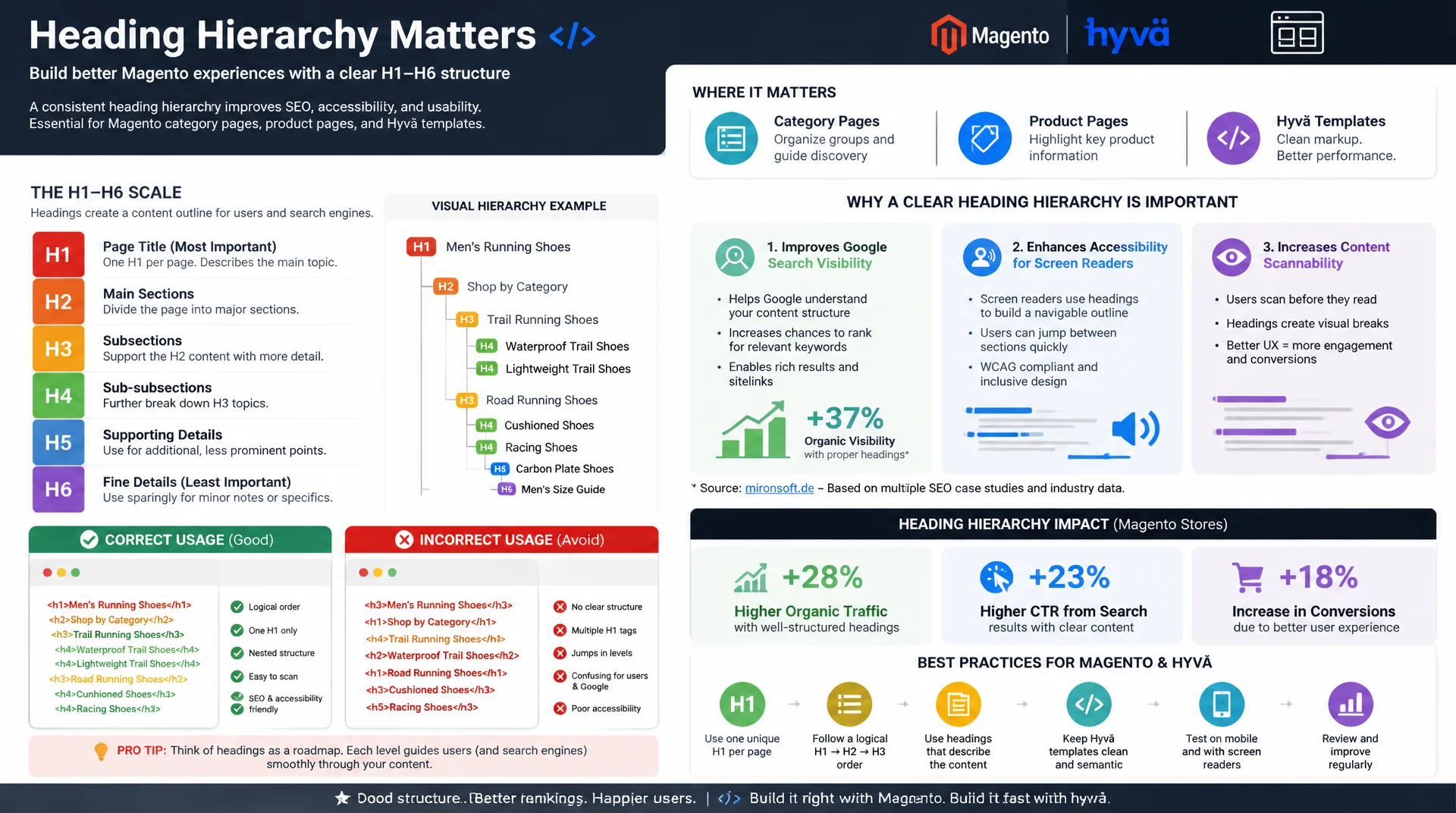
Nesting H1 through H6 deliberately instead of randomly
A messy heading hierarchy confuses crawlers, kills featured snippet chances, and makes navigation harder for screen readers. Assigning H1 through H6 consistently by meaning instead of appearance improves visibility in Google search, accessibility, and scannability at the same time, with clear rules for Magento category pages, product pages, and Hyvä templates.
Table of Contents
- 1. Why content structure and headings matter for SEO
- 2. H1-H6 hierarchy: one H1 per page, semantic nesting
- 3. How headings help crawlers, featured snippets, and screen readers
- 4. Scannable content: short paragraphs, lists, subheadings
- 5. Common heading mistakes in Magento theme templates
- 6. Structuring headings correctly in Hyvä templates
- 7. Content structure for category and product pages
- 8. Auditing heading structure: tools and browser extensions
- 9. Heading patterns compared side by side
- 10. Summary
- 11. FAQ
1. Why content structure and headings matter for SEO
Content structure and headings are not a formatting choice for Google, they are the primary signal for understanding a page's topic, weighting, and outline. A crawler does not read a page linearly like a human; it builds a table of contents from H1 through H6 that feeds directly into topical relevance scoring. A product page without a clear heading structure forces the algorithm to guess relevance from body copy and meta data instead of reading it from an explicit outline, with measurably weaker rankings for long-tail keywords that would otherwise sit right in the subheadings.
The second, often underestimated effect concerns real users: shoppers scan product and category pages in a fraction of a second before they even read. A clean heading hierarchy provides exactly the anchor points the eye latches onto, such as "Technical Specs," "Shipping Time," or "Reviews." Without this structure, bounce rate rises because users cannot find the information they came for within the first few seconds. Content structure is therefore an SEO lever and a conversion lever at the same time, not just one of the two.
2. H1-H6 hierarchy: one H1 per page, semantic nesting
The base rule is simple but constantly violated in practice: every page gets exactly one H1 that precisely names the main topic, for Magento stores usually the category or product name. Everything below follows strict semantic nesting: H2 divides the page's main sections, H3 further divides an H2 section, H4 in turn divides an H3 section. Heading levels must never be skipped, because jumping from H2 straight to H4 breaks the outline logic that screen readers and crawlers alike rely on to build their table of contents.
It is important to separate semantics from appearance: the heading level determines meaning in the document, not font size. An H3 is allowed to look visually larger than an H2, as long as the underlying structure stays correct, controlled exclusively through CSS, never by choosing the wrong heading level just for the desired look. The example below shows the difference between a structure that grew randomly and one that is semantically correct:
<!-- Wrong: H1 used twice, levels skipped, order chosen by appearance -->
<h1>Handbags</h1>
<h3>New Arrivals</h3>
<h1>Popular Brands</h1>
<h4>Care Instructions</h4>

<!-- Right: one H1, strictly nested levels -->
<h1>Handbags</h1>
<h2>New Arrivals</h2>
<h2>Popular Brands</h2>
<h3>Care Instructions</h3>
<h3>Shipping and Returns</h3>
3. How headings help crawlers, featured snippets, and screen readers
Google crawlers extract a structured outline model of a page from its headings, which feeds directly into two areas: topical relevance scoring and the automatic selection of featured snippet candidates. A question phrased as an H2 or H3, followed by a concise paragraph or list, remains the most reliable pattern for landing in position zero of the search results, since Google pulls the text directly below the matching heading as the snippet answer.
For screen readers, heading structure is not a convenience feature, it is the primary navigation method. NVDA, JAWS, and VoiceOver all offer a keyboard shortcut that shows a list of every heading on a page, comparable to a table of contents that blind users can jump through with a keypress. Without a logical hierarchy, or when an H1 is rendered as an H4 purely for visual reasons, this navigation becomes useless, because users can no longer orient themselves by the importance of a section, only by its arbitrary position in the document.
4. Scannable content: short paragraphs, lists, subheadings
Scannability comes from three factors that have to work together: short paragraphs of at most three to four sentences, lists for anything that can be enumerated instead of long run-on sentences, and subheadings every 150 to 250 words that summarize the next idea in advance. Users demonstrably do not read web pages word by word, they scan the page in an F-shaped pattern and only stop on elements that visually stand out from body copy, chiefly headings, bolded terms, and list items.
A common mistake is changing the heading level for more visual prominence instead of adjusting the styling. If an H2 looks too small in Tailwind, the fix is a larger utility class for that specific H2, not switching to a semantically wrong H1 or H3. That way the document structure stays correct for crawlers and screen readers while the visual hierarchy can be designed independently:
/* Make H2 visually prominent without changing the heading level */
.prose h2 {
  font-size: 1.75rem;
  font-weight: 700;
  margin-top: 2.5rem;
  border-bottom: 2px solid #e2e8f0;
  padding-bottom: 0.5rem;
}

/* H3 deliberately smaller than some body elements, but stays an H3 */
.prose h3 {
  font-size: 1.125rem;
  font-weight: 600;
  color: #1e3a8a;
}

/* Visual emphasis via a utility class, not via the wrong heading level */
.prose .lead-in {
  font-size: 1.25rem;
  font-weight: 500;
}
5. Common heading mistakes in Magento theme templates
The most common heading mistake in Magento stores comes from double assignment: the theme already renders the category name as an H1 in the page title block, but a static-content CMS block in the same layout additionally contains an H1 element inserted via Page Builder. Google then sees two competing H1 tags on the same page and has to decide for itself which one carries the page's actual topical statement, a decision that should never be left to the algorithm.
A second, more subtle problem involves editors maintaining CMS blocks in the WYSIWYG editor: without technical understanding of the hierarchy, they often pick a level that looks right visually instead of the semantically correct one, so bold, large-looking text ends up as an H2 even though it is really only an H4 subheading in content terms. The fix is a fixed editorial rule plus a technical safeguard in the layout XML that prevents content blocks from outputting their own H1 elements:
<!-- Layout XML: prevent a duplicate H1 from a CMS block -->
<page xmlns:xsi="http://www.w3.org/2001/XMLSchema-instance"
      xsi:noNamespaceSchemaLocation="urn:magento:framework:View/Layout/etc/page_configuration.xsd">
    <body>
        <!-- Page title block stays the single source of the H1 -->
        <referenceBlock name="page.main.title" remove="false"/>

        <!-- CMS block may only start at H2, never render its own H1 -->
        <referenceBlock name="category.cms.block">
            <arguments>
                <argument name="min_heading_level" xsi:type="number">2</argument>
            </arguments>
        </referenceBlock>
    </body>
</page>
6. Structuring headings correctly in Hyvä templates
In Hyvä templates, responsibility for the H1 almost always lives in the page title block of the relevant layout handle, for example in a title.phtml that outputs the title via $block->getPageMainTitle() or an equivalent view model method. Custom templates for category or product content must never duplicate this block; they need to consistently continue with H2 for their own sections, such as description copy, SEO text at the bottom of the page, or related categories.
Alpine.js components such as accordions or tabs, frequently used in Hyvä for "Description," "Technical Specs," or "Reviews," must not change the heading level just because content is hidden via x-show. A section hidden by Alpine still exists in the DOM and keeps getting read by crawlers, so the heading level must stay correct regardless of visibility state, complemented by aria-expanded for screen reader semantics:
<?php /** @var \Hyva\Theme\ViewModel\CategoryPageViewModel $categoryViewModel */ ?>

<!-- Category page: one H1, own sections consistently start at H2 -->
<h1 class="text-3xl font-bold mb-4"><?= $escaper->escapeHtml($block->getCategoryName()) ?></h1>

<div class="prose max-w-none mb-8">
    <?= /* @noEscape */ $block->getCategoryDescription() ?>
</div>

<h2 class="text-xl font-semibold mb-3">Popular Products in <?= $escaper->escapeHtml($block->getCategoryName()) ?></h2>

<div x-data="{ open: false }" class="border-t border-gray-200 mt-8">
    <button @click="open = !open" :aria-expanded="open.toString()" class="w-full text-left py-4">
        <h2 class="text-lg font-semibold">Frequently Asked Questions</h2>
    </button>
    <div x-show="open" class="pb-4">
        <h3 class="text-base font-semibold mb-2">Which sizes are available?</h3>
        <p>All size information can be found in the product table.</p>
    </div>
</div>
7. Content structure for category and product pages
Category pages follow a fixed pattern: H1 equals the category name, followed by optional intro copy without its own heading, then H2 sections for "Popular Products," "Buying Guide," or a longer SEO text at the bottom of the page. Filter navigation and subcategory links deliberately get no headings of their own, since they are structurally navigation, not a content section; a common mistake is accidentally rendering filter labels like "Brand" or "Size" as an H2 instead of a plain label.
On product pages, the H1 is always the product name, never the category name or brand name alone. Below it come H2 sections for "Description," "Technical Specs," "Shipping and Returns," and "Reviews," regardless of whether these areas are displayed visually as tabs. Related-products and cross-selling blocks should be marked up as their own H2, "You might also like," so crawlers can clearly distinguish this area from the actual product description.
8. Auditing heading structure: tools and browser extensions
For manually checking individual pages, browser extensions such as "HeadingsMap" or the "Web Developer Toolbar" are the fastest method: both extract the heading hierarchy of the current page into a tree-like overview and immediately color-flag missing H1 tags, duplicate H1 tags, or skipped levels. For productive team use, the Chrome DevTools accessibility view additionally provides the accessibility tree, showing exactly how a screen reader actually interprets the structure.
For an entire store with thousands of URLs, a crawl tool like Screaming Frog or a custom script that reads the sitemap and extracts the heading structure per page pays off. This makes it possible to systematically catch missing or duplicate H1 tags across the whole catalog, instead of checking page by page manually:
#!/bin/bash
# Read the sitemap and check the heading structure of every URL
SITEMAP_URL="https://mironsoft.de/sitemap.xml"

curl -s "$SITEMAP_URL" | grep -oP '(?<=<loc>)[^<]+' | while read -r url; do
  h1_count=$(curl -s "$url" | grep -oP '<h1[ >]' | wc -l)
  if [ "$h1_count" -ne 1 ]; then
    echo "WARNING: $url has $h1_count H1 tags (expected: 1)"
  fi
done
9. Heading patterns compared side by side
The table below sets the most common heading mistakes in Magento stores against the correct pattern for each, including the SEO or accessibility effect the fix produces.
| Area | Typical mistake | Recommended pattern | Effect |
|---|---|---|---|
| H1 assignment | Multiple H1s from CMS block + page title | Exactly one H1 per page | Clear topic assignment for Google |
| Heading skips | H2 straight to H4 without H3 | Unbroken nesting H1-H6 | Correct screen reader navigation |
| Featured snippets | Question hidden only in body text | Question as H2/H3, answer right below | Higher snippet chance |
| Visual adjustment | Wrong heading level for font size | CSS classes instead of changing level | Structure stays crawler-correct |
| Alpine accordions | Heading disappears from the DOM entirely with x-show | Heading stays in the DOM, only content is hidden | Full indexing despite the UI |
In practice these patterns reinforce each other: a page with a duplicate H1 almost always also shows skipped levels further down, because the underlying structure was never thought through in the first place. Applying the five patterns from the table consistently and auditing regularly resolves most heading problems in a store for good.
Mironsoft
SEO content structure, heading audits, and Hyvä optimization for Magento stores
Ready to fix your heading structure?
We analyze your Magento store's entire heading hierarchy, uncover duplicate H1 tags and skipped levels, and implement a clean, SEO- and accessibility-compliant structure, from the category page to the Hyvä template.
Heading audit
Full analysis of every page type for H1-H6 errors and structural gaps
Content structure concept
Scalable heading patterns for category, product, and CMS pages
Hyvä implementation
Technical implementation in phtml templates and layout XML
10. Summary
A clean heading structure with exactly one H1 per page and unbroken nesting from H2 through H6 is one of the most effective, and at the same time most neglected, SEO measures in Magento stores. It helps Google assign topical relevance correctly and generate featured snippets more reliably, while simultaneously improving navigability for screen reader users and making page content faster to scan for every visitor.
The typical sources of error sit almost always in the same places: duplicate H1 tags from CMS blocks next to the page title block, skipped heading levels for purely visual reasons, and Alpine.js components that accidentally remove headings from the DOM entirely instead of only hiding them visually. Consistently avoiding these three patterns and regularly checking the structure with crawl tools fixes most heading problems for good.
Content Structure and Headings - The Essentials at a Glance
One H1 per page
Page title block stays the single source, CMS blocks start at H2.
Unbroken nesting
Never skip a level: H2 before H3 before H4.
Solve appearance with CSS
The heading level never changes for font size, only the utility class does.
Audit regularly
HeadingsMap, Screaming Frog, or a custom script over the sitemap.