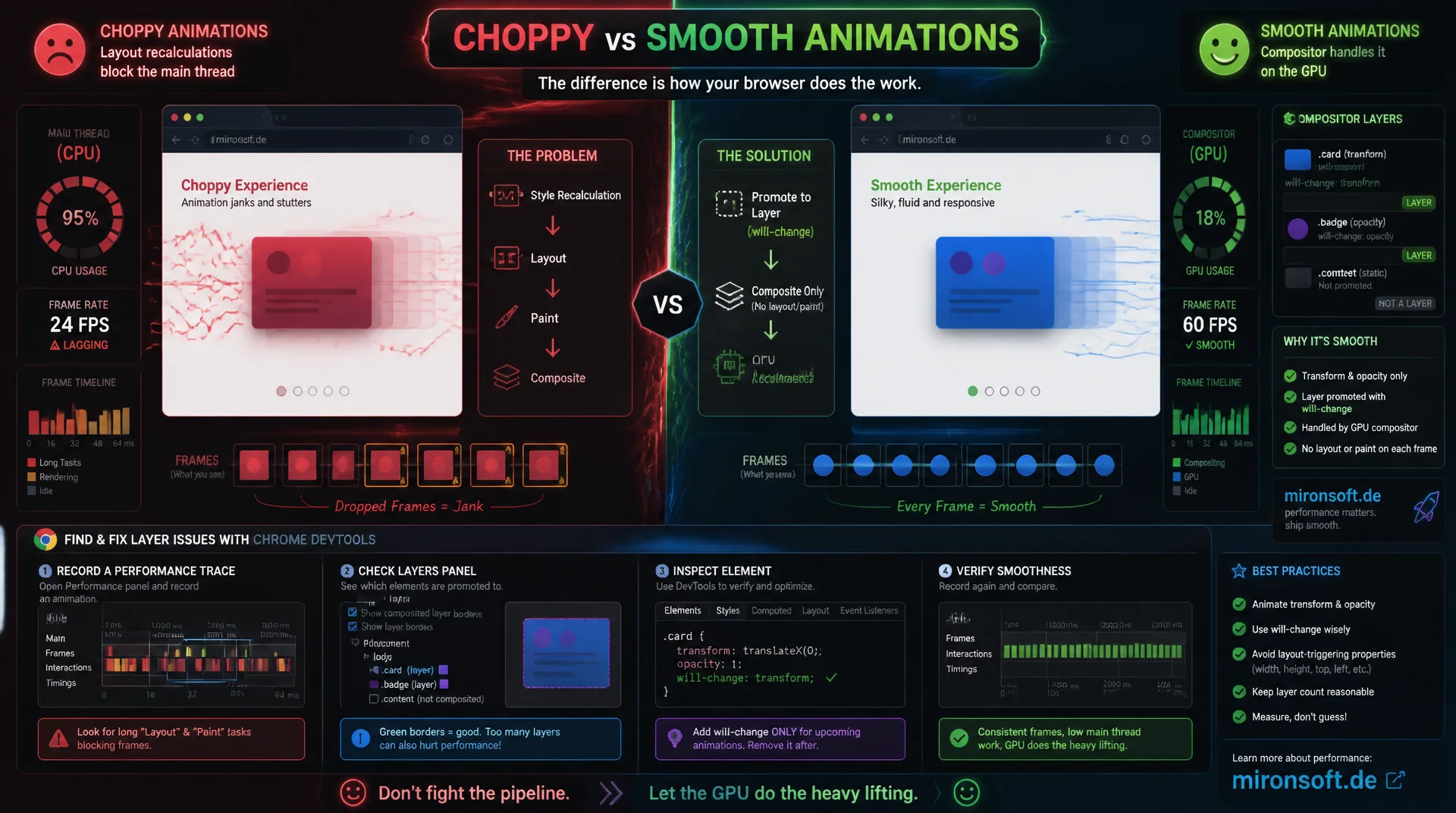
How the browser uses compositor layers to hold 60fps
Choppy animations almost always happen because the browser has to recalculate layout and paint on every frame instead of handing the work off to the GPU. This article explains how compositor layers form, why transform and opacity are nearly free to animate, how will-change gets used correctly and incorrectly, and how to spot and fix layer problems with Chrome DevTools.
Table of Contents
- 1. Why animations get choppy: jank and the compositing promise
- 2. The compositor thread: rendering separate from the main thread
- 3. Layer promotion: how the browser decides on its own compositor layers
- 4. transform and opacity: the only truly cheap animation properties
- 5. Using will-change correctly: a hint, not a magic word
- 6. Misusing will-change: memory and GPU costs
- 7. Layer explosion: symptoms, causes, diagnosis
- 8. DevTools: reading the Layers panel and "Layer borders" correctly
- 9. Practical patterns for jank-free 60fps animations
- 10. Summary
- 11. FAQ
1. Why animations get choppy: jank and the compositing promise
Jank is the technical term for visible stuttering when an animation doesn't hold 60 frames per second. At 60fps, exactly 16.6 milliseconds remain per frame to finish style calculation, layout, paint, and composite before the next frame is due. If a single frame exceeds that budget, it gets dropped or shown late, and the eye perceives a stutter. Classic animations that change properties like top, left, width, or margin force the browser through the entire rendering pipeline on every single frame, including expensive layout recalculation.
Compositing solves exactly this problem by letting certain properties skip layout and paint recalculation entirely and run purely on the GPU as a texture transform instead. To do this, the browser splits the page into multiple compositor layers, each stored as its own rendered bitmap that can be moved, scaled, or faded independently of the others. This article explains how these layers form, when they help, and when misusing will-change turns them into a performance problem of their own.
2. The compositor thread: rendering separate from the main thread
Modern browsers like Chrome split the rendering pipeline across multiple threads. The main thread runs JavaScript, computes styles, layout, and paint, and produces drawing commands from that work. Those drawing commands get handed off to the separate compositor thread, which assembles the actual screen output and talks directly to the GPU. This split is the core of the compositing model: as long as an animation only touches properties the compositor thread can process on its own, the main thread doesn't need to run again for every frame.
The practical benefit shows up exactly when the main thread is blocked by a long JavaScript task, such as an expensive product filter or a synchronous analytics script. A pure transform or opacity animation keeps running smoothly regardless, because the compositor thread operates independently of the main thread and doesn't wait on its event loop. Animations that trigger layout, on the other hand, freeze in exactly this scenario until the main thread is free again.
3. Layer promotion: how the browser decides on its own compositor layers
An element gets its own compositor layer either explicitly or implicitly. Explicit triggers include will-change: transform, an active CSS animation or transition on transform/opacity, position: fixed in certain stacking contexts, video and canvas elements, and properties like filter and backdrop-filter. These are deliberate signals to the browser: this element is going to change independently of its surroundings, so a dedicated texture is worth it.
Implicit promotion happens when the browser itself detects that an element overlaps an already-promoted element and therefore also needs its own layer to guarantee correct stacking during compositing. This automatic cascade is the most common cause of unexpectedly many layers. Chrome DevTools shows exactly which of the two triggers applies for each layer in the Layers panel under "Compositing Reasons," which is invaluable when debugging.
4. transform and opacity: the only truly cheap animation properties
transform and opacity are considered compositor-only because changing them affects neither the position nor the size of other elements in the document flow. The browser therefore doesn't need to recompute layout or repaint the affected area. Instead, the compositor thread applies the new transform matrix directly to the layer's already-rendered bitmap, a pure GPU operation that typically costs well under a millisecond per frame.
Properties like top, left, width, height, or margin, by contrast, always trigger layout because they change the geometry of the element and potentially all of its following sibling elements. On a category page with several thousand DOM nodes, a single layout recalculation can cost 10 to 20 milliseconds, which alone exhausts the 16.6-millisecond budget for 60fps before paint and composite even happen.
/* BAD: animating layout-triggering properties causes reflow on every frame */
.modal-bad {
  position: absolute;
  top: 100px;
  left: -400px;
  width: 320px;
  transition: left 0.3s ease-out, width 0.3s ease-out;
}

.modal-bad.is-open {
  left: 40px;
  width: 360px;
}

/* Every frame of this transition triggers: */
/* 1. Layout (recalculate geometry of the modal and all affected siblings) */
/* 2. Paint (repaint the modal and everything it displaced) */
/* 3. Composite (upload the new bitmap to the GPU) */
/* On a page with a few thousand DOM nodes, layout alone can cost 10-20ms, */
/* blowing well past the 16.6ms frame budget for 60fps. */
/* GOOD: transform and opacity skip Layout and Paint entirely */
.modal-good {
  position: absolute;
  top: 100px;
  left: 40px;
  width: 360px;
  opacity: 0;
  transform: translateX(-440px) scale(0.96);
  transition: transform 0.3s ease-out, opacity 0.3s ease-out;
}

.modal-good.is-open {
  opacity: 1;
  transform: translateX(0) scale(1);
}

/* The compositor thread recomputes the transform matrix directly on the */
/* already-painted layer texture. No Layout, no Paint, just a Composite step. */
5. Using will-change correctly: a hint, not a magic word
will-change is explicitly meant as a hint to the browser, not a guarantee or a magic word for better performance. The correct approach is to set will-change shortly before an animation starts, so the browser can perform the layer promotion ahead of time instead of having to catch up on the animation's first frame, which otherwise causes a visible stutter right at the start.
Sensible values are the concrete properties that will actually change, such as will-change: transform or will-change: transform, opacity, never the generic wildcard value will-change: auto as a permanent state, and certainly never will-change without a concrete property. The CSS specification explicitly warns against setting will-change permanently on many elements, because every promotion ties up real GPU memory regardless of whether an animation is currently running.
// GOOD: add will-change just before the animation starts,
// remove it as soon as the animation ends to free GPU memory
const modal = document.querySelector('.modal-good');

function openModal() {
  // Give the browser a heads-up one frame before the transition begins
  modal.style.willChange = 'transform, opacity';

  requestAnimationFrame(() => {
    requestAnimationFrame(() => {
      modal.classList.add('is-open');
    });
  });
}

modal.addEventListener('transitionend', () => {
  // Release the compositor layer once the animation is done
  modal.style.willChange = 'auto';
}, { once: true });
6. Misusing will-change: memory and GPU costs
Every promoted layer needs its own backing bitmap in GPU memory, whose size works out to width times height times 4 bytes per pixel (RGBA) times the square of the device pixel ratio. A full-viewport layer on a Full HD screen already costs roughly 8 megabytes at a standard resolution, and on a Retina display with a device pixel ratio of 2, the squared scaling pushes that to roughly 32 megabytes for that single layer alone.
If will-change gets set permanently on many elements, for example on every product card in a category grid, those costs quickly add up to hundreds of megabytes of GPU memory, even though only a single element is actually being animated at any given moment. On mobile devices with limited GPU memory, this doesn't just cause noticeable stuttering, in extreme cases it can crash the tab, or force the browser to forcibly demote layers again, completely wiping out the acceleration that was originally intended.
/* BAD: will-change on a parent promotes every overlapping child too, */
/* and leaving it permanent keeps all of them resident in GPU memory */
.product-grid {
  will-change: transform;
}

.product-grid .product-card {
  /* Each card overlaps its animated siblings during hover transitions, */
  /* so the browser promotes all of them to their own layer as well */
  transition: transform 0.2s ease-out;
}

.product-grid .product-card:hover {
  transform: translateY(-4px);
}

/* Result on a category page with 60 product cards: */
/* ~60 persistent compositor layers, each holding its own GPU-backed */
/* bitmap, even though only one card is being hovered at a time. */
7. Layer explosion: symptoms, causes, diagnosis
Layer explosion describes the state where a page suddenly produces dozens or hundreds of compositor layers, usually triggered by will-change on a container element that implicitly promotes every overlapping child along with it, or by many simultaneously animated sibling elements with different z-index values inside the same stacking context.
The paradoxical result: instead of getting faster, the page gets slower, because the compositor thread has to manage and upload every layer texture to the GPU on every frame, and the upload bandwidth itself becomes the bottleneck. Symptoms include noticeably sluggish scrolling despite purely compositor-driven animations, and a sharply elevated GPU memory footprint visible in the browser's task manager, observable directly at chrome://gpu or in DevTools.
8. DevTools: reading the Layers panel and "Layer borders" correctly
Opening More Tools > Layers in Chrome DevTools shows a three-dimensional visualization of every active compositor layer on the page. Clicking on an individual layer shows its exact memory size in megabytes, plus, under "Compositing Reasons," the specific reason for its promotion, such as "Has a will-change: transform compositing reason" or "Overlaps other composited content."
For fast, live diagnosis directly on the page, the rendering flags toolbar works better than the Layers panel: Cmd/Ctrl+Shift+P and "Show Rendering" lets you enable "Layer borders," which marks every promoted layer live with an orange outline and semi-transparent striping along its edges. Combined with "Paint flashing," which highlights repainted areas in green, it becomes immediately obvious whether an animation is actually compositor-only or is unintentionally triggering paint.
<!-- Hyva phtml: Alpine.js dropdown using transform/opacity, never width/height -->
<div x-data="{ open: false }" class="relative">
    <button @click="open = !open" class="px-4 py-2 font-semibold">
        Filter
    </button>

    <div
        x-show="open"
        x-transition:enter="transition ease-out duration-200"
        x-transition:enter-start="opacity-0 -translate-y-2 scale-95"
        x-transition:enter-end="opacity-100 translate-y-0 scale-100"
        x-transition:leave="transition ease-in duration-150"
        x-transition:leave-start="opacity-100 translate-y-0 scale-100"
        x-transition:leave-end="opacity-0 -translate-y-2 scale-95"
        class="absolute mt-2 w-64 bg-white rounded-xl shadow-lg origin-top"
    >
        <!-- Filter content -->
    </div>
</div>
9. Practical patterns for jank-free 60fps animations
The most important ground rule: animate movement, scaling, and visibility exclusively through transform and opacity, never through top, left, width, height, margin, or box-shadow. Where a third dimension is needed, for instance to explicitly force GPU acceleration, translate3d or a full matrix3d transform helps, even though modern browsers usually promote 2D transform animations correctly on their own by now.
Cleanup matters just as much: will-change should be set via JavaScript shortly before the animation and reset back to auto right afterward through a transitionend or animationend listener, so the layer doesn't tie up GPU memory permanently. The same rule applies to x-transition classes in Alpine.js components: they should only combine Tailwind utilities like opacity-0, scale-95, or -translate-y-2, never utilities that animate width, height, or positional offsets.
| Pattern | Rendering path | Costly | Recommended |
|---|---|---|---|
| Position | Layout + Paint + Composite | Animating top/left | transform: translate() |
| Size | Layout + Paint + Composite | Animating width/height | transform: scale() |
| Shadow | Paint on every frame | Animating box-shadow | Opacity-based shadow layer |
| will-change lifetime | GPU memory held permanently | will-change set permanently | will-change set/removed via JS |
| Layer count | GPU memory multiplies | Every element promoted (layer explosion) | Only animated elements promoted |
In practice, layer count and GPU memory usage are directly connected: every additional promotion, whether intentional via will-change or accidental through overlap, costs memory and management overhead on the compositor thread. Consistently animating only transform and opacity, and using will-change deliberately and briefly, keeps the layer count low and the animation at a stable 60fps.
Mironsoft
GPU performance, compositing, and rendering optimization for Magento stores
Ready to build animations without jank?
We analyze the compositor layers of your Magento and Hyvä store, identify layer explosion and misused will-change, and get your animations running reliably at 60fps.
Layer audit
DevTools analysis of every compositor layer and its promotion reasons
Animation refactoring
Switching to transform/opacity and clean will-change handling
GPU memory monitoring
Continuous tracking of layer count and memory usage
10. Summary
GPU compositing solves the underlying problem of jank by letting transform and opacity animations run entirely on the GPU, bypassing the main thread, while reliably staying inside the 16.6-millisecond frame budget for 60fps. The prerequisite is that the browser promotes the animated element to its own compositor layer in time, either implicitly through overlap detection or explicitly via will-change used as a targeted, short-lived hint.
The decisive difference between a performant and a counterproductive layer strategy lies in the lifecycle: will-change belongs shortly before the animation and should be removed immediately afterward, never set permanently on many elements. Chrome DevTools, with its Layers panel and the "Layer borders" rendering flag, makes layer count, memory usage, and promotion reasons visible at any time and is the most reliable tool for catching layer explosion early, before it ships to production.
GPU Compositing and Layers - The Essentials at a Glance
Frame budget: 16.6ms
At 60fps, style, layout, paint, and composite must finish within 16.6ms per frame.
Animate transform & opacity
The only properties that fully skip layout and paint and run purely on the GPU.
Use will-change deliberately
Set it right before the animation, reset it back to auto via JS right after.
Diagnose with DevTools
The Layers panel and the Layer borders rendering flag show layer count, memory, and promotion reasons.