Magento 2 Color Swatches with Hover Preview in List and Detail
SKU: COLORSWATCHESPRO1
- color, image and text swatches right in the category list
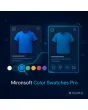
- image swap on hover to the matching variant
- sold-out variants dimmed instead of hidden
- limit the count, show two-tone, per store view
Einmaliger Kauf · inkl. 12 Monate Updates · zzgl. MwSt.
Magento 2 Color Swatches in the category list and on the product page
With Mironsoft Color Swatches Pro you show Magento 2 color swatches wherever customers pick a variant: in the product list, on the product page and in the filter. Instead of a dropdown, visitors see real color chips, pattern images or short texts, and a hover swaps the tile image for the matching variant. The interface is built with Alpine.js for Hyvä and loads neither jQuery nor Knockout.
Color and image swatches
Store a color code, a pattern image or a text as the swatch for every attribute value.
Swatches in the list
Small variant dots under each product tile show the available colors right in the category.
Image swap on hover
When the visitor moves over a swatch, the tile image changes to the matching variant.
Sold out stays visible
Variants that cannot be delivered appear crossed out or dimmed instead of disappearing.
Two-tone swatches
Variants with two colors are drawn as a split circle, for example frames with upholstery.
Limit the number
Above a maximum the tile shows a counter such as plus 4 and keeps the grid calm.
Why Magento 2 color swatches make more variants visible
In fashion, furniture, textiles or paint the variant is often the real purchase decision. Magento shows swatches by default only on the product page, and in the category the customer sees one photo. Anyone who wants to know whether the chair also comes in anthracite has to open every tile. Merchants therefore search for Magento 2 color swatches in the category, for a Magento 2 color picker or a Magento 2 swatches extension.
With Magento 2 color swatches in list and detail view, the tile answers that question at once. The visitor recognises the choice, sees the matching image on hover and jumps to the variant that interests them. That saves clicks and reduces page views that end without a result.
Magento 2 color swatches in the category: variants right under the tile
Below name and price of each product tile a row of small swatches appears. You decide which attribute is shown, for example color or material, and how many swatches are visible per tile. Surplus values are summarised by a counter. A click on a swatch opens the product with the variant preselected, so the customer does not have to choose again.
- Attribute and number of visible swatches per tile configurable
- Counter for further variants instead of overflowing rows
- A click opens the product page with the chosen variant
Image swap on hover: the matching photo for every color variant
When the visitor moves the mouse over a swatch, the tile exchanges its image for the photo of the variant. On touch devices a tap on the swatch takes over that role. The image comes from the configurable product, so you maintain no additional files. If a variant has no photo of its own, the base image stays and the swatch only marks the selection. Loading starts at the first hover so that the category stays fast.
- Variant image shown on hover or tap
- If the variant image is missing, the base image stays
- Lazy loading at the first hover for short load times
Magento 2 color swatches as color, image or text for every assortment
In the admin you set the swatch type for every attribute value. Color codes suit standard colors, pattern images suit fabrics, woods and tiles, and texts suit sizes such as M or 42. Two-tone values get a split circle. You can draw swatches round or square, set the size and enable a thin border for light colors so that white on a white background stays visible. All settings apply per store view.
- Color code, pattern image or text per attribute value
- Two-tone swatches as a split circle
- Shape, size and border for light colors adjustable
Magento 2 color swatches for sold-out variants: show them, do not hide them
If a variant cannot be delivered, its swatch stays visible but is dimmed or struck through diagonally. The customer learns that the color exists and stays in your shop instead of searching elsewhere. Alternatively you hide sold-out swatches in the list but keep them on the product page. The stock information comes from your simple products and needs no extra maintenance.
- Not available: dimmed or struck through
- Optionally hidden in the list, shown in the detail view
- Stock is taken over from the simple products
Where Magento 2 color swatches help in everyday shop work
Industries in which the variant shapes the purchase decision.
Fashion and textiles
Customers see every color of a sweater already in the category and jump straight to the one they want.
Furniture and home
Upholstery fabrics and wood finishes appear as pattern images, and the hover photo shows the piece in that version.
Paint and coatings
Thousands of shades can be browsed as color chips, with text swatches showing container sizes next to them.
Accessories and tech
Cases, cables or housings in several colors stay clear, and sold-out shades are recognisable at once.
Magento 2 color swatches: with and without the module
The difference to the standard selection in Magento.
| Topic | Without module | With Mironsoft Color Swatches Pro |
|---|---|---|
| Category | One photo, variants invisible | Swatches under every tile |
| Variant image | Only after a click on the product page | Preview on hover or tap |
| Sold out | Variant simply missing | Swatch visible, dimmed |
| Multi-color | Cannot be shown | Split circle |
| Maintenance | Per attribute value one by one | Type and display centrally in the admin |
How we set up Magento 2 color swatches for you
The process after you place the order.
Alignment
You name the attributes that should appear as swatches and the look you want, from size to border.
Installation
We install the module in your Hyvä theme and enable Magento 2 color swatches for the chosen categories.
Attribute values
We store color codes, pattern images and texts or take over existing swatch data.
Test
We check Magento 2 color swatches in list, hover, touch devices, sold-out variants and products without a variant image.
Handover
Your team gets an introduction to maintaining swatch types and display options.
Scope compared with product image hover, product labels and layered navigation
The product image hover from Mironsoft changes the image when the tile is hovered, without knowing variants. The product labels place stickers such as New or Sale, and the layered navigation filters the assortment. Magento 2 color swatches instead shows the variants themselves and links every swatch to the matching image.
The modules can be combined. The swatch module runs with Alpine.js in the Hyvä theme and brings no additional library.
No download, personal setup instead
Color Swatches Pro is not listed here as a ready-made download file for self-installation. The purchase is a service commission: we get in touch after the purchase, install the module in your shop and agree on attributes, swatch types and display together with you.
Frequently asked questions
Everything important about swatches, hover, stock status and how the purchase works.
How can I show swatches in the category list in Magento 2?
How can I change the image on hover over colors in Magento 2?
Which types do Magento 2 color swatches offer?
What happens if a variant has no image?
How are sold-out variants displayed?
How can I limit very many swatches in Magento 2?
Are light Magento 2 color swatches recognisable on a white background?
Do Magento 2 color swatches work with Hyvä?
How does this differ from product image hover and layered navigation?
Can I download and install the module myself?
Recently Viewed Products

Magento 2 Color Swatches – Mironsoft Color Swatches Pro