Magento 2 As Seen In: Bar with Press Logos and Slider
SKU: PRESSMENTIONS1
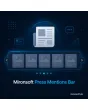
- as-seen-in bar with logos of your own press mentions
- each logo with an optional link to the article and alt text
- slider with swipe gesture on smartphones, grid on desktop
- placement via widget on home page, category and product page
Einmaliger Kauf · inkl. 12 Monate Updates · zzgl. MwSt.
Magento 2 As Seen In: trust through real press mentions
With the Mironsoft Press Mentions Bar you implement Magento 2 As Seen In as a tidy logo bar. You store the media that reported about your shop, each with a logo and a link to the article. The bar appears by widget on the home page, in categories or on the product page, as a calm grid on the desktop and as a swipe slider on smartphones. The module is built with Alpine.js and Tailwind, needs no additional library and loads logos lazily so the first render does not suffer.
Logo management
Upload logos, maintain name, alt text and order in the admin.
Link to the article
Every logo can point to the report, in a new tab and with rel attributes.
Mobile slider
On a smartphone visitors swipe through the logos, on the desktop a grid is shown.
Grayscale with colour
Logos appear subtly in grey and in original colour on hover.
Widget placement
The bar is inserted as a widget in CMS pages, blocks and layout areas.
Fast loading
Logos load lazily, fixed dimensions prevent layout shifts.
Why Magento 2 As Seen In makes the first contact easier
New visitors do not know your shop. They look for signs that a real company stands behind the offer. A bar with well-known media answers that question at a glance. That is why merchants search for Magento 2 As Seen In, for an as-seen-in bar or for a way to show press logos on the home page.
Without a module, editors build the bar from loose images in a CMS block. That becomes cluttered on a smartphone and is hard to maintain. Magento 2 As Seen In gives you clean management with order, links and slider. One thing stays important: show only mentions that really exist and clarify the usage rights of the logos.
Magento 2 As Seen In: maintain logos and links in the admin
In the admin you create every mention as an entry: name of the medium, logo file, alt text, optional link to the article and sort order. Entries can be activated individually so you can hide older reports without deleting them. On saving, the module checks whether an alt text exists and points it out otherwise.
- Logo, name, alt text and link per entry
- Entries individually activatable
- Notice for a missing alt text
Grid on the desktop, slider on the smartphone for Magento 2 As Seen In
On wide screens the logos stand in one row with even spacing. On a smartphone this becomes a slider that visitors move with a finger. Optionally it runs slowly on its own, but stops on touch and respects the reduced motion setting of the device. Arrows and dots can be shown or hidden individually.
- Grid from tablet width
- Slider with swipe gesture on mobile
- Autoplay stops on touch and on reduced motion
Grayscale, size and accessibility of the bar
By default logos appear in grayscale with low opacity so the bar looks calm, and turn to colour on hover or focus. You set maximum height and spacing, and fixed dimensions prevent layout shifts while loading. All logos have alt texts, links can be reached by keyboard and have a visible focus ring.
- Grayscale with colour on hover and focus
- Height and spacing adjustable
- Alt texts and keyboard operation
Magento 2 As Seen In by widget on home page, category and product page
The bar is inserted as a widget, for example below the hero of the home page, above the product list in a category or below the buy button. A headline such as As seen in is defined per store view. Different pages can use different selections, for instance trade media in a trade category. Legal questions about logo use and linking are checked by the shop operator.
- Widget for CMS, blocks and layout
- Headline per store view
- Different selection per page possible
Where Magento 2 As Seen In helps in everyday shop work
Typical situations in which press logos build trust.
Home page for new customers
Below the hero the bar shows which media reported about the shop before visitors scroll.
Specialist categories
A specialist category shows only trade media that fit the assortment.
Product page with a review
If a medium tested a product, the logo links straight to the report.
B2B landing page
On pages for business customers the bar strengthens the serious impression next to references and certificates.
Magento 2 As Seen In: without and with the module compared
The difference to loose images in a CMS block.
| Topic | Without module | With Mironsoft Press Mentions Bar |
|---|---|---|
| Maintenance | Swap images in a CMS block | Entries in the admin with order and status |
| Smartphone | Logos wrap or become tiny | Slider with swipe gesture |
| Links | By hand in the HTML | Link field per entry, new tab, rel attributes |
| Look | Colourful and busy | Grayscale, colour on hover |
| Loading time | All images at once | Lazy loading with fixed dimensions |
How we set up Magento 2 As Seen In for you
The process after you place the order.
Agreement
We clarify where the bar should appear and which mentions you want to show.
Installation
We install the module and set up Magento 2 As Seen In for your store views. Then we check grid and slider in your Hyvä theme.
Enter the logos
We create your entries with logo, alt text and link, together with you if you like.
Testing
We test smartphone, keyboard, grayscale and the behaviour with very wide and very narrow logos.
Handover
Your team gets an introduction to entries and widget.
Differences to the trust badge bar and to references
The trust badge bar from Mironsoft shows seals, payment and shipping logos. Magento 2 As Seen In, in contrast, shows media that reported about you. Both bars complement each other and can be used on the same page.
References and customer quotes are separate content as well. The bar works with Alpine.js in the Hyvä theme and needs no additional library. You show only mentions that actually exist.
No download, but a personal setup
The Press Mentions Bar is not listed here as a finished download to install yourself. The purchase is a commission: we contact you after the order, install the module in your shop and agree on placement and appearance together with you.
Frequently asked questions
Everything important about logos, slider, rights and how the purchase works.
How can I build an as-seen-in bar in Magento 2?
How can I show press logos with a link to the article in Magento 2?
How is Magento 2 As Seen In displayed on a smartphone?
May I show any logos?
Can I hide older mentions?
Can I show different logos on different pages?
Does the bar slow down my page?
Does Magento 2 As Seen In work with Hyvä?
How does it differ from the trust badge bar?
Can I download and install the module myself?
Recently Viewed Products

Magento 2 As Seen In – Mironsoft Press Mentions Bar