The generic import/export function for products, customers and other data types in the backend.
The generic import/export tool under System > Data Transfer isn't just for products (see the "Product Import and Export" chapter) — it works for several entity types:
- Products, Advanced Pricing: product data, or pure price/special-price updates.
- Customers Main File, Customer Addresses: customer master data and addresses.
Recommended workflow
- Always start with an export of the affected data type under System > Export — it gives you the exact column structure as a template.
- Make changes to the CSV file outside of Magento (e.g. in a spreadsheet), without altering the column holding the unique key (e.g.
skufor products,emailfor customers) if you intend to update existing records. - Under System > Import, choose the entity type and import behavior, and first only validate with Check Data.
- Only run the actual import with Import once the validation comes back error-free.

For very large files (tens of thousands of rows), importing via the web UI can run into time limits — in those cases, a server-side import via the bin/magento command line, or a custom-built data patch (like the one behind this very manual), is the more robust option.
Understanding Import Behavior
On the import page, the Import Behavior field determines how the file interacts with existing data: Add/Update creates new records and updates existing ones based on the key value (e.g. sku), without clearing fields that aren't mentioned. Replace replaces entire records — fields missing from the CSV file get reset to their default value, which can quickly cause data loss with incomplete exports. Delete deletes solely based on the specified key column; all other columns are ignored. Practical tip: for ongoing price or stock maintenance, Add/Update is almost always the right choice.
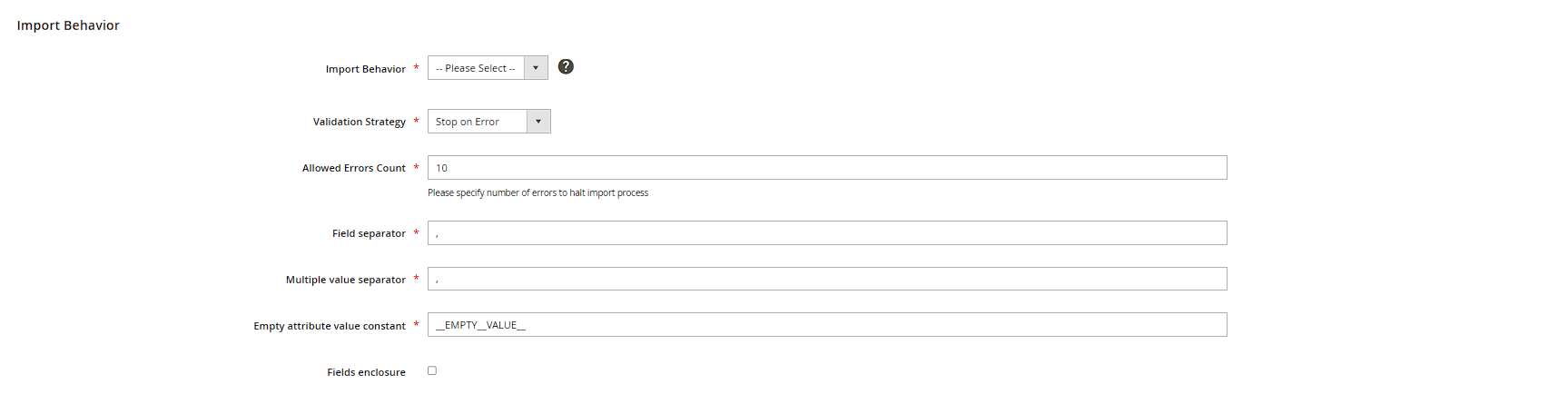
Controlling error handling during import
The Validation Strategy field determines how Magento reacts to faulty rows: Stop on Error aborts validation on the first error, while Skip error entries skips faulty rows and imports the rest anyway. The adjacent Allowed Errors Count field defines, for "Skip error entries", how many faulty rows are tolerated in total before the entire import is aborted after all — for very large files with known outliers, it's worth deliberately raising this value instead of leaving it at 0.
Including product images with an import
If a product import should also set new images, the CSV file alone isn't enough: the image files also need to sit in a directory under pub/media/import (default name e.g. product_images), and the relative path is specified via the Images File Directory field on the import page. In CSV columns like base_image or additional_images, only the file name itself is then needed. Alternatively, you can upload a ZIP file containing both the CSV and the image folder together.

Import History – tracing past imports
Under System > Import History, Magento logs every import that was run, with a timestamp, the executing user, entity type, and import behavior. The Import Log link in each row lets you download the full log, including every reported error and warning, as a file — useful when you later need to figure out which import caused certain product changes. Magento doesn't offer an automatic way to undo an import, though; if in doubt, the only options are re-importing with corrected data or restoring from a database backup.