The journey of an order through the backend: statuses, viewing details, editing and cancelling.
You'll find every order under Sales > Orders as a filterable, searchable table with a freely configurable column selection (the gear icon in the top right). Clicking a row opens the detail view with all the information: ordered items, customer, billing/shipping address, payment and shipping method, plus a full history of every action taken on this order so far.
The most important order statuses
- Pending: just came in, not processed yet – for some payment methods (e.g. prepayment) also the waiting state until payment is received.
- Processing: at least partially invoiced or shipped.
- Complete: fully invoiced and shipped.
- Canceled: cancelled before anything was invoiced.
- Closed: fully refunded (after one or more credit memos).
- On Hold: manually "frozen" (the Hold button), e.g. on suspicion of fraud – blocks any further processing until the order is released again (Unhold).
Actions in the detail view
Depending on the current status, the buttons in the top right offer different actions: Invoice (create an invoice, see its own chapter), Ship (create a shipment, see its own chapter), Hold/Unhold, Cancel (only while nothing has been invoiced yet), and Edit – the latter cancels the original order in the background and opens a new, pre-filled order with the same items for correction (e.g. for a wrong address).
Communicating with the customer
Under Notes for this Order / Comments History at the bottom of the detail page, you can leave internal notes invisible to the customer, or – via the Notify Customer by Email checkbox – trigger an automatic email with your message to the customer, e.g. for questions about the shipping address.
Bulk actions in the grid
In the order overview, multiple rows can be selected via checkboxes and processed together via the Actions dropdown (e.g. creating invoices for several orders at once, or exporting them as PDF) – handy during busier days, so you don't have to open every order individually.
Creating custom order statuses
Under Stores > Settings > Order Status you can create your own, project-specific order statuses in addition to the built-in ones (e.g. "Picking in progress" or "Awaiting supplier stock") and assign them to one of the underlying order states (e.g. "processing" or "on hold") via Assign Status to State. This lets you map your internal workflow more precisely without touching the underlying Magento states that invoice and shipping logic rely on.
Automatically cancelling unpaid orders
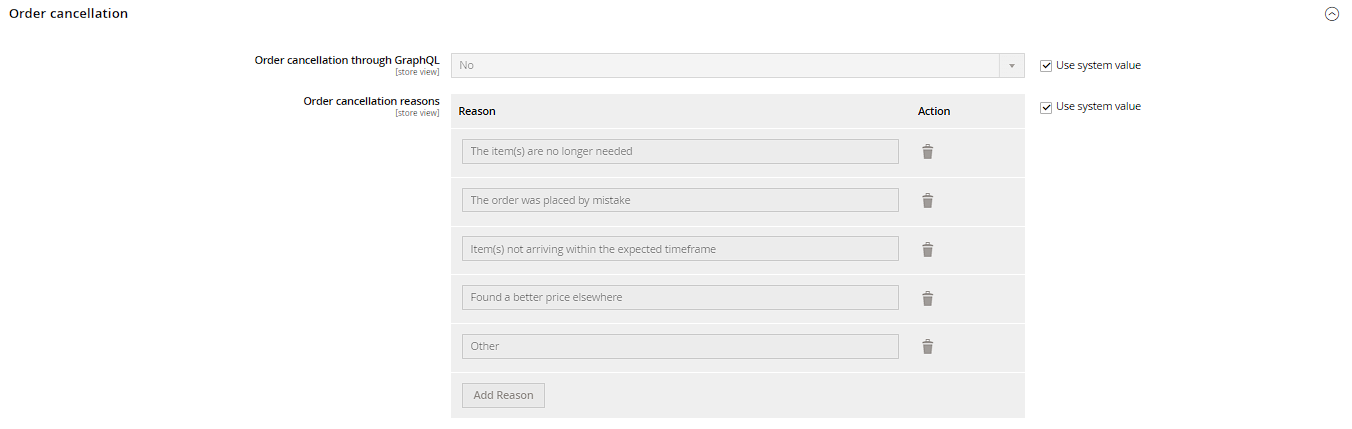
Under Stores > Configuration > Sales > Sales, in the Order Cancellation section, the Unpaid Order Lifetime (minutes) field controls after how many minutes an order with a pending online payment gets automatically cancelled if the customer never completed the payment process. This prevents the grid from filling up with permanently "stuck" pending orders that never received payment.
Printing, exporting, and reordering
In the order grid, the Export button in the top right offers a CSV or XML export of the currently filtered view – handy for external reporting or handing data over to an ERP system. On an individual order, Reorder (if enabled under Stores > Configuration > Sales > Sales > Reorder) creates a new, pre-filled order-creation screen with the same items – unlike Edit, this does not cancel the original order but adds a separate new one. Individual orders can also be printed directly as a PDF via the printer icon or the Actions column, without going through invoices or shipments.