How to create an invoice for an order, bill partially or in full, and send it as a PDF.
From the order detail view, click Invoice to create an invoice. The following page shows every item with quantity fields, the invoice total, and a summary of the payment method.
Partial or full invoice
By default, all quantities are pre-filled for billing. If you only want to bill part of the order (e.g. because one item isn't shippable yet), reduce the quantity in that field to 0 or to the amount currently available. A second, separate invoice can be created later for the rest once the item is available – an order can therefore have multiple invoices.
Shipping cost and payment capture
Under Shipping Amount you'll see the calculated shipping cost, which you can adjust manually if needed (e.g. for a special arrangement agreed with the customer afterwards). If the payment method is e.g. credit card or PayPal, enable Capture Online so the payment is captured at the same time the invoice is saved (availability depends on the payment provider module used); for prepayment, on the other hand, online capture usually isn't needed since the money already arrived beforehand.
Invoice comment
The Comment Text field lets you add a custom note to the invoice (e.g. a thank-you or payment-term notice) that shows up on the PDF document. The Email Copy of Invoice checkbox automatically delivers the invoice to the customer as a PDF attachment.
Finishing and management
Click Submit Invoice to finalize the invoice — it can no longer be edited afterwards. Every created invoice is collected under Sales > Invoices, where you can download them as a PDF (individually or via multi-select) or send them by email again.
Customizing the invoice PDF design
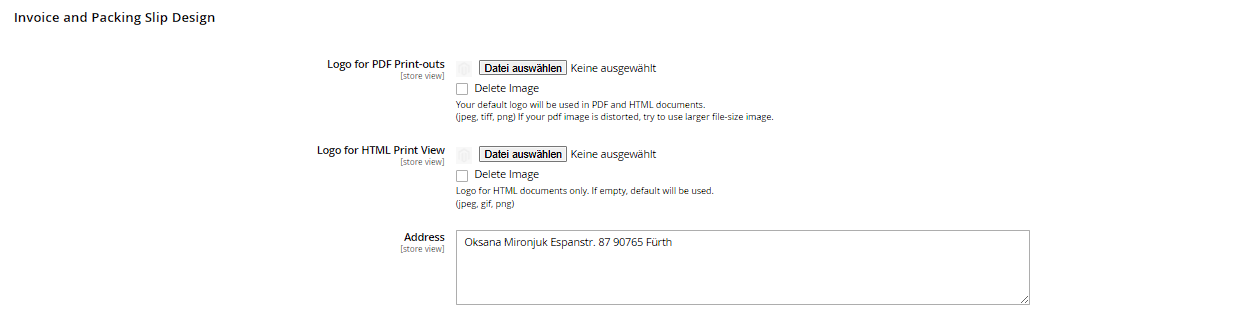
Under Stores > Configuration > Sales > Sales, in the Invoice and Packing Slip Design section, you can upload your own logo for PDF output (Logo for PDF Print-outs, recommended size around 200×50 pixels) as well as a separate logo for the HTML print view in the backend (Logo for HTML Print View). This logo appears consistently on invoices, shipments and credit memos, and should be tested before going live, since an oversized image can shift the PDF layout.
Customizing invoice email templates
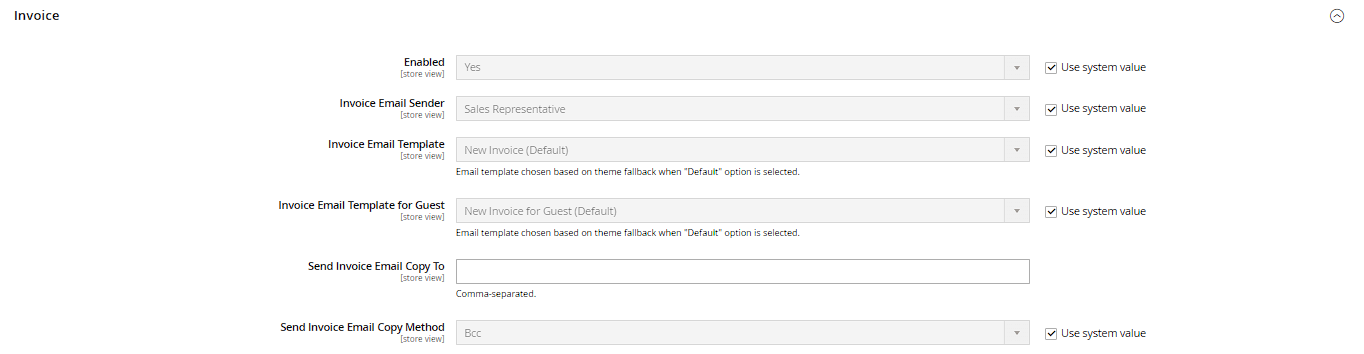
In the Sales Emails section of the same configuration page, under Invoice you control whether an email is even sent automatically when an invoice is created, which template is used (New Invoice Confirmation Template), and via Send Invoice Email Copy To you can add an internal copy (e.g. to accounting) as a comma-separated address list. Send Email Copy Method lets you choose whether this copy is sent as a Bcc or as a separate email.
Comments and print view on the invoice
The Comments History tab on an individual invoice lets you add further comments afterwards, which – again via a customer-notification checkbox – can be delivered to the customer; these comments also show up in the customer's order history in the frontend under "My Account". The Print button on the invoice view opens the PDF directly from the browser, without going through the invoice grid.