Google XML Sitemap: What Gets Included?
Which content automatically ends up in the generated sitemap, which doesn't, and how custom module content like our Tutorial section can be added afterwards.
Out of the box, Magento ships with exactly four "providers" that together determine the content of every generated sitemap.xml: the store root URL itself, categories, products, and CMS pages. Each provider is its own PHP class (a so-called "item provider") that gets asked, on every generation run: "which URLs should go into the sitemap for this store?" Anything that doesn't belong to these four types – such as a fully custom module like our Tutorial section – stays invisible to the sitemap until someone registers a custom provider for it.
Categories: all or nothing
Every category with Enable Category = Yes automatically ends up in the sitemap – Magento has NO individual toggle to "exclude this one category from the sitemap". Even Include in Menu = No (hiding a category from navigation) has zero effect on sitemap inclusion – the two settings are completely independent. If you really want to keep a specific category out of the sitemap, your only practical options are Enable Category = No (which also makes it unreachable in the store itself) or a targeted exclusion in robots.txt.
Products: visible AND enabled
Products are filtered on two criteria: Enable Product = Yes (status) AND Visibility other than "Not Visible Individually" (i.e. "Catalog", "Search", or "Catalog, Search"). A disabled product never shows up; an enabled product set to "Not Visible Individually" (e.g. a single variation of a configurable product) doesn't either – only the parent, visible main product gets listed. Here too, there's no dedicated "include in sitemap" checkbox on the product itself.
CMS pages
Active CMS pages (Enable Page = Yes) get included automatically – the same all-or-nothing logic as categories.
Setting priority and change frequency
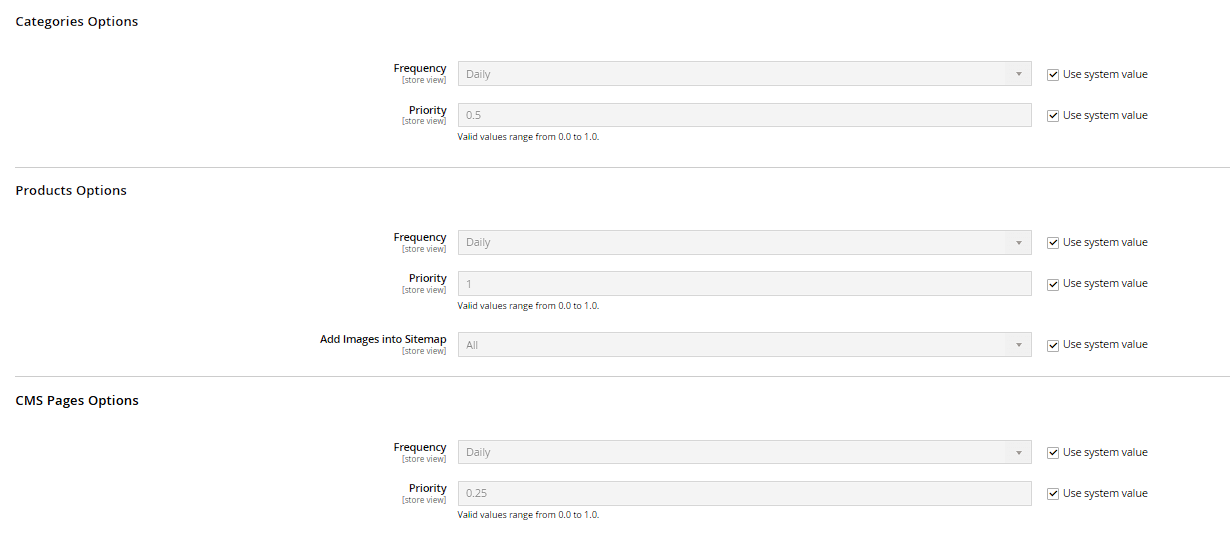
Under Stores > Configuration > Catalog > XML Sitemap, you set Frequency (how often the content typically changes – purely a hint to search engines, not a technical guarantee) and Priority (0.0 to 1.0, relative importance within your own sitemap) SEPARATELY for categories, products, and CMS pages. In the same area, Product Images Include Policy controls whether and which product images get added as extra <image> entries in the sitemap.
What does NOT get included automatically
Any content that runs through its own module and isn't a category, product, or CMS page stays invisible to the sitemap – until a custom item provider gets registered for it. Two concrete examples from this project:
- Magefan Blog: already ships its own item provider (registered via its own
di.xml) – blog posts and the blog index therefore already appear in the sitemap automatically, without us having to build anything for it. - Our Tutorial section (Mironsoft_Tutorial): series and chapters under /tutorial/... are a completely custom data structure (own database tables, own router) – until recently, they were therefore entirely absent from the sitemap. We've retrofitted this: a new class (
Mironsoft\Tutorial\Model\Sitemap\TutorialItemProvider) registers itself with Magento's sitemap mechanism viadi.xmland supplies every active series and chapter URL per store on every generation run. For you as an editor, this means: every new tutorial series and every new chapter automatically shows up in the sitemap on the next sitemap run – with no manual extra step.
Submitting the sitemap to Google
The generated sitemap alone isn't enough – Google needs to know about it. In Google Search Console (requires a free Google account; create and verify a property for your domain) under Sitemaps, enter the URL of your sitemap file (e.g. https://yourdomain.com/sitemap_en.xml). Google then crawls it on its own on a regular basis – resubmitting manually after every sitemap update is NOT necessary.
Practical tip: after major content additions (like a new Handbuch or Tutorial series), check under Sitemaps in Search Console whether the "discovered URLs" count increased as expected – if it doesn't, that usually points to a generation cron job that hasn't run yet, or an error in the relevant item provider.
Automatic entry in robots.txt
Under Stores > Configuration > Catalog > XML Sitemap > Search Engine Submission Settings, setting Enable Submission to Robots.txt to "Yes" automatically adds a Sitemap: line to robots.txt once the sitemap has been generated. This helps not only Google (which you've registered via Search Console anyway) but also other search engines like Bing, which primarily discover sitemaps through robots.txt.

Monitoring scheduled generation
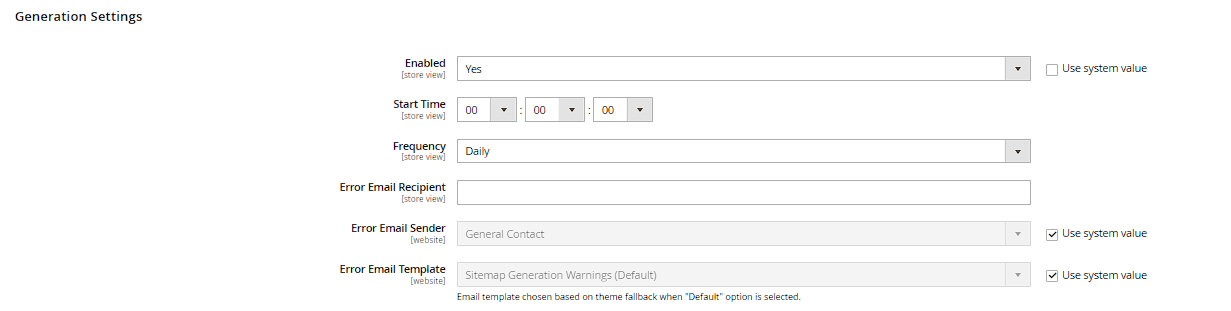
On the Generation Settings tab of a given sitemap, you set Enabled, Start Time, and Frequency (Daily/Weekly/Monthly) for automatic regeneration via cron job. You can additionally configure Error Email Recipient, Error Email Sender, and Error Email Template – if generation fails, you get notified instead of only noticing weeks later that the sitemap content is outdated.
Separate sitemaps per store view/language
Use Add Sitemap to create a separate file per store view (e.g. sitemap_de.xml for the German store view and sitemap_en.xml for the English one) – each then contains only the URLs of its respective language version. This matters for multilingual stores, so search engines crawl the correct, language-specific URLs and URLs from a different store view don't accidentally end up in the wrong sitemap.
Size limits and automatic splitting
The Maximum No of URLs Per File and Maximum File Size fields (also under the XML sitemap configuration) limit how many URLs and how much data a single sitemap file may contain – per the official sitemap protocol, at most 50,000 URLs or 50 MB per file. If your store exceeds these limits, Magento automatically splits the sitemap into multiple files and additionally generates a parent sitemap index file that references all the individual files – with no extra effort required on your part.
