Creating and Editing CMS Pages
How to create, design and publish a new content page (e.g. "About Us").
Manage CMS pages under Content > Elements > Pages. Use Add New Page to create a new one – typical examples are "About Us", terms and conditions, a right-of-withdrawal page, or campaign landing pages.
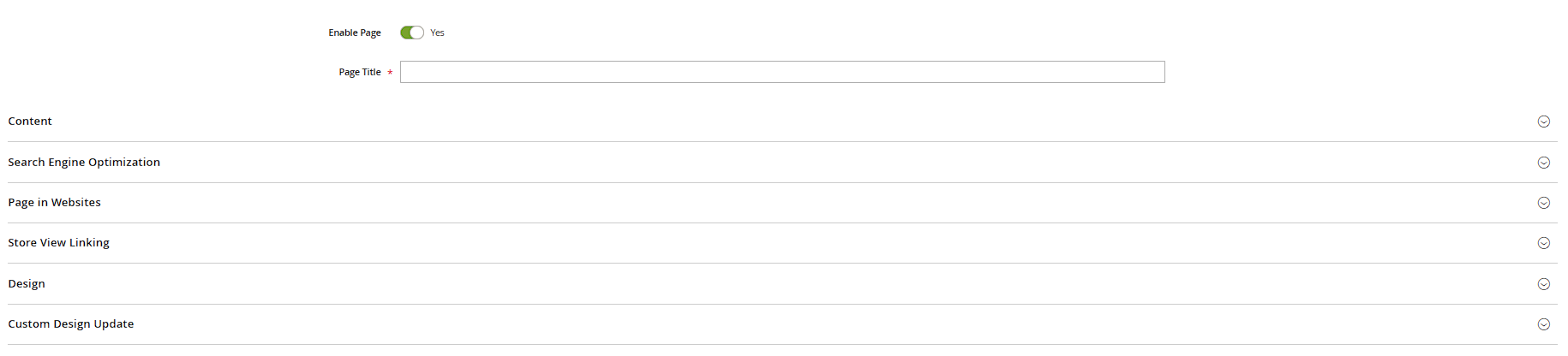
The most important fields
- Page Title: the internal title, also shown in the browser tab.
- URL Key: the path the page is reachable under (e.g. "about-us").
- Content: the actual page content – Hyvä themes typically use either the Page Builder or a simple WYSIWYG text field, depending on configuration.
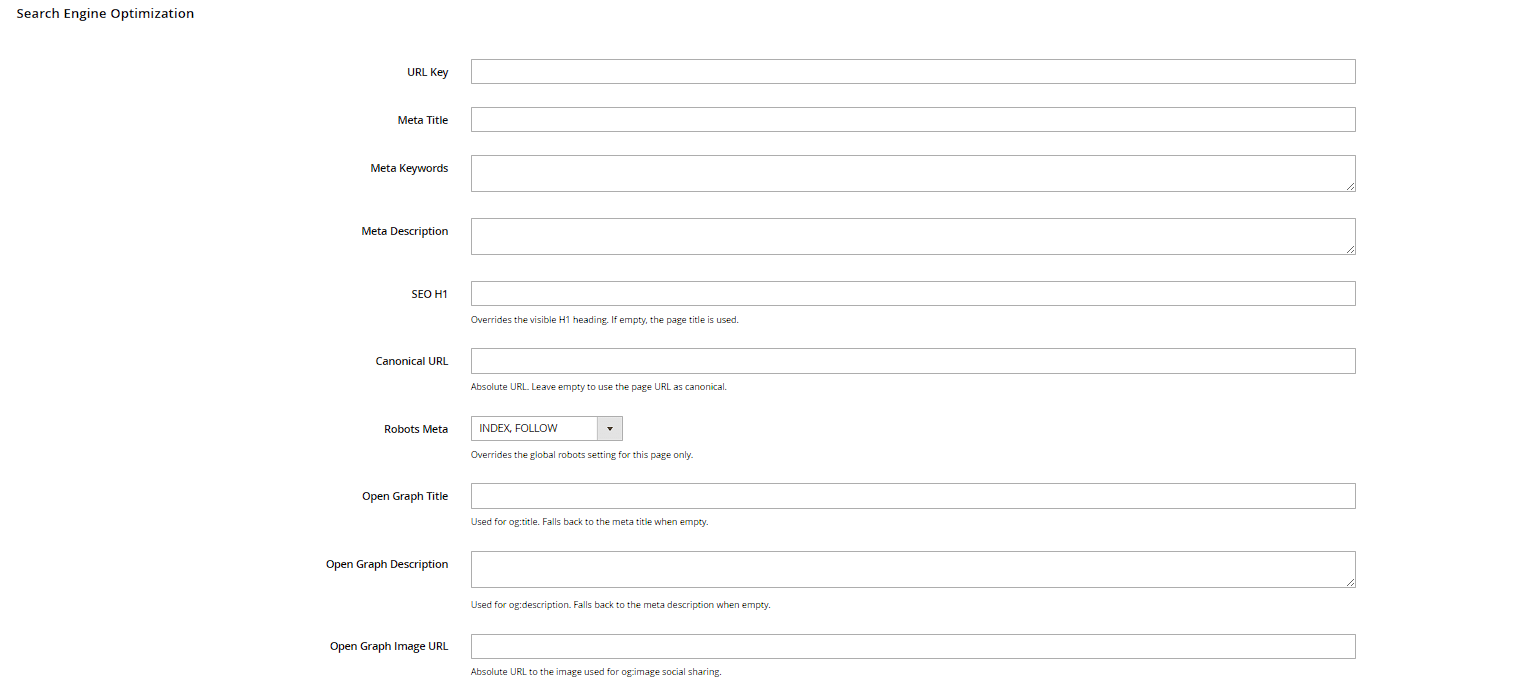
- Search Engine Optimization: meta title, meta description, meta keywords, and the canonical URL field.
Design tab
Under Design you can choose a different layout per page (e.g. "1 column" with no sidebar for a full-width landing page) and add a custom Layout Update XML if you need to pull in extra blocks. Custom Design Update additionally lets you schedule a time-limited, different design for the page (e.g. a campaign look for one week).

Store view assignment
At the top of the Content tab, the Store View field determines which store views the page is visible on – for multilingual stores, ideally a separate version of the same page per language, with translated content and its own URL key.
Publishing
Don't forget to enable the page via Enable Page — newly created pages are active by default, but not automatically linked anywhere. Embedding it in the menu, footer, or as a widget is handled separately (see the "Using CMS Blocks" and "Customizing Header and Footer" chapters).
Content Heading vs. Page Title
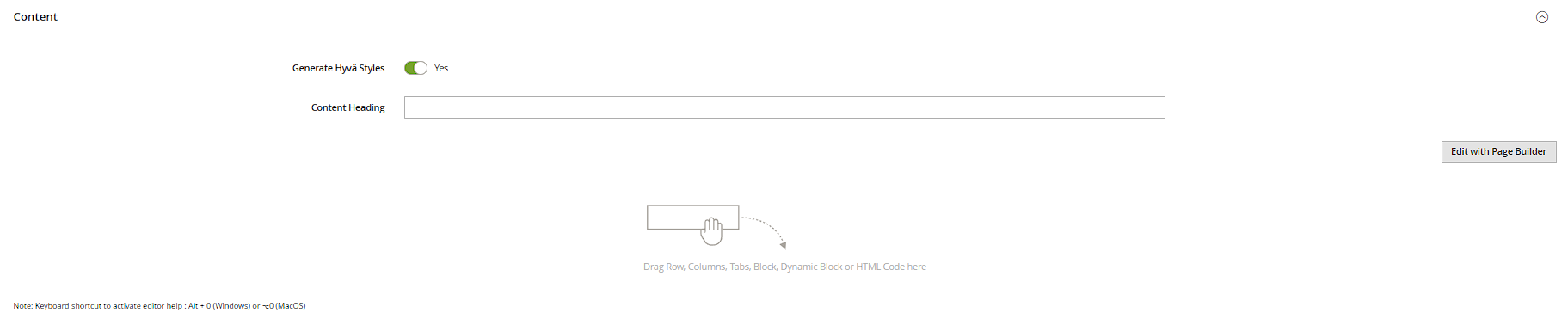
Next to Page Title in the Content tab there's a separate Content Heading field. The Page Title only shows in the browser tab and acts as the fallback for the meta title if none is set explicitly. The Content Heading, on the other hand, is rendered as the visible heading (typically an H1) above the page content. The two can deliberately differ – e.g. a short, SEO-focused Page Title paired with a more inviting, longer Content Heading. If you leave Content Heading blank, many themes won't output any automatic heading at all, so behavior depends on the theme.

Reserved system pages
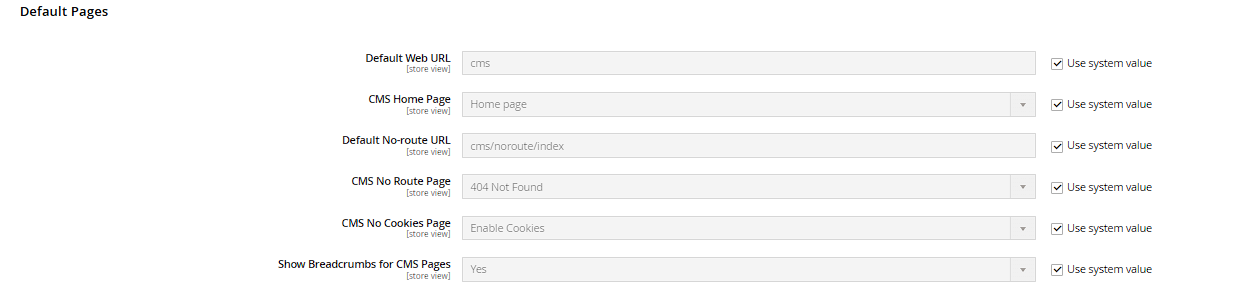
A handful of CMS pages take on technical special roles in the store. Under Stores > Configuration > General > Web, in the Default Pages section, you define which CMS page serves as the CMS Home Page (storefront homepage), the CMS No Route Page (404 error page), and the CMS No Cookies Page (notice shown when cookies are disabled). These pages must already exist under Content > Elements > Pages with a meaningful URL key before you can assign them here.
Practical tip: Build your own designed 404 page instead of relying on the default error page, and register it under Default Pages – it looks far more professional and can include, for example, a search box or links to bestsellers.
Configuring the WYSIWYG editor
Whether and how the rich-text editor appears when editing content fields is controlled under Stores > Configuration > General > Content Management via the Enable WYSIWYG Editor field. Options include "Disabled Completely" (raw text/HTML only), "Enabled by Default" (editor is active on open), and "Enabled Manually" (editors switch it on via a button when needed). On Hyvä themes using Page Builder, this setting can also affect whether the classic WYSIWYG editor or Page Builder shows up as the default.

Inserting images into content
The Insert Image button in the WYSIWYG toolbar opens the media browser, which uploads directly into the pub/media/wysiwyg directory and embeds images from there. Unlike product images, these files don't live in the catalog media folder and are managed separately. Practical tip: create topic-based subfolders inside the media browser (e.g. "wysiwyg/pages/about-us") – otherwise hundreds of images pile up unsorted in a single directory over time.