Magento 2 Admin Shortcuts: Favorites with Filters per User
SKU: ADMINSHORTCUTS1
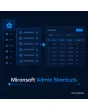
- star in the header saves the page including filters
- own menu area with groups, sorting and icons
- shared shortcuts for roles, ACL-checked
- secret key generated anew on opening, deleted with the user
Einmaliger Kauf · inkl. 12 Monate Updates · zzgl. MwSt.
Magento 2 Admin Shortcuts: your most used pages one click away
With the Magento 2 Admin Shortcuts from Mironsoft every backend user creates personal quick links and favourites. A star in the header saves the current admin page including filter, view and parameters, and a dedicated area in the menu leads back there with one click. The shortcuts belong to the user and follow them to any device. Administrators can also predefine shared shortcuts for whole roles. The module needs no additional library in the backend.
Star in the header
One click saves the current page as a shortcut, a second click removes it again.
Filters and parameters
Shortcuts remember URL parameters, such as the status filter in the order list or the category in the product list.
Menu area of its own
All favourites appear bundled in the admin menu, sortable and arranged in groups.
Per user
Every admin user manages their own list, none of it visible to others.
Shared shortcuts
Administrators predefine shortcuts for roles, for example for support or warehouse.
Permission check
A shortcut only leads where the user has access according to the ACL anyway.
Why the Magento navigation takes too many clicks in daily work
The Magento admin menu is deeply nested, and recurring tasks lead through several levels: orders with status payment pending, products without an image, customers of a certain group. Anyone who opens the same lists with the same filters every day loses minutes that add up to hours over weeks. That is why operators look for Magento 2 Admin Shortcuts that cut exactly these paths short.
Browser bookmarks are only half a solution: they live in the browser instead of the admin, do not travel between devices and lose the secret key of the URL. The Magento 2 Admin Shortcuts store target and filter in the system and generate the link anew when it is opened.
Create Magento 2 Admin Shortcuts: star, name and filter state
On every admin page a star appears next to the page title. A click opens a small field where you adjust the name, for example Open payments instead of Orders. The path and parameters of the page are stored, for grids also the currently set filters and the sorting. When opened, the module restores the state and generates the valid secret key automatically.
- Own name per shortcut
- Filters, sorting and parameters are stored too
- Secret key is generated anew on opening
Favourites in the Magento 2 admin menu: grouped and sortable
The menu shows an area with your shortcuts. You create groups, drag entries into the order you want and assign icons. A key combination opens the list without a mouse. The display adapts to the admin design, dark mode included. Anyone who prefers a tidy view hides the area in the personal settings.
- Groups, order and icons freely selectable
- Keyboard shortcut to open the list
- Area can be hidden in personal settings
Predefine shared admin shortcuts for roles and teams
An administrator creates shortcuts for a role, for example returns list and invoice list for support. New staff receive them at the first login without having to search. Role shortcuts can be hidden by the user but not changed. If the role loses the right to the target page, the entry disappears from the display automatically.
- Define shortcuts for roles centrally
- New staff start with a sensible selection
- Entry disappears when the right is missing
Configuration, limits and ACL of the Magento 2 Admin Shortcuts
Under Stores › Configuration › Mironsoft you set the maximum number of shortcuts per user and decide whether users may create their own. Two ACL resources separate creating personal shortcuts from maintaining shared ones. When an admin user is deleted, their shortcuts are deleted with them. The module stores no credentials, only paths and parameters.
- Maximum number per user adjustable
- Separate ACL for personal and shared shortcuts
- Deletion together with the user
Where Magento 2 Admin Shortcuts save time in daily backend work
Four workflows that start with one click instead of five when you use Magento 2 Admin Shortcuts.
Shipping and orders
The shipping clerk opens the list of paid orders waiting for shipment with one click, without filtering every time.
Catalog care
Products without an image, products with stock zero or a certain category are at hand as favourites.
Support and returns
The support team jumps straight to the returns list, the customer search or the invoice overview.
Marketing and promotions
Price rules, newsletter queue and coupons sit in a group of their own for promotion week.
Magento 2 Admin Shortcuts: browser bookmarks or module compared
What changes in handling and upkeep.
| Topic | Without the module | With Mironsoft Admin Shortcuts |
|---|---|---|
| Storage | In the browser, per device | In the admin, per user, across devices |
| Filters | Only the bare URL | Filters, sorting and parameters |
| Secret key | Bookmark becomes invalid | Link is generated anew when opened |
| Teams | Everyone maintains alone | Shared shortcuts per role |
| Permissions | No check | Only targets with ACL permission |
How we set up the Magento 2 Admin Shortcuts for your team
The process after your order.
Briefing
You name roles and typical workflows, and we clarify which role shortcuts make sense.
Installation
We install the module and set up the Magento 2 Admin Shortcuts including ACL resources and limits.
Create presets
We create shared shortcuts for your roles and check the target pages.
Testing
We test the Magento 2 Admin Shortcuts: saving, opening with filters, secret key, role permissions and the display in dark mode.
Handover
Your team gets a short introduction and an overview of the operation.
Scope compared with admin quick search, to-do list and dashboard KPIs
The admin quick search from Mironsoft searches records, the to-do list manages tasks and the dashboard shows key figures. The Magento 2 Admin Shortcuts instead store paths: they bring the user straight to the page needed daily, with filters set.
The modules complement each other in the same backend. Magento 2 Admin Shortcuts work without an additional JavaScript library and do not affect the frontend of your Hyvä shop.
No download, but a personal setup
Admin shortcuts are not listed here as a finished download file for self-installation. The purchase is a commission: after the purchase we get in touch, install the module in your backend and set up role presets and limits together with you.
Frequently asked questions
Everything important about favourites, filters, permissions and how the purchase works.
How can I save favourites in the Magento 2 admin?
Are filters in the order list stored as well?
What happens to the secret key in the admin URL?
Can every user have their own shortcuts?
Are there shared shortcuts for a team?
What happens when someone loses the right to a page?
Do the Magento 2 Admin Shortcuts work in dark mode?
Can shortcuts be sorted and grouped?
Does the module change the frontend of my shop?
Can I download and install the module myself?
Recently Viewed Products

Magento 2 Admin Shortcuts – Mironsoft