View and edit customer data, create an account on behalf of a customer, or block one.
You'll find every customer account under Customers > All Customers as a searchable, filterable table. Clicking an entry opens the detail view with several tabs:
- Customer View: core data such as name, email, customer group, store view, sign-up date.
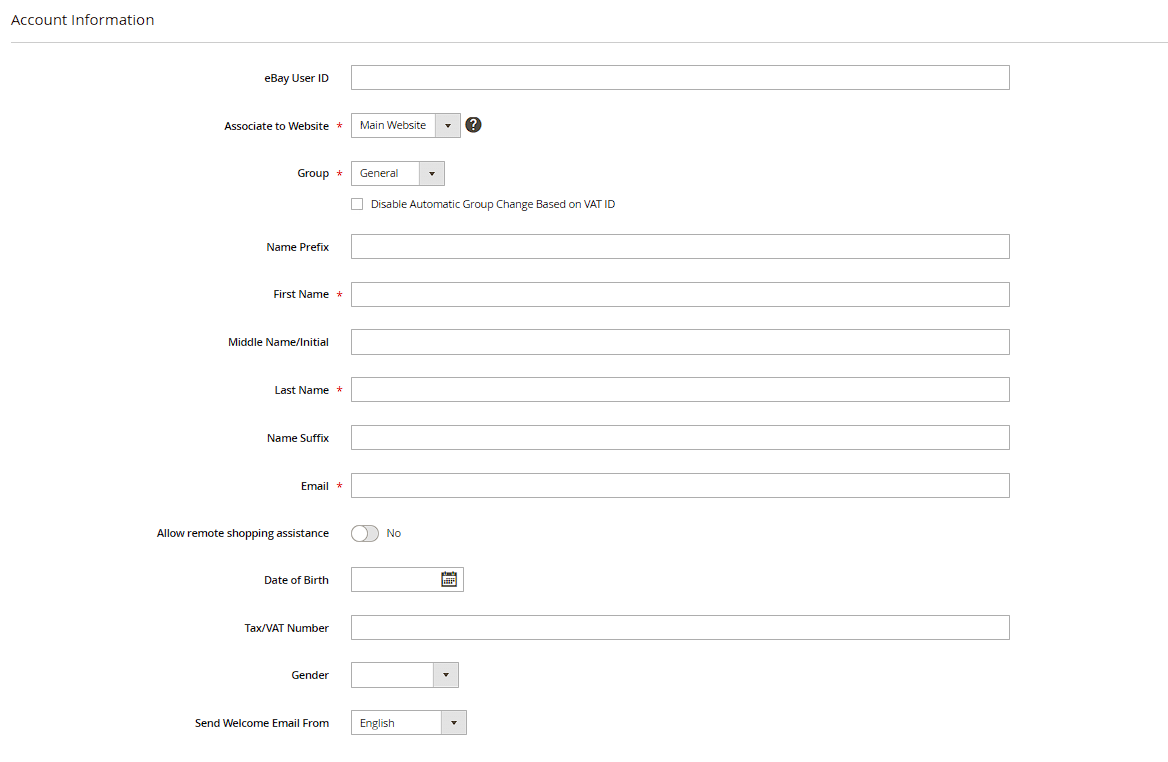
- Account Information: the edit mode for name, email, customer group and tax/VAT ID.
- Orders: every order from this customer at a glance.
- Addresses: saved shipping and billing addresses, including the default address.
- Product Reviews, Wish List, Newsletter: further customer activity.
- Product in Cart and Wish List: products currently sitting in the cart or saved – helpful for cart-abandonment follow-up.
Creating an account on the customer's behalf
Use Add New Customer to create an account yourself, e.g. for a customer who ordered by phone or email. The password field can be left empty – Magento then automatically sends the customer an email to set their password.
Blocking an account
Magento doesn't ship a simple "block" toggle for individual customer accounts by default. In practice there are two workable approaches: assign the account to a dedicated, restrictive customer group (see the next chapter), or use a small extension/custom development that technically implements a login ban. Simply deleting the account is also possible, but irrevocably removes its link to existing orders in the customer area (the orders themselves remain as guest history).
Bulk actions in the customer grid
In the table under Customers > All Customers you can select multiple customers via checkbox and edit them together using the Actions dropdown: Assign a Customer Group (change the group for all selected accounts at once), Subscribe/Unsubscribe (set newsletter status) and Delete Customers. The Export button at the top right lets you download the (filtered) table as CSV or XML.
Logging in as a customer
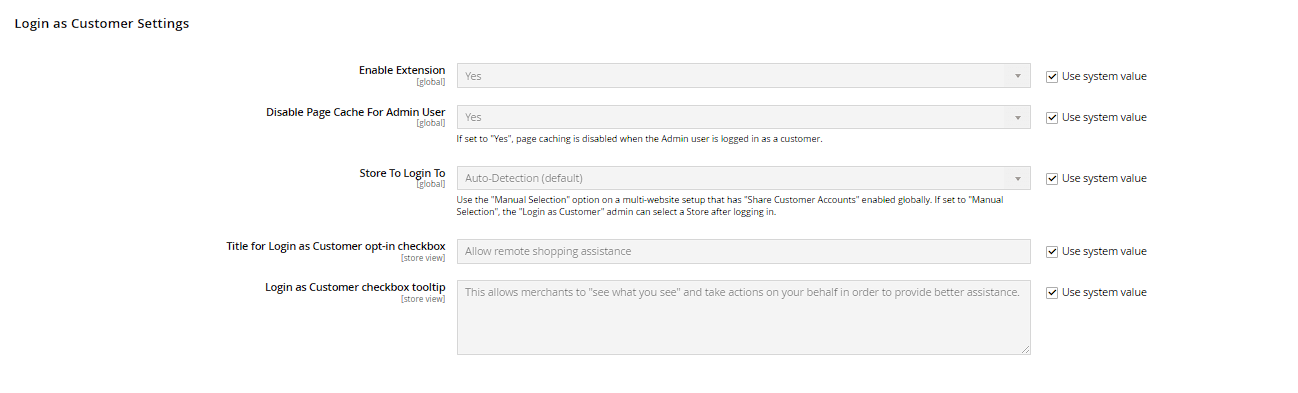
For support cases, Magento includes the Login as Customer feature. Enable it under Stores > Configuration > Customers > Login as Customer (set Enable Login as Customer to Yes). Once active, a button appears on a customer's detail page that lets you, as an administrator, log into the storefront directly as that customer – handy for reproducing a reported checkout issue exactly from the customer's perspective, without knowing their password.
Resetting passwords and security options
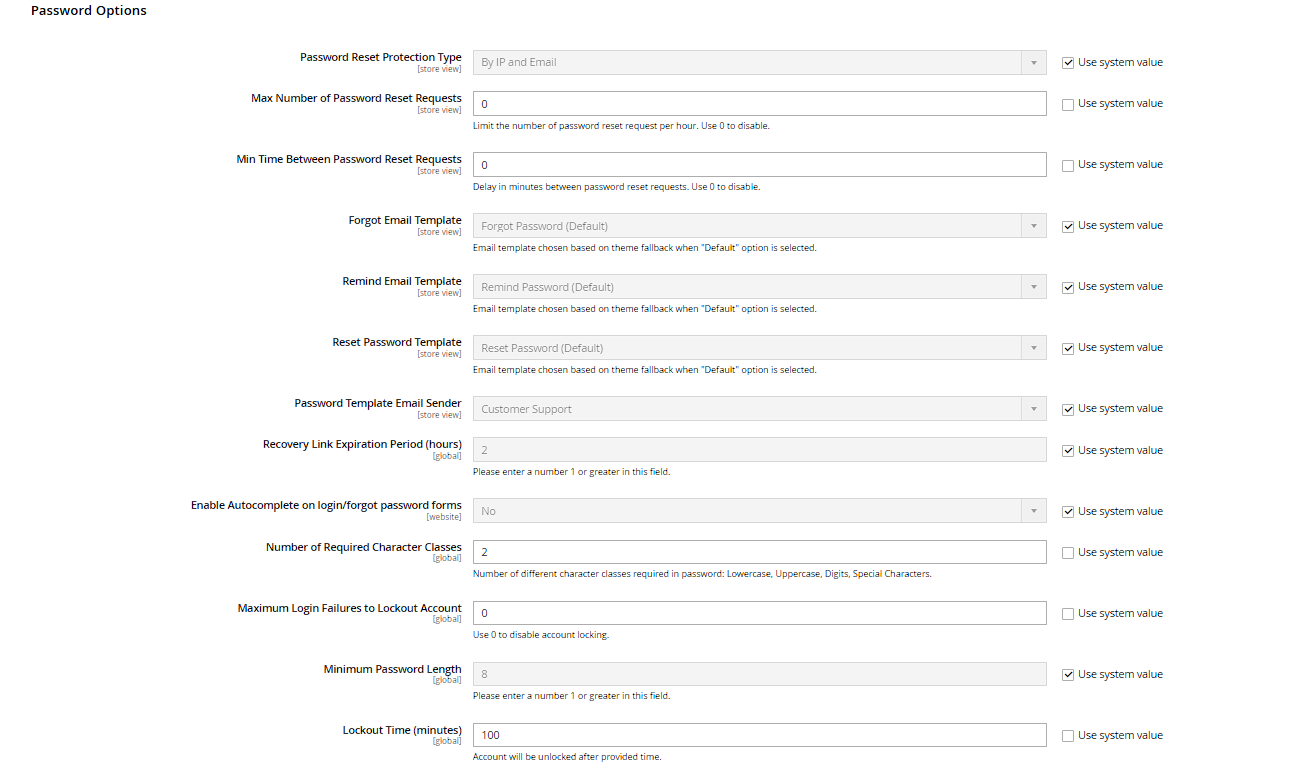
The customer detail page offers a Reset Password button at the top right – the customer then receives an email with a link to set a new password. The surrounding rules are configured under Stores > Configuration > Customers > Customer Configuration, section Password Options: among others Forgot Email Template (the email template used), Password Reset Protection Type, plus Max Number of Password Reset Requests and Min Time Between Password Reset Requests to protect the forgot-password function from abuse.
Seeing who's online right now
Under Customers > Now Online Magento shows a list of currently active visitors and logged-in customers, including IP address and the last page visited. Practical tip: this list is useful during a live support call to quickly check whether the calling customer is actually logged into the shop right now and which page they're on.