How to plan your category tree, create new categories, and assign products to them.
You'll find categories under Catalog > Categories as a tree structure on the left. To create a new one, first select the desired parent category in the tree, then click Add Subcategory (or Add Root Category for a brand new top level, e.g. for a multi-website setup).
General information
- Category Name and an auto-generated URL Key (also editable manually under Search Engine Optimization).
- Enable Category and Include in Menu – the latter controls whether the category shows up in the main navigation; setting it to FALSE effectively "hides" a category while keeping it reachable via a direct link.
- Description: a WYSIWYG text field, displayed above the product list depending on the display mode.
- Image: an optional category image, e.g. for banner-style display in the theme.
Display mode
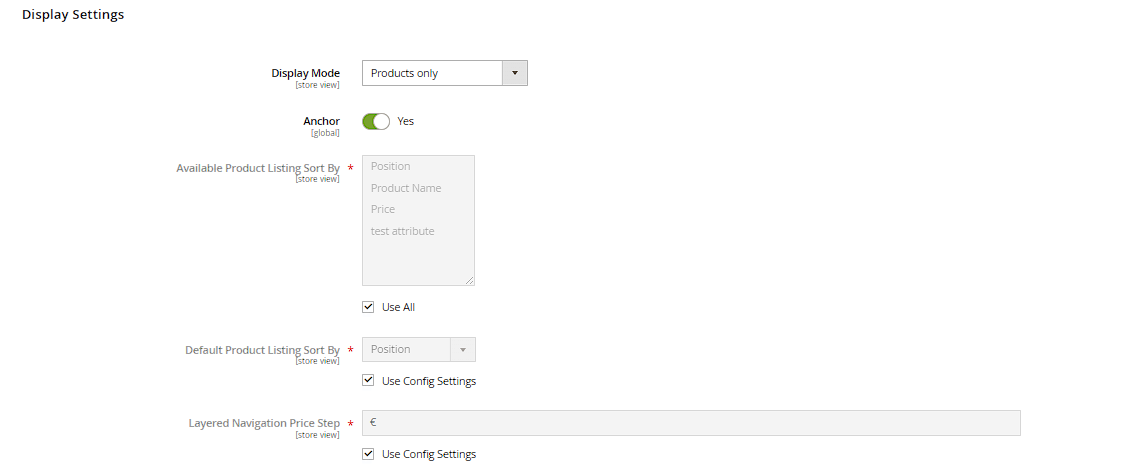
Controls what shows on the category page: Products shows only the assigned products, Static Block Only only a fixed CMS block (e.g. for a pure landing/topic page with no product list), Static Block and Products shows both stacked.
Assigning products
On the Products in Category tab, you assign products to the category via search and checkboxes. The Position column sets the order products appear in by default (customers can override this via frontend sort options like "Price: low to high").
Design tab
Under the Design tab you can pick a different page layout per category (e.g. "Category — Full Width" with no sidebar), and, with appropriately configured extensions, select a specific layout template.
Planning the category tree
A well-planned category structure (not too deep, not too flat – in practice usually 2-3 levels) is one of the most important levers for navigation and SEO across the whole store. Every category is potentially its own indexable landing page for a keyword cluster – so ideally plan the structure before creating a large number of products, rather than restructuring it later at significant effort.
Anchor categories and layered navigation
Under Display Settings, the Is Anchor field controls whether a category page also shows all products from its subcategories and pools them together in the layered navigation filters, instead of listing only the products assigned directly. For parent categories (e.g. "Women's Clothing" with subcategories "Pants", "Jackets"), "Yes" is almost always the right setting so filters like size or color work across the whole product group.
Category SEO fine-tuning
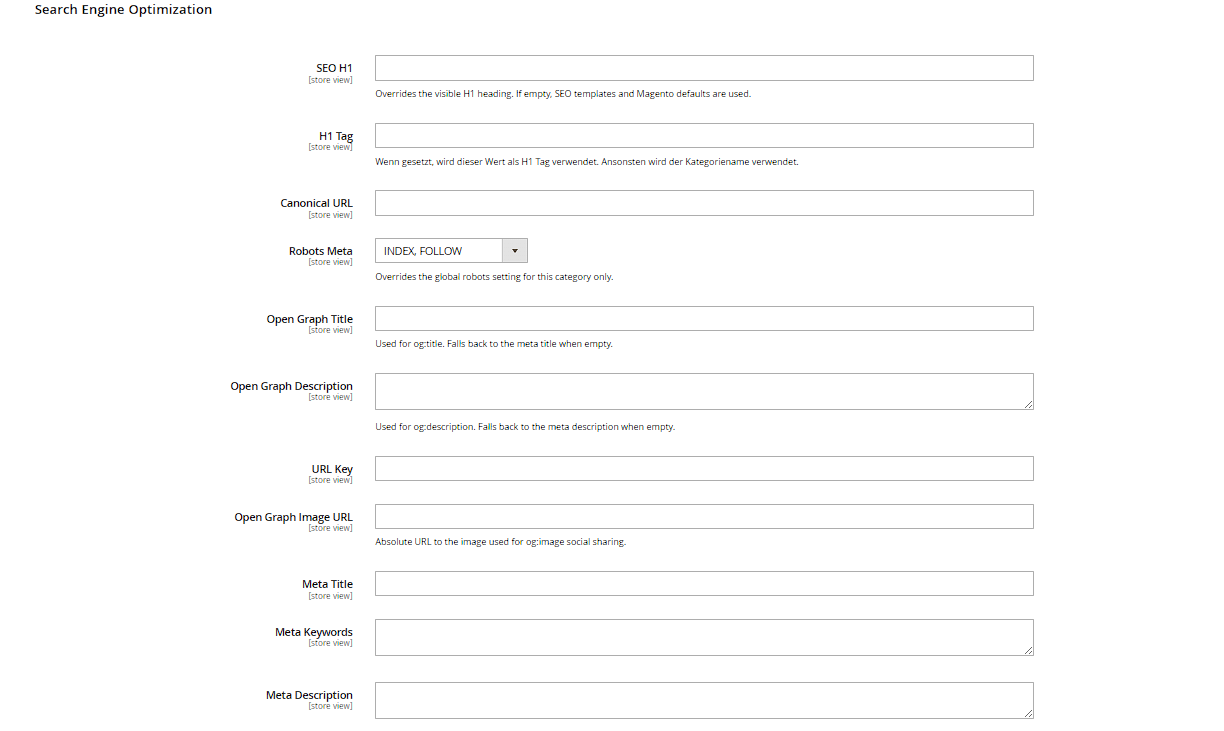
On the Search Engine Optimization tab, besides the URL key you also maintain Meta Title, Meta Keywords and Meta Description specific to this category page.
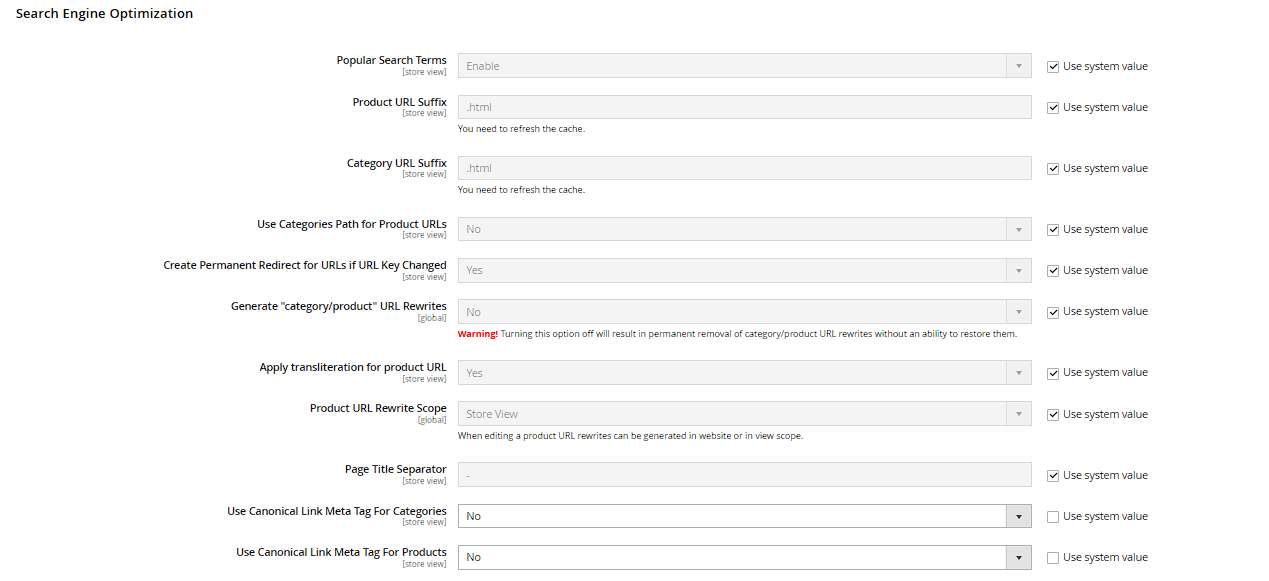
 The suffix appended to every category URL (e.g. ".html") is set globally under Stores > Configuration > Catalog > Catalog > Search Engine Optimization > Category URL Suffix and then applies to all categories alike.
Moving categories and URL redirects
Categories can be dragged to a different position or under a different parent in the tree. Since this can change the category's URL, the option Stores > Configuration > Catalog > Catalog > Search Engine Optimization > Create Permanent Redirect for URLs if URL Key Changed should be enabled – only then does Magento automatically create a 301 redirect from the old to the new URL, instead of visitors and search engines hitting a 404 error.
