How product attributes work, how to create new attributes, and how to group them into attribute sets.
Attributes are individual properties of a product – color, material, weight, but technically even name, price and description are attributes too. Create your own new attributes under Stores > Attributes > Product > Add New Attribute.
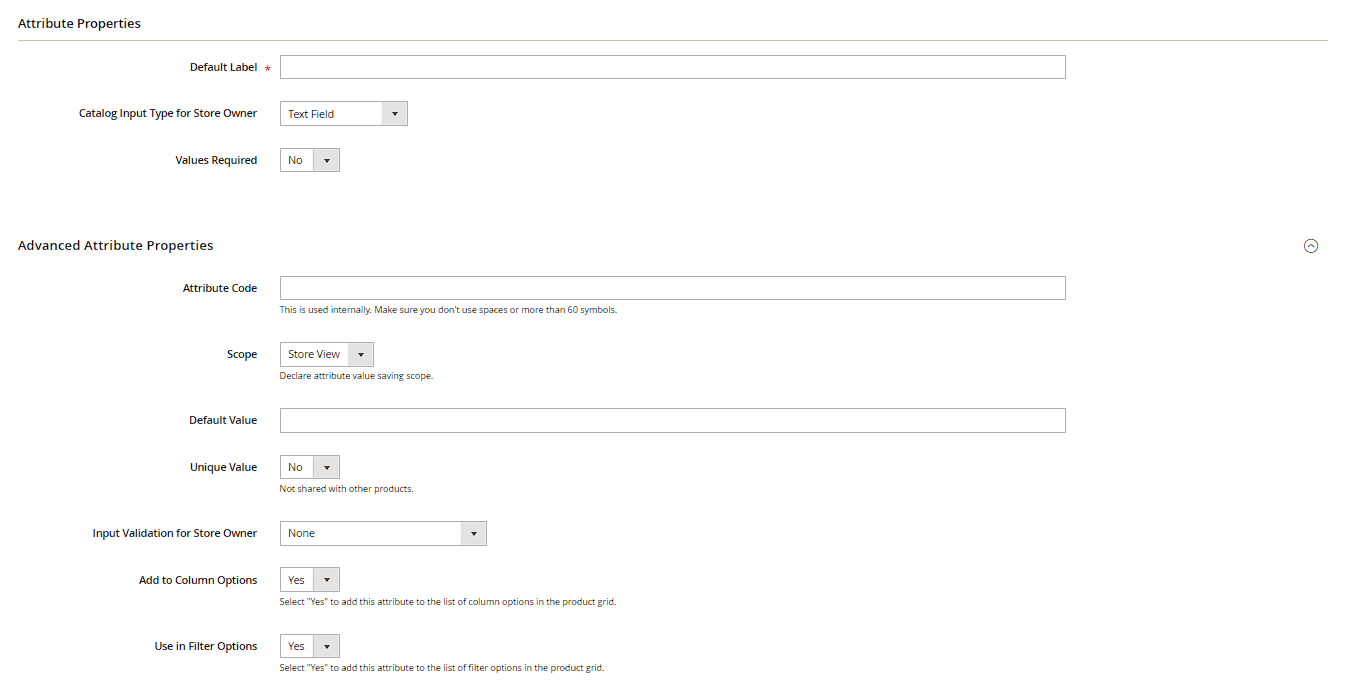
Important settings when creating one
- Default Label and Attribute Code: the internal, technical identifier (attribute code) can no longer be changed once saved for the first time – worth a moment's thought beforehand.
- Catalog Input Type for Store Owner: text field, text area, dropdown, multiple select, yes/no, date, price, image, and more – determines what the field looks like on the product form.
- Values Required: whether the attribute must be filled in when a product is saved.
- Scope: Global (identical everywhere), Website, or Store View (maintainable differently per language – essential for translated names, descriptions and URL keys on multilingual stores).
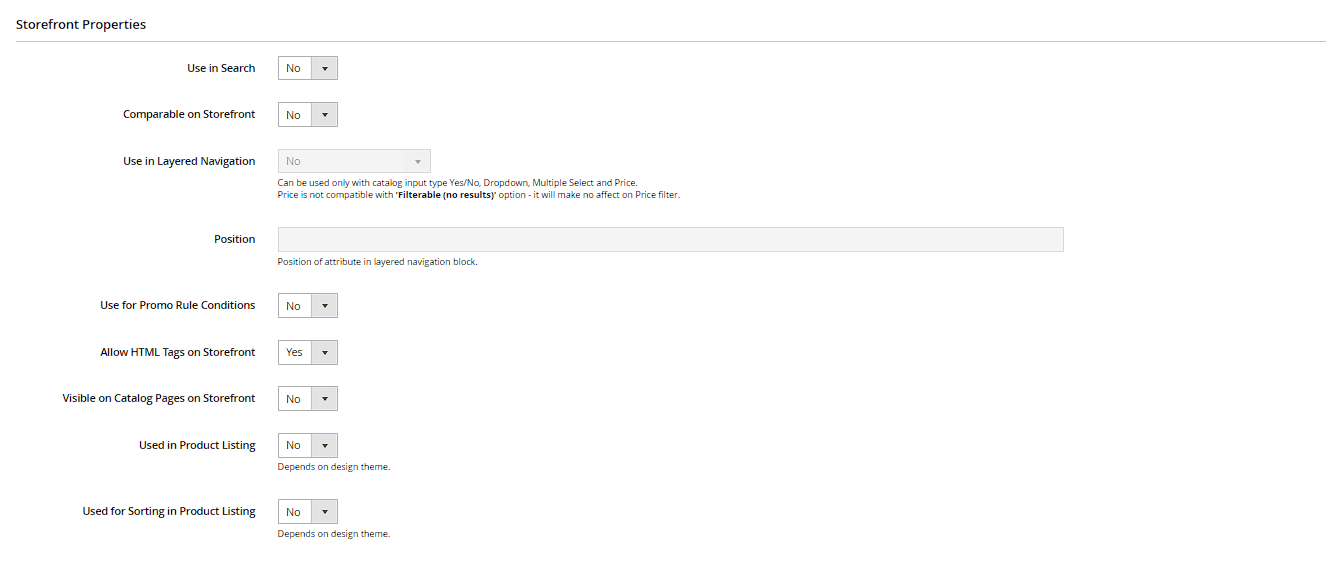
Storefront properties
The second tab of the attribute form controls its visibility in the store:
- Use in Search: whether the value is searched by the internal search.
- Visible on Catalog Pages on Storefront: whether the attribute is shown as a spec on the product page.
- Use in Layered Navigation: whether customers can filter by this attribute in the store (e.g. color as a filter in the category view) – also requires the corresponding search index to be rebuilt.
- Comparable on Storefront: whether the attribute appears in the product compare list.
Attribute sets
Attribute sets (Stores > Attribute Set) group several attributes into a reusable bundle – e.g. an "Apparel" set with size and material, an "Electronics" set with voltage and weight. Within a set, attributes can be dragged into named groups (e.g. "General", "Prices", "Images"), which keeps the product form easier to fill in later. When creating a new product you first pick the matching attribute set, and exactly the relevant fields become available – no more, no less.
Practical tip: don't build new attribute sets entirely from scratch – use Add New Set with an existing set as the Based On template instead, saving time for similar product categories.

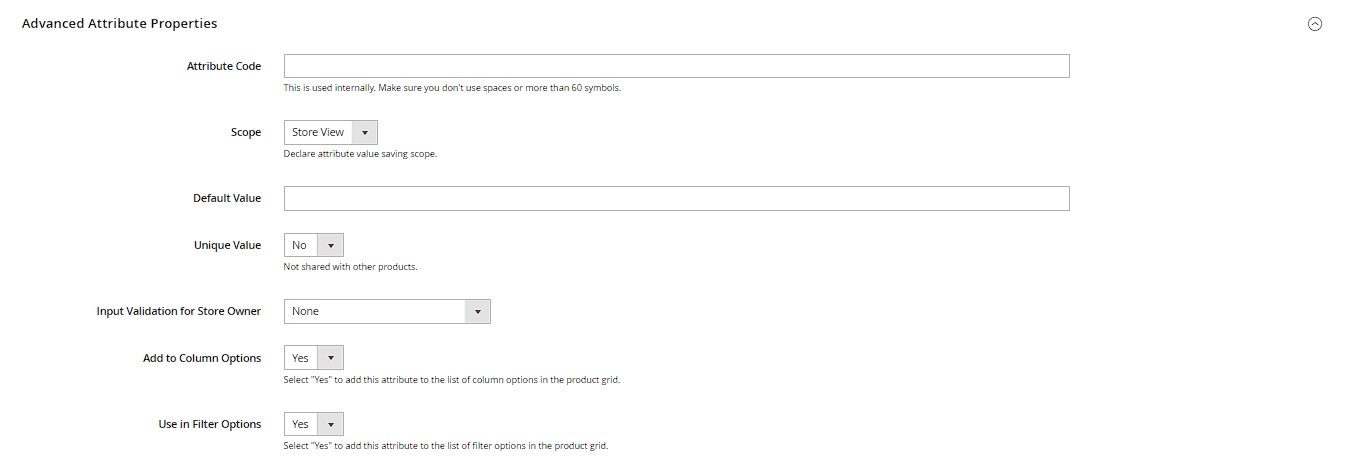
Advanced attribute properties
The Advanced Attribute Properties section holds further important fields: Unique Value prevents the same value from being used on more than one product (e.g. useful for an EAN/GTIN number). Input Validation for Store Owner enforces a specific format on text attributes (e.g. decimal numbers only, or a valid email address). Apply To restricts an attribute to specific product types instead of offering it on all types by default. For multi-line text fields, Enable WYSIWYG Editor also appears, showing a formatted rich text editor instead of a plain text field on the product form.
Maintaining dropdown values and store-view labels
For the "Dropdown" and "Multiple Select" input types, a Manage Options section opens up: use Add Option to create individual values, a drag handle to set their order, and the Is Default checkbox to define a pre-selected value. Important for multilingual stores: besides the admin label, every option has its own column per store view – so the value "Rot" can be stored as "Red" for the English store view without touching the technical attribute value itself.
Search weight and position in the filter bar
When Use in Search is enabled, a Search Weight field also appears (scale 1–10): the higher the value, the more a match in this attribute counts toward relevance ranking in internal search (Elasticsearch/OpenSearch) – useful for weighting matches in the product name higher than matches in a long-text attribute, for example. Independently, the Position field determines where the attribute appears in the layered navigation filter bar relative to other filters.
Attribute sets: managing groups
Within an attribute set, use Add New to create your own groups (e.g. "Technical Data"), rename them via double-click, and fill them with attributes via drag and drop. Attributes that belong to the set but aren't assigned to a group yet sit in the Unassigned Attributes area at the bottom. Deleting a group doesn't lose its attributes – they automatically move back into that unassigned area.