How to create and maintain individual tax rates, and import them via CSV – from a flat German 19% rate to country-specific ZIP code ranges.
Under Stores > Taxes > Tax Zones and Rates you maintain the actual percentages a tax rule applies later on – independent of product and customer classes.
Creating a new tax rate
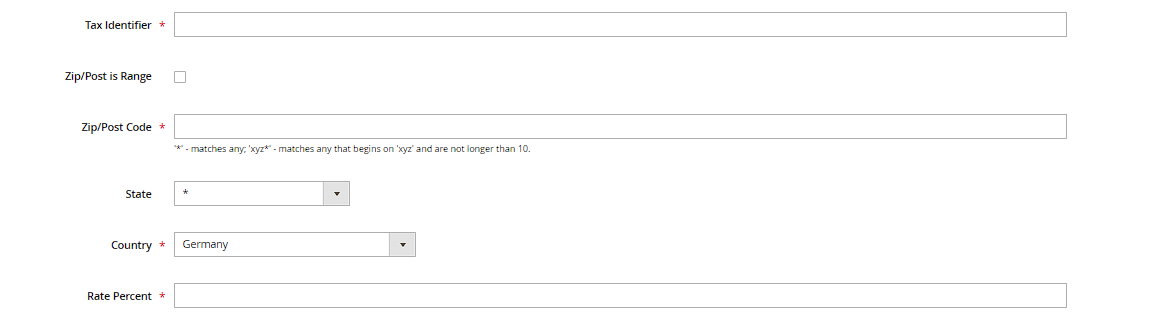
The Add New Tax Rate button opens a form with the fields Tax Identifier (an internal name, e.g. "DE-19"), Country, an optional State (for countries with states, like the US), Zip/Post Code (an asterisk * acts as a wildcard for "all"), and Rate Percent. For Germany, one rate with country "Germany", ZIP * and rate 19.0000 is usually enough – add a second one the same way for the reduced 7.0000 rate.
ZIP ranges for regional differences
For countries with regionally different tax rates (US states, and in some cases Canada), the ZIP/post code field supports ranges (Range From/Range To) instead of a single value – enable this via the Zip/Post is Range checkbox right in the form.
Editing an existing rate
Clicking a row in the tax rate grid opens the same form in edit mode. Important: changing a rate that's already been used in orders only affects future calculations – completed orders keep the amount that was valid at the time of the order, Magento never recalculates retroactively.
Import/export via CSV
The Import Tax Rates/Export Tax Rates buttons at the top of the same page let you maintain many rates at once – useful if you ship to multiple US states and don't want to create every single rate by hand. The CSV columns map exactly to the form fields; exporting a template before your first import saves you formatting mistakes.