How to set up a second store view for another language and translate your content.
After creating a new store view (see the previous chapter), these steps are needed for a working translation:
- Install the language pack: language packs are installed via Composer (e.g.
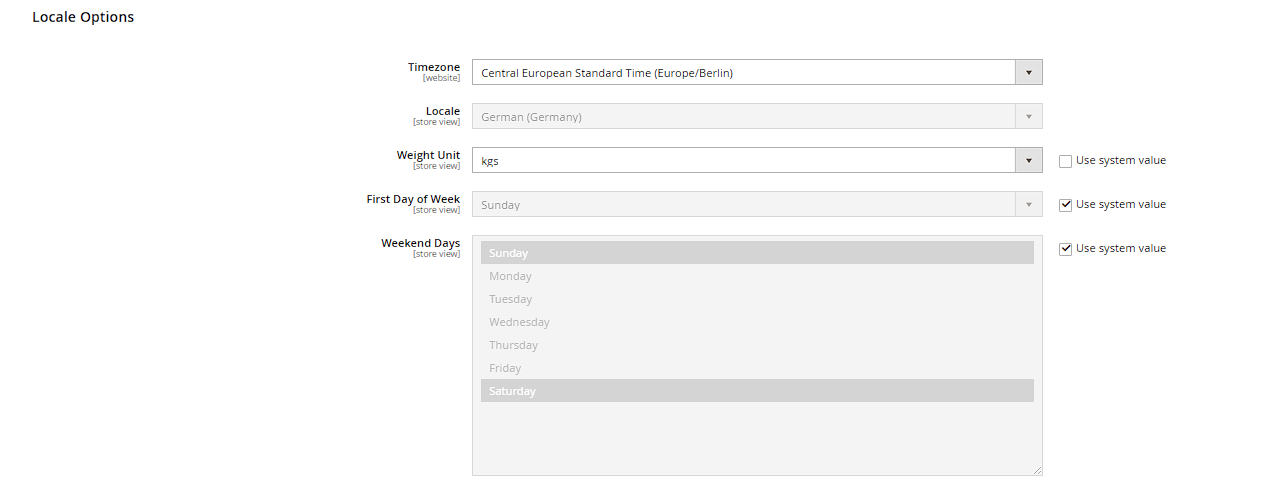
en_USis usually pre-installed). Under Stores > Configuration > General > General > Locale Options, select the right language within that store view's scope. - Translate store-scoped attributes: product and category fields like name, description, and URL key can be maintained separately per language when their attribute scope is "Store View" – open them in the store view scope and translate (see the "Attributes and Attribute Sets" chapter).
- Translate CMS content: CMS pages and blocks are also store-scoped – maintain a separate version of the content for each language (switch the scope in the top left).
- Theme translations: fixed theme text (buttons, labels, system messages) is adjusted via CSV translation files in the theme, or via Content > Design > Themes > Translate Inline – the latter overlays clickable translation fields directly on top of the visible text on the storefront.
URL keys per language
Important: the URL key should be different per language and phrased in that language (e.g. /products/shoes.html vs. /produkte/schuhe.html) – this significantly improves both user experience and SEO performance in that language, since search engines struggle to rank foreign-language URL segments as well.
The storefront store switcher
The language switch on the storefront runs through Magento's built-in store switcher: clicking a different language in the header resolves the matching, translated URL of the same page (for products and categories, automatically via the stored per-store-view URL keys) and sets a language cookie that keeps the visitor in the chosen language on future visits.
Theme translation files (i18n CSV) in detail
Fixed theme text strings are stored in CSV files under app/design/frontend/[Vendor]/[Theme]/i18n/[locale].csv, e.g. de_DE.csv. Each line has two columns: the exact original string from the PHTML/JS code (capitalization and punctuation must match exactly) and its translation, both quoted. After creating or editing a CSV file, a static content deploy and a cache flush are required before the translation shows up on the storefront – simply reloading the page is not enough.
Enabling inline translation
For the "Translate Inline" feature mentioned in step 4 to work at all, it first has to be enabled under Stores > Configuration > Advanced > Developer > Translate Inline, separately for Enabled for Frontend and Enabled for Admin. Practical tip: Translate Inline only works in default or developer mode – in production mode the feature stays inactive even with the configuration enabled, which often causes confusion when a live shop runs in production mode.
Adjusting email templates per language
Transactional emails (order confirmation, invoice, password reset) use the system template in the respective store view's language by default. For custom content, go to Marketing > Communications > Email Templates, use "Load default template" to create a copy of the desired default template, edit it and save it under a new name. The new template then has to be assigned as the template to use in the relevant store-view-scoped configuration section (e.g. Stores > Configuration > Sales > Sales Emails for order emails) – without that assignment the new template stays inactive.