Analyze revenue, orders and taxes by time period – and how to keep the reports up to date.
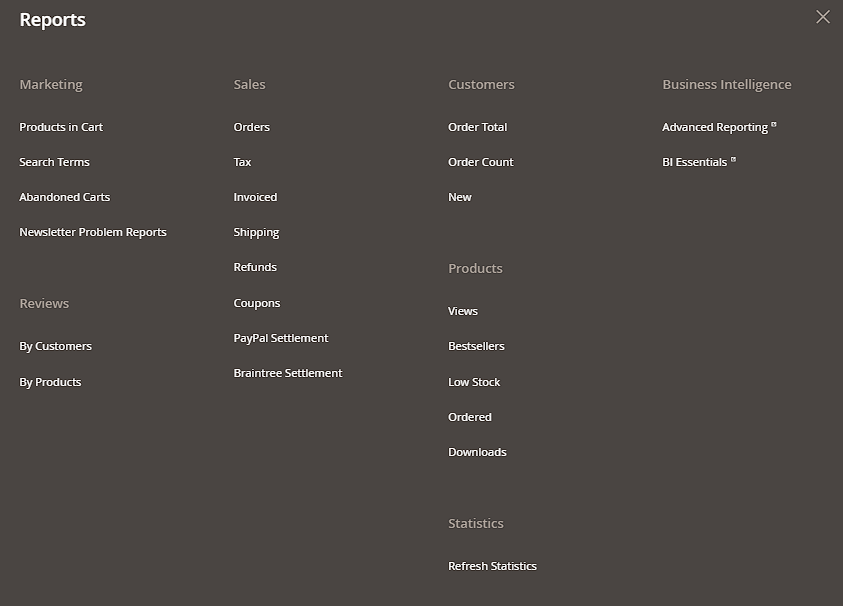
You'll find sales reports under Reports > Sales. The most important sub-reports:
- Orders: order count and value over a selectable time period.
- Tax: collected tax amounts by tax class/rate, useful for accounting and VAT filings.
- Invoiced / Shipped / Refunded: invoiced, shipped and refunded amounts viewed separately – helpful for distinguishing revenue (Invoiced) from actually delivered goods (Shipped).
- Coupons: which coupon codes were redeemed how often and how much revenue they generated – the most direct success metric for a price rule campaign (see the "Cart Price Rules" chapter).
Time period and display
At the top of each report, choose the Period (day, week, month, year) and the specific from/to range, then click Show Report. Results can be shown as both a table and a chart, and downloaded via the Export button as CSV or Excel, e.g. for further processing elsewhere.
Keeping statistics current
Some reports are based on pre-calculated statistics tables that need to be refreshed periodically – if so, check the "Refresh Statistics" notice at the top of the report and click Refresh Statistics for the Last Day if needed, so the numbers are actually up to date. In production, a cron job usually handles this refresh automatically in the background.
Restricting by store view
Every sales report offers a Store View field at the top that lets you limit the evaluation to a single website, store, or specific store view, instead of always seeing every sales channel combined. If you run several shops or language versions on the same Magento installation, this lets you, for example, evaluate revenue for the German store separately from the English one.
Settlement reports for PayPal and Braintree
If you use PayPal Payments Standard/Advanced or Braintree as a payment method, additional reports are available under Reports > Sales > PayPal Settlement Reports and Braintree Settlement Reports respectively. Here you can import the settlement files provided by the payment provider to reconcile transactions, fees and payouts against your own order data – useful for bookkeeping when payment provider fees aren't automatically captured in Magento.
Live data vs. pre-calculated statistics
Not every sales report needs a refresh: Orders, Tax, Invoiced, Shipping, Refunds and Coupons query order data directly and in real time, so they're always current. The "Refresh Statistics" notice usually applies to other, aggregated reports instead (e.g. bestsellers in the product reports). Practical tip: if a sales report looks "empty" or incomplete, it's usually not missing statistics but the selected time period or store view filter.