Customizing Header and Footer
Customize logo, contact details and links in the header and footer from the backend, without writing code.
Some header/footer content can be adjusted directly in the backend, no developer access required:
- Logo: under Content > Design > Configuration, on the Header tab, upload a new logo and set its alt text and width/height.
- Copyright text in the footer: also via Content > Design > Configuration, on the Footer tab.
- Footer links and contact info: in many Hyvä themes (including this one) implemented as CMS blocks (see the "Using CMS Blocks" chapter) — editable directly in the backend, no deployment required.
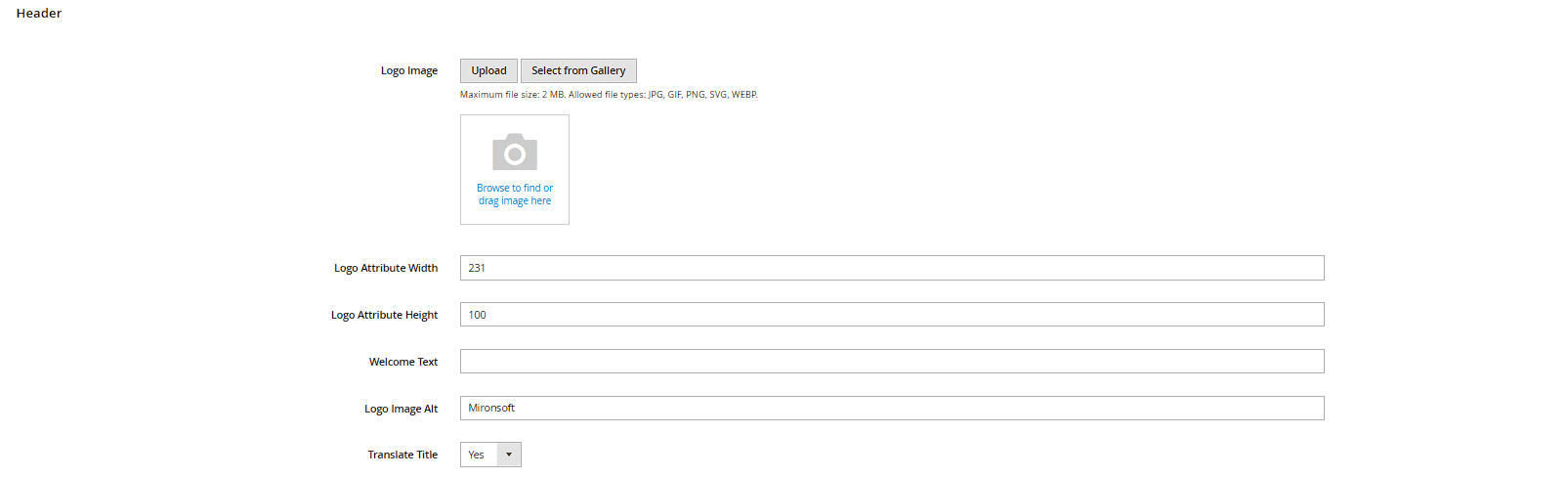

Structural changes (e.g. new columns in the footer, a completely new header layout), on the other hand, require changes to the theme code itself and therefore a deploy — these aren't possible from the backend alone. But for anything that's plain text, an image, or a simple link, it's always worth checking first whether it's already editable as a CMS block or configuration field in the backend.
Contact Details from Store Information
Many Hyvä footer and header templates don't pull from a CMS block but read directly from the store's core data under Stores > Configuration > General > General, section Store Information — this is where you set the Store Name, Store Phone Number, Country and VAT Number. These fields are frequently used for schema.org markup (e.g. Organization or LocalBusiness data) and for phone number links in the header.
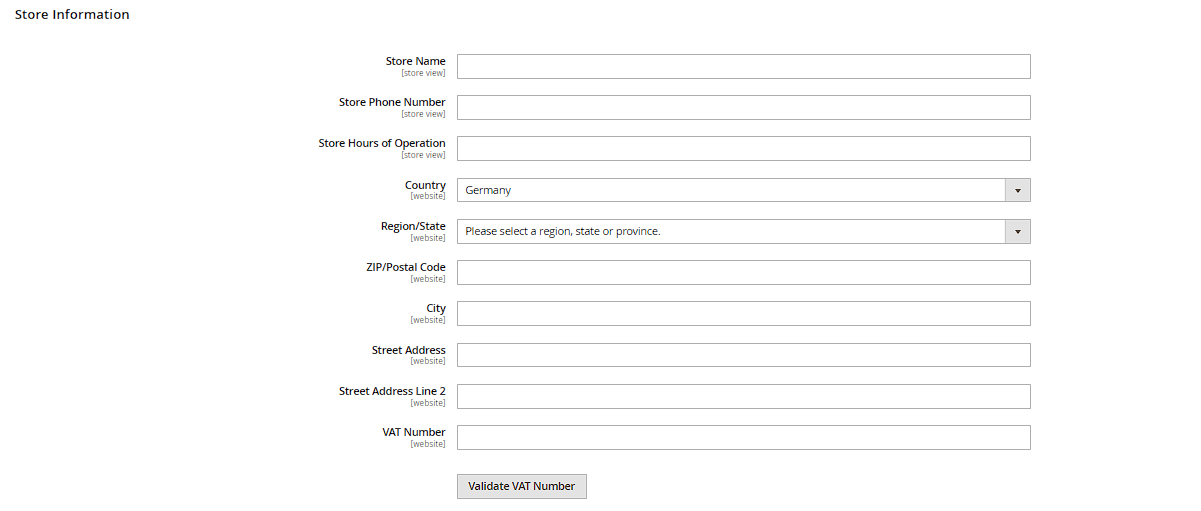
Practical tip: If the phone number or address changes, it's worth checking not only Store Information but also the theme code or related CMS blocks, since some Hyvä themes hard-code these values in the footer template instead of pulling them from configuration.
Store-View-Specific Adjustments (Scope)
Logo, copyright text and many other design configuration fields can be set per scope: the store view switcher in the upper left of the respective configuration form lets you choose between Default Config, an individual website, or an individual store view. A value set at store view level overrides the website or default value above it only for that one store view — useful, for example, if a shop variant in a different language needs its own logo or footer text.
Practical tip: A green checkmark next to a field indicates that a specific value has already been set for the current scope (not inherited) — clicking Use Default Value removes that override so the field falls back to the value from the parent scope again.
Finding and Editing CMS Blocks for Footer and Header
To find out which CMS block is responsible for a specific footer or header area, go to Content > Elements > Blocks and use the search by title or Block ID (identifier), for example searching for "footer" or "header". In the grid view, the Status column also shows whether a block is currently active (Enable Block = Yes) — a disabled block simply isn't rendered on the storefront, even if the template still references it.
Practical tip: Not every visible footer or header area is necessarily a CMS block — some content is hard-coded in the .phtml template. If an area doesn't show up in the blocks overview, a code change by the development team is needed to make it backend-editable at all.